Product Hunt Awards Export
Use TexAu’s Product Hunt Awards Export automation to extract award data from Product Hunt product pages. Export results to Google Sheets or CSV.
Last updated
The **Product Hunt Awards Export** automation in TexAu helps founders, product researchers, and marketers extract detailed award information from Product Hunt. Whether you're tracking the most loved tools, identifying trends, or monitoring award-winning products for outreach—this tool makes the proc
The Product Hunt Awards Export automation in TexAu helps founders, product researchers, and marketers extract detailed award information from Product Hunt. Whether you're tracking the most loved tools, identifying trends, or monitoring award-winning products for outreach—this tool makes the process quick, accurate, and fully automated. TexAu lets you export the data to Google Sheets or CSV and run automations either in the cloud or from your desktop.
Follow this step-by-step guide to configure and run the Product Hunt Awards Export automation.
Step 1: Log in to TexAu and Find the Automation
TexAu provides a user-friendly dashboard that lets you search and launch automations with ease. You can access hundreds of workflows without technical knowledge.
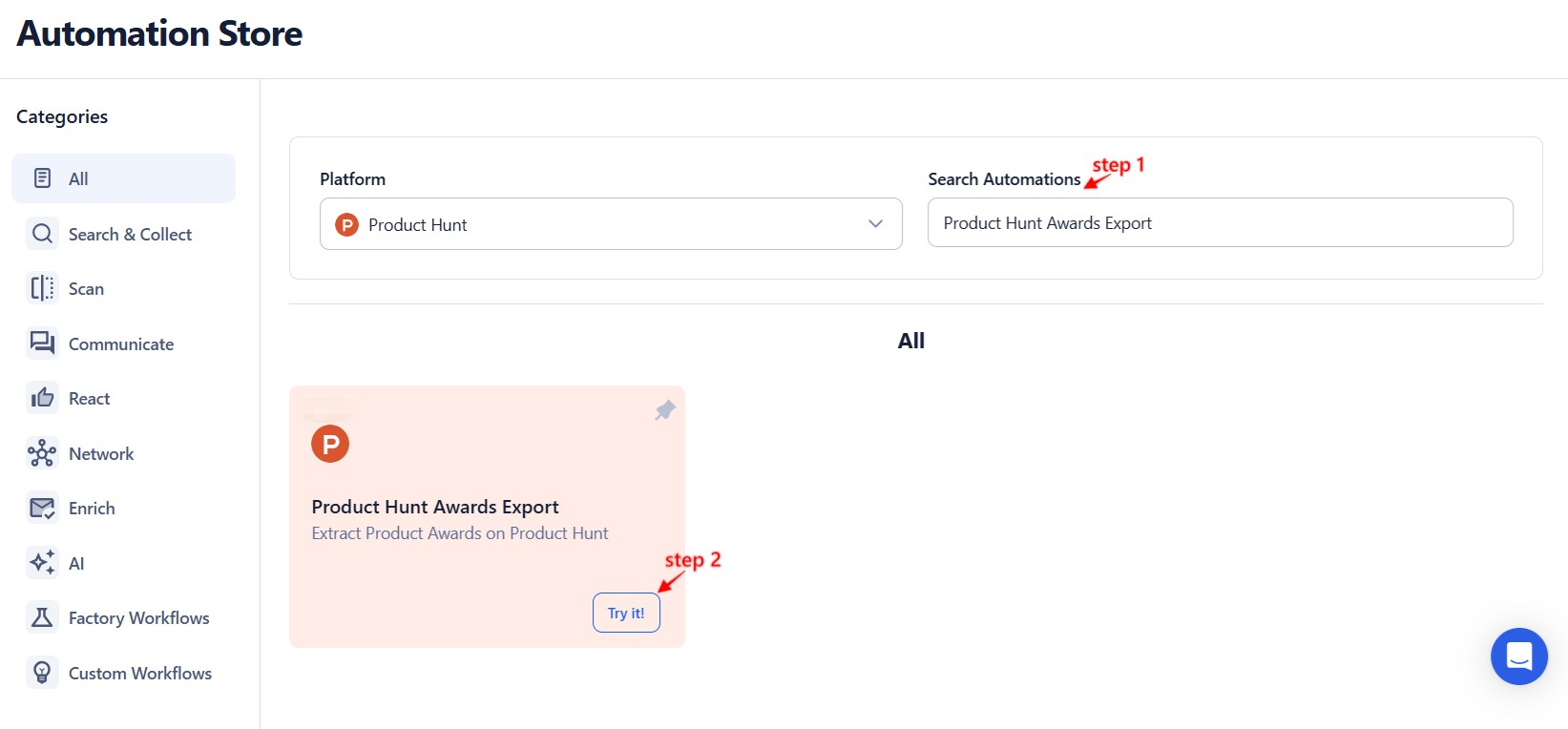
Log in to your account at the TexAu V2 Desktop app. Once logged in, head to the Automation Store, search for Product Hunt Awards Export, and click on it to open the configuration screen.
Step 2: Select Your Input Source
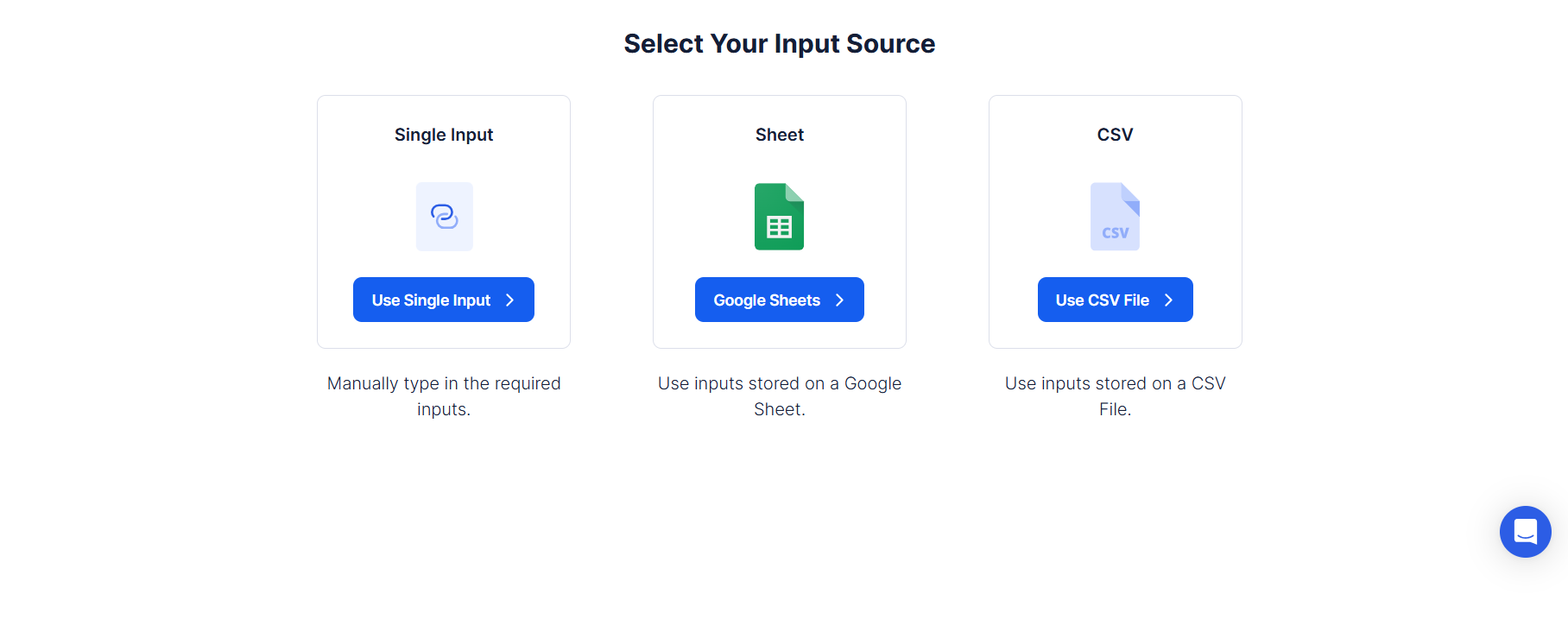
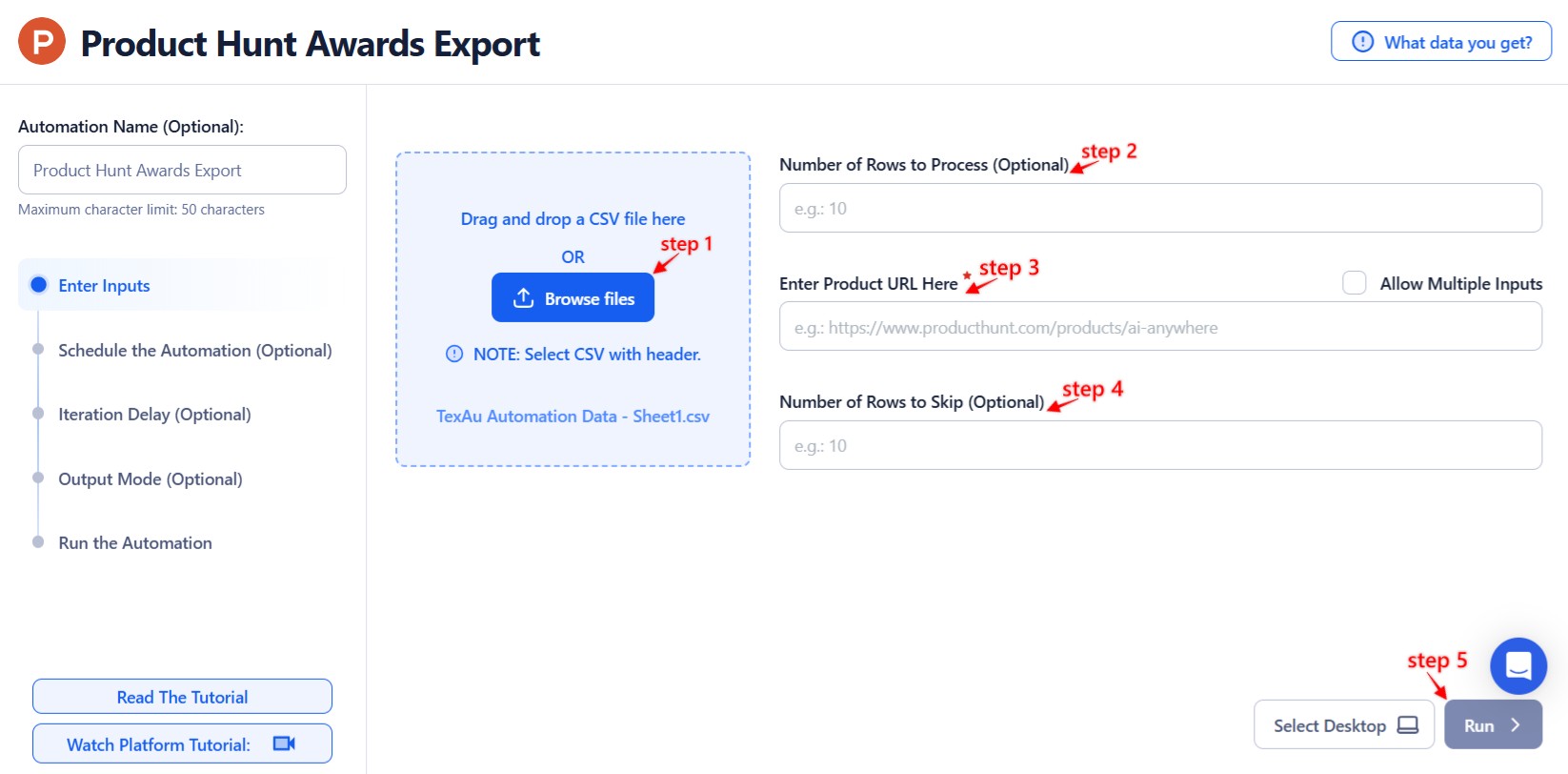
TexAu supports different input formats depending on how much data you want to process. You can start small or work with large batches—TexAu scales with your needs.
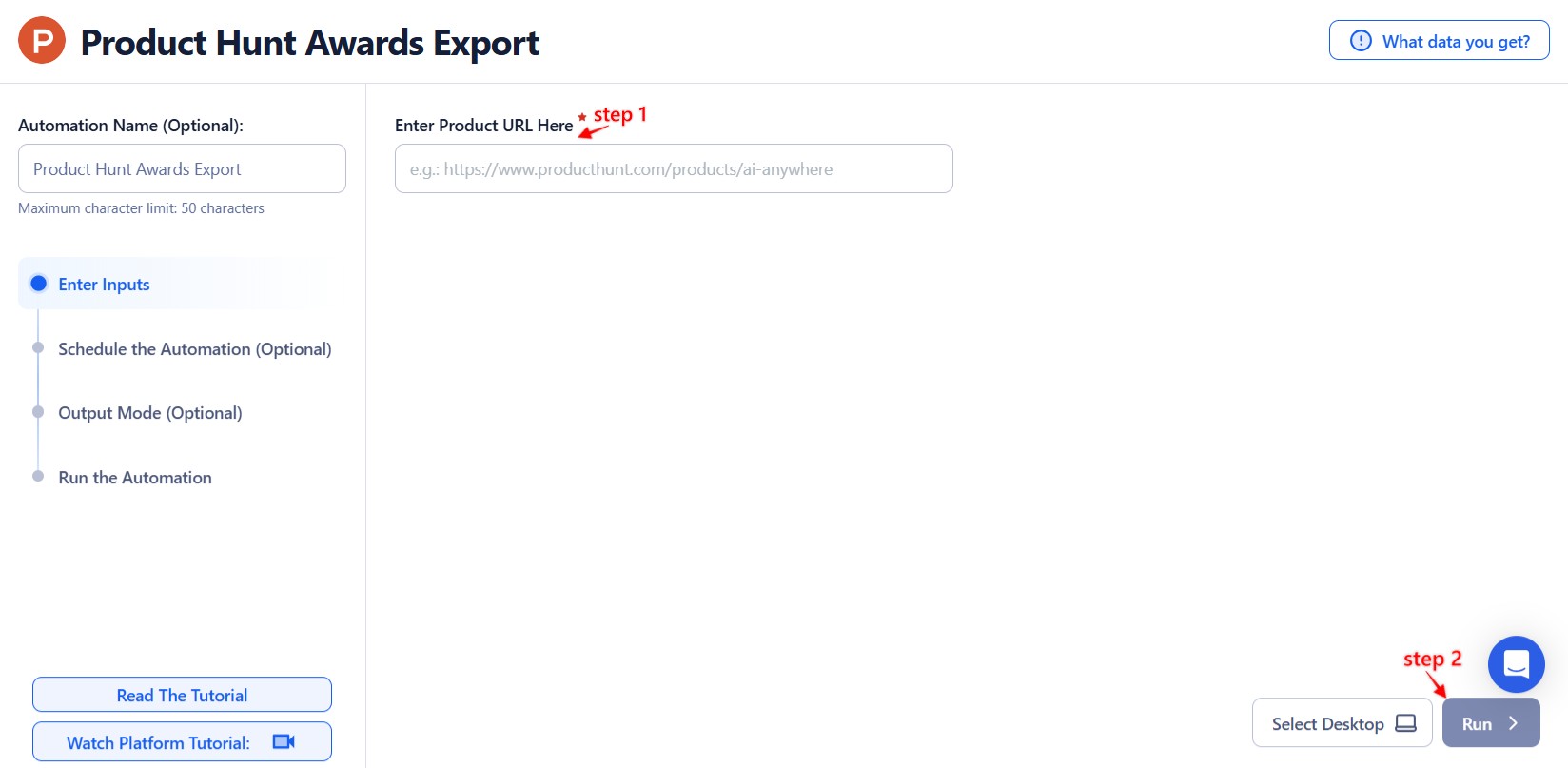
Single Input
Use this when you want to extract award data for one specific Product Hunt product.
Product Hunt URL: Paste the URL of the product page to pull all associated awards and honours.
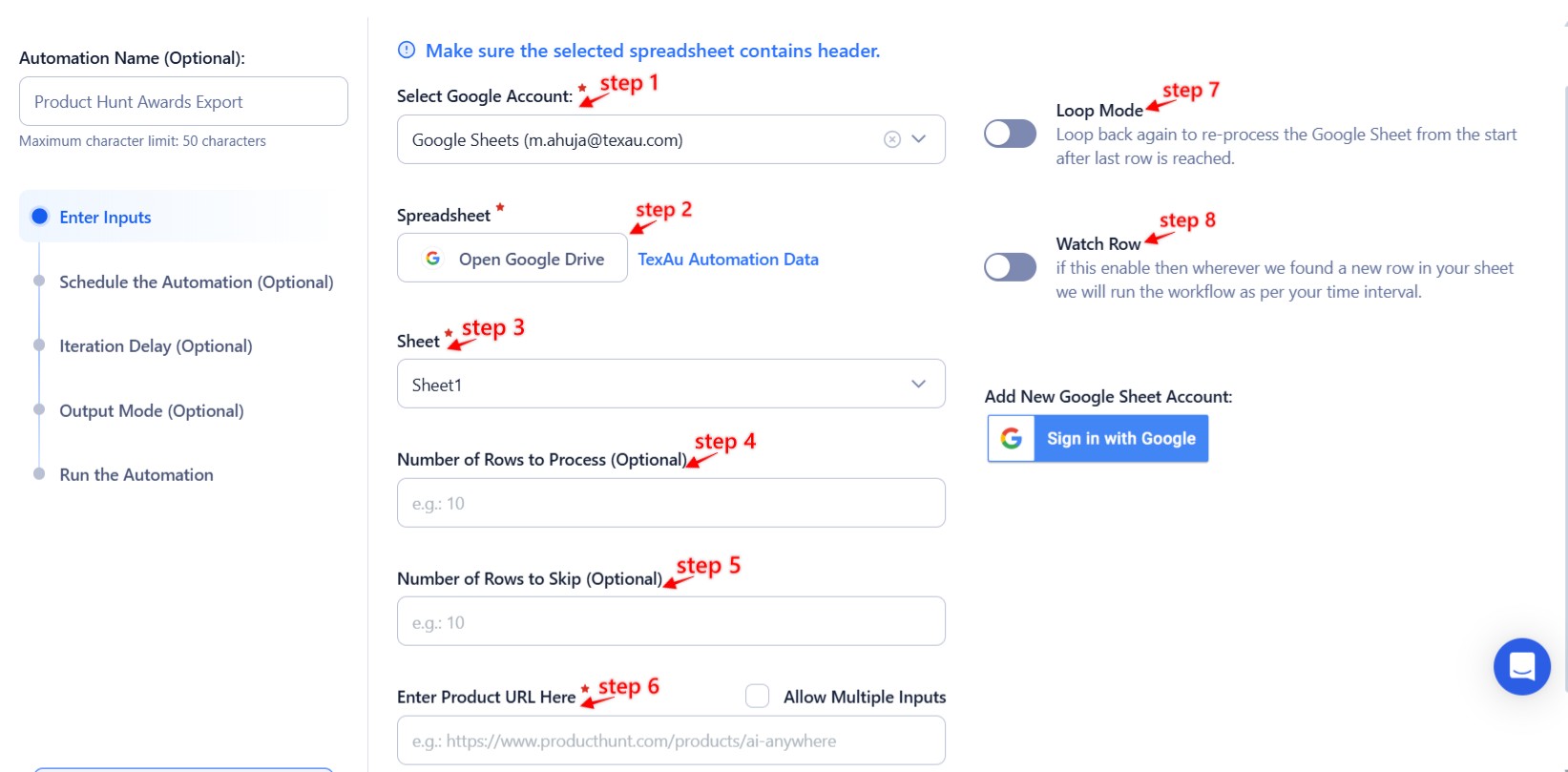
Google Sheets
Perfect for bulk workflows. You can extract award details for multiple products listed in a Google Sheet.
Select Google Account: Link or choose an existing Google account.
Select Your Spreadsheet: Click “Open Google Drive” to choose the spreadsheet and sheet containing your list of Product Hunt URLs.
Processing Options:
- Number of Rows to Process (Optional): Set how many rows to extract.
- Number of Rows to Skip (Optional): Skip any header or previously processed rows.
- Input Column: Make sure your sheet includes a column with valid Product Hunt product URLs.
Loop Mode (Optional)
Enable Loop Mode to reprocess the sheet from the beginning after it completes one cycle.
Watch Row (Optional)
TexAu’s Watch Row feature lets your automation run in response to new Google Sheet entries.
Choose from:
- None
- Scheduling Intervals (e.g., every 15 minutes, every hour)
- One-Time Execution
- Daily Execution
- Weekly Recurrence (e.g., every Tuesday and Friday)
- Monthly Specific Dates (e.g., 14th and 30th)
- Custom Fixed Dates (e.g., December 7)
Process a CSV File
If your product URLs are stored in a CSV file, TexAu makes it easy to upload and process them.
Upload the File: Click "Upload CSV File" and select your file.
Set Rows to Process/Skip as needed.
Step 3: Run it on your machine
TexAu lets you choose how and where your automation runs. If you need speed and simplicity, use Cloud. For more control, run it locally on your machine.
- : Execute the task from your own computer using your IP.
Tip: Running locally uses your own IP and browser session, which is the safest way to automate an account you care about.
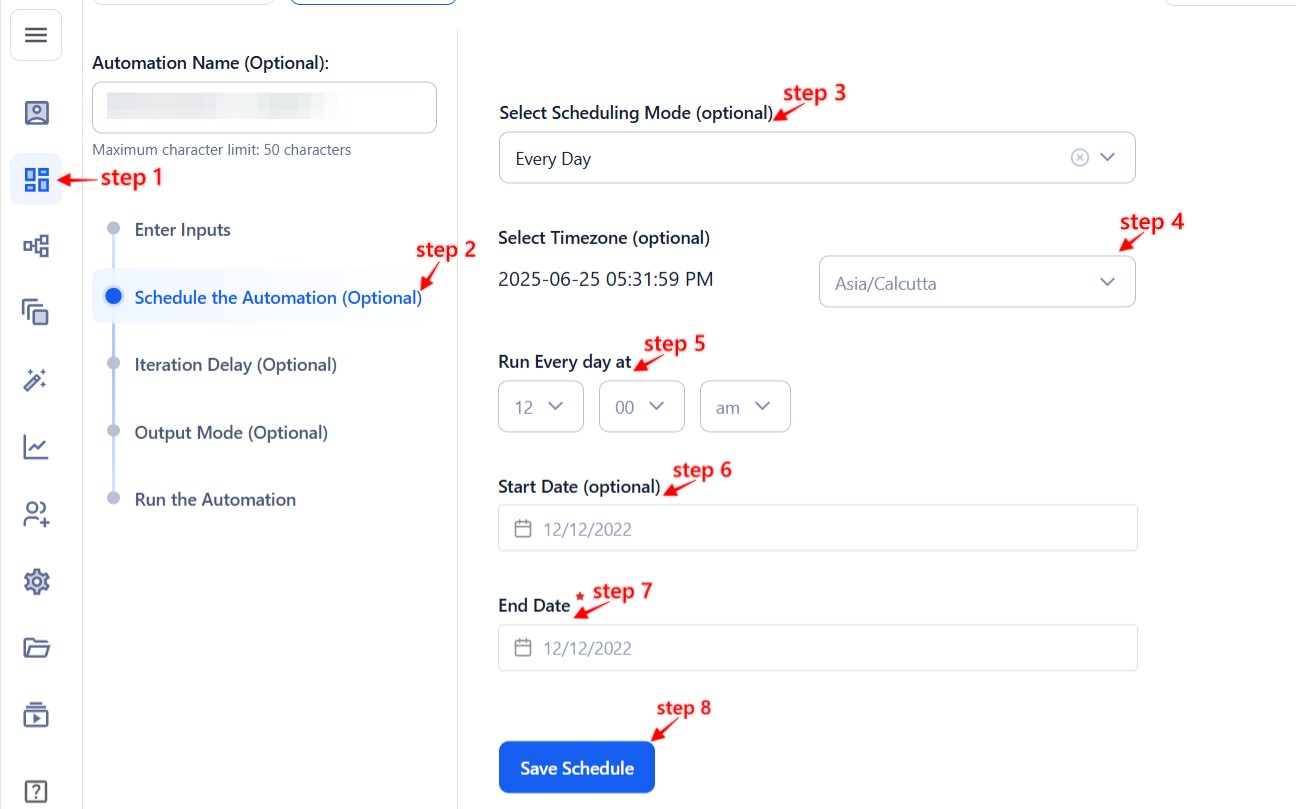
Step 4: Schedule the Automation (Optional)
TexAu allows advanced scheduling to run your automations even when you're away. You can automate regular exports of award data on a set routine.
Click Schedule and choose a timing that suits your workflow:
- None
- At Regular Intervals (e.g., every 8 hours)
- Once
- Every Day
- On Specific Days of the Week (e.g., every Tuesday and Thursday)
- On Specific Days of the Month (e.g., the 1st and 20th)
- On Specific Dates (e.g., November 19)
Tip: Scheduling helps track how a product’s follower base grows or changes over time.
Step 5: Set an Iteration Delay (Optional)
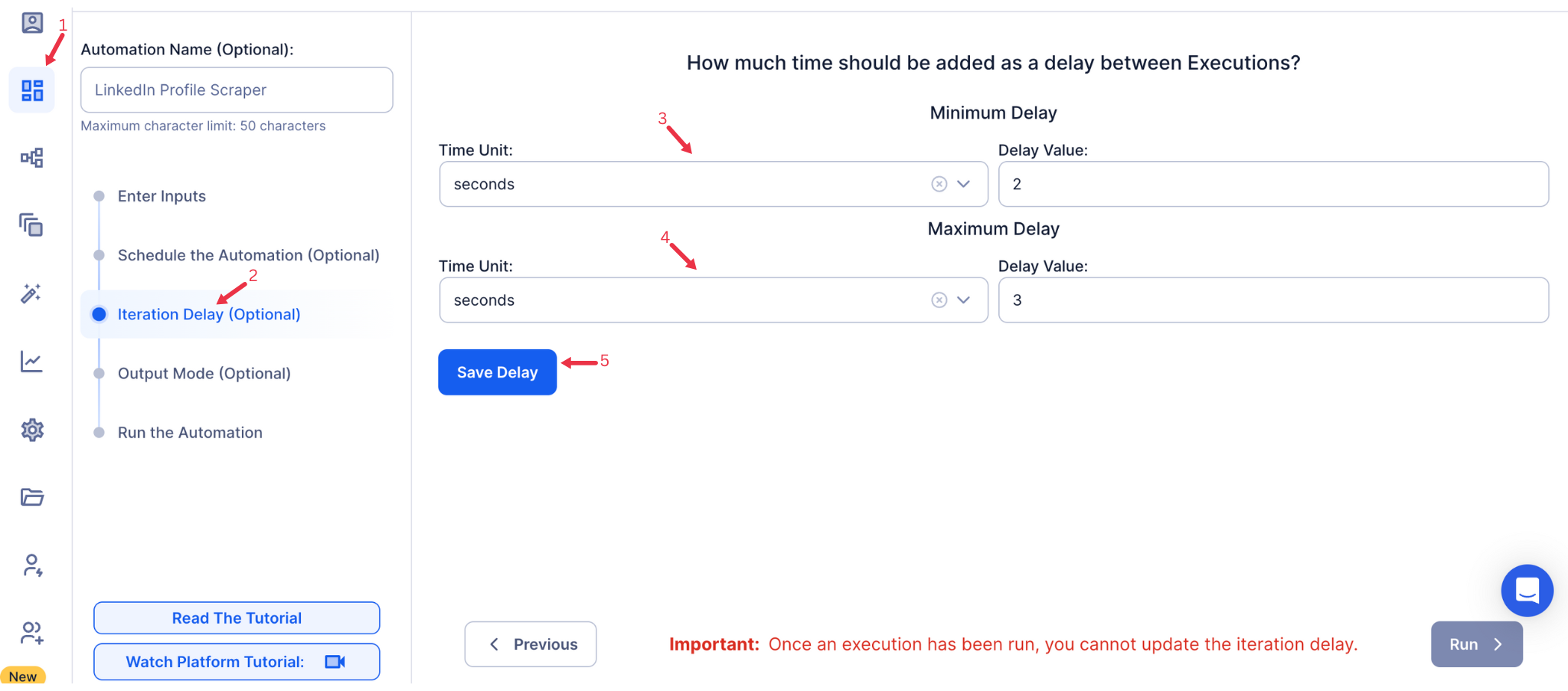
To avoid rate-limiting or throttling, TexAu gives you control over how fast each item is processed.
- Minimum Delay
- Maximum Delay
Choose delay units in seconds, minutes, or hours. This is especially useful when processing large datasets. This feature is applicable only when using Google Sheets or CSV as input sources.
Step 6: Choose Your Output Mode (Optional)
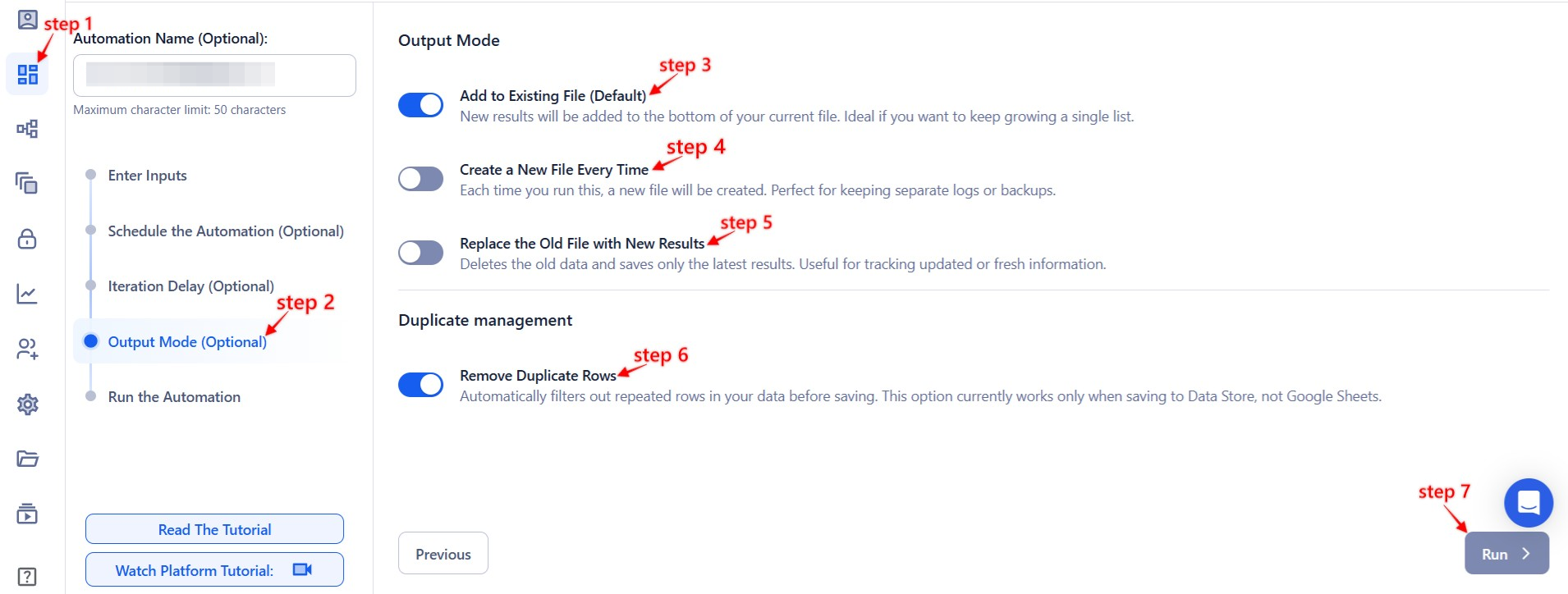
TexAu allows you to choose exactly how your results are saved and organised.
- Export Format: Google Sheets or CSV
- Write Mode:
- Append: Add new data to the end of the sheet/file.
- Split: Create a new file for every run.
- Overwrite: Replace previous results with new ones.
- Deduplicate: Enable this to avoid repeating data for the same product.
Tip: Google Sheets is best for live collaboration or team use.
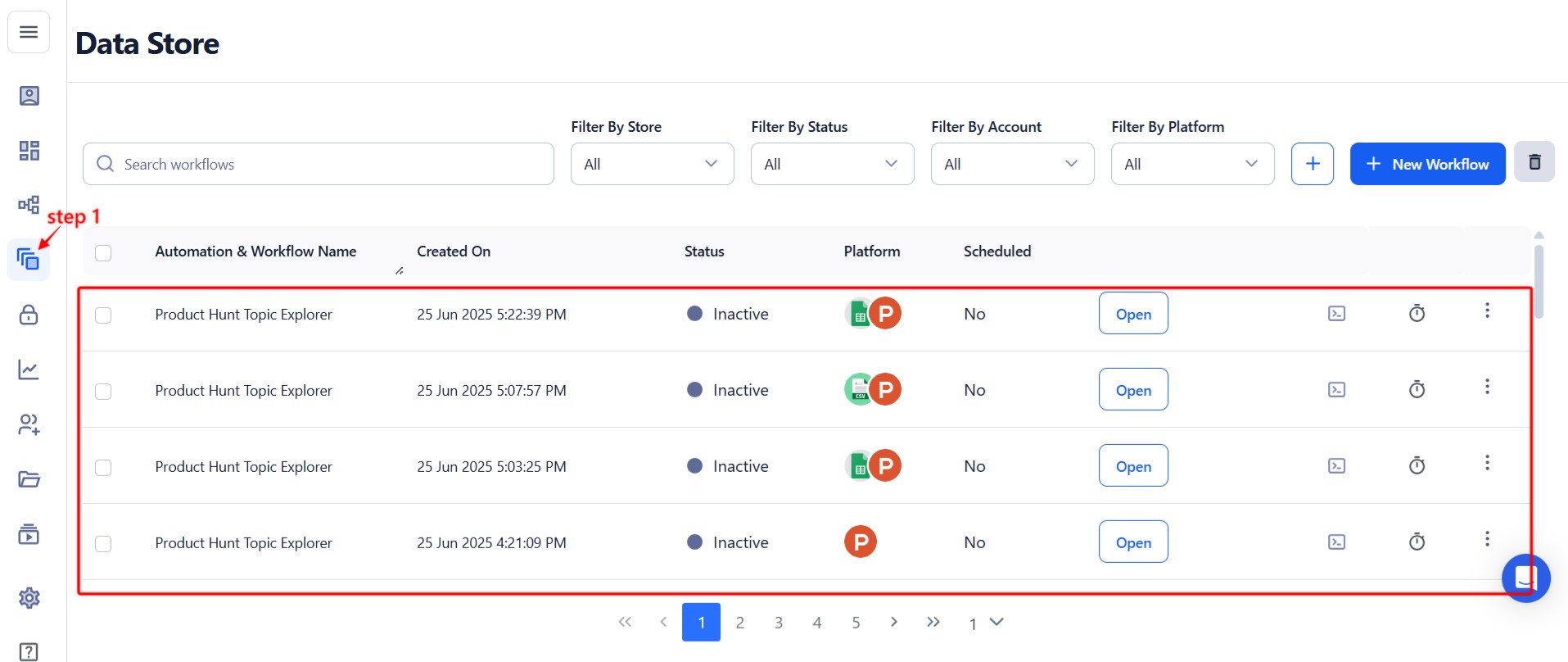
Step 7: Access the Data from the Data Store
After the automation runs, TexAu automatically stores the results in your Data Store.
Go to the Data Store, locate the Product Hunt Awards Export job, and click See Data to view, analyze, or download your results.
Screenshot Suggestion: Show the Data Store with the “See Data” button highlighted for clarity.
The Product Hunt Awards Export automation helps you tap into valuable recognition data across thousands of tech products. Whether you’re scouting trends, curating award-winners, or building prospect lists based on recognition—TexAu simplifies everything with just a few clicks.
Run this automation on your own machine.
TexAu V2 Desktop runs every automation locally — your real session, your real IP, unlimited hours, no proxies. One-time $1,999, no subscription, 5 years of updates.