Product Hunt Makers Search Export
Quickly export profiles of Product Hunt makers with this tool. Save time on outreach, research, or analysis - no coding needed.
Last updated
The Product Hunt Makers Search Export automation helps you extract the list of makers (creators or contributors) associated with any product listed on Product Hunt. This is ideal for building outreach lists, tracking creators in specific niches, or identifying collaborators behind popular tools. You
The Product Hunt Makers Search Export automation helps you extract the list of makers (creators or contributors) associated with any product listed on Product Hunt. This is ideal for building outreach lists, tracking creators in specific niches, or identifying collaborators behind popular tools. You can use product names as input and export the data to Google Sheets or CSV for further analysis or contact enrichment.
Step 1: Log in to TexAu and Search a Specific Automation
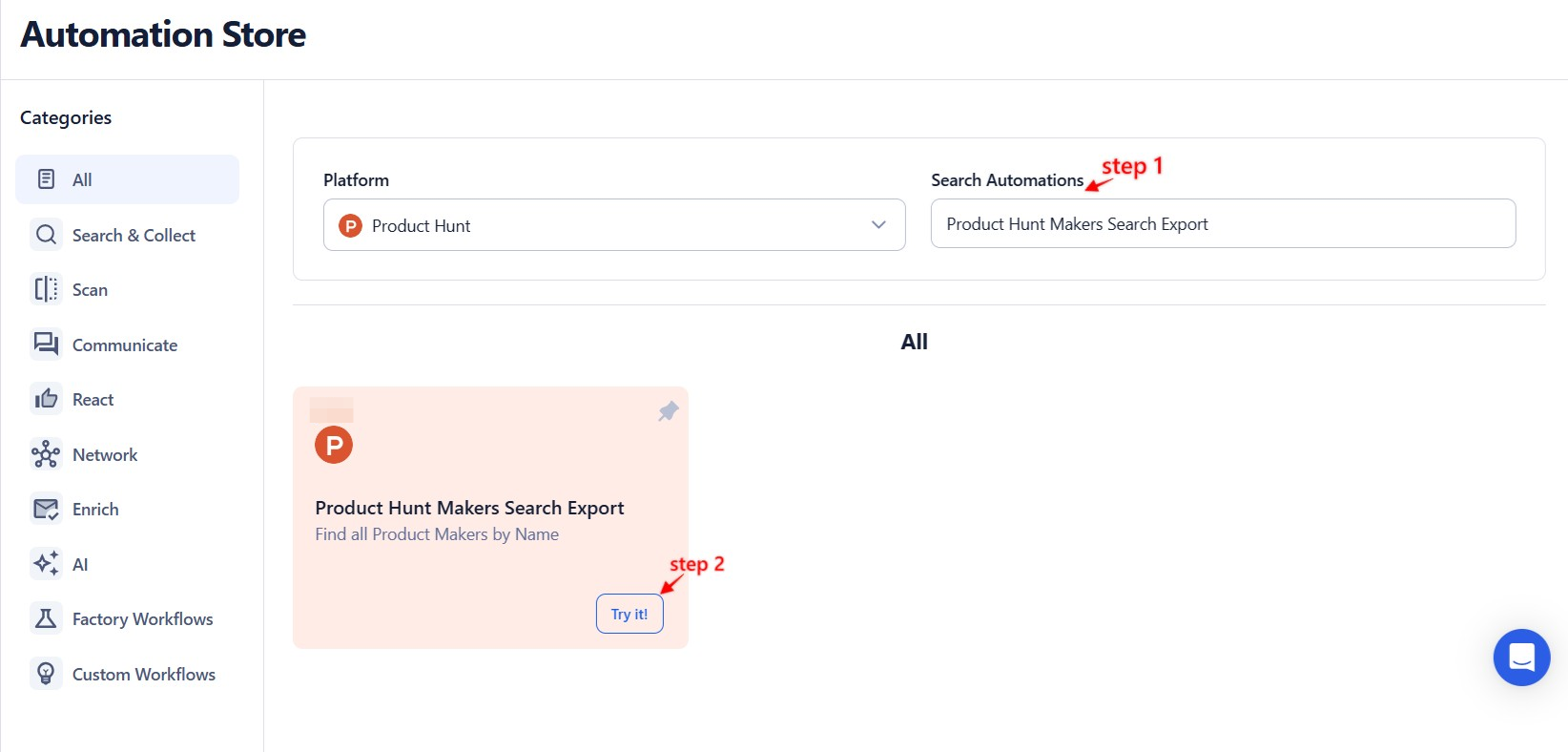
Log in to your TexAu account at the TexAu V2 Desktop app. Navigate to the Automation Store on TexAu. Use the search bar to find Product Hunt Makers Search Export.
Step 2: Select Your Input Source
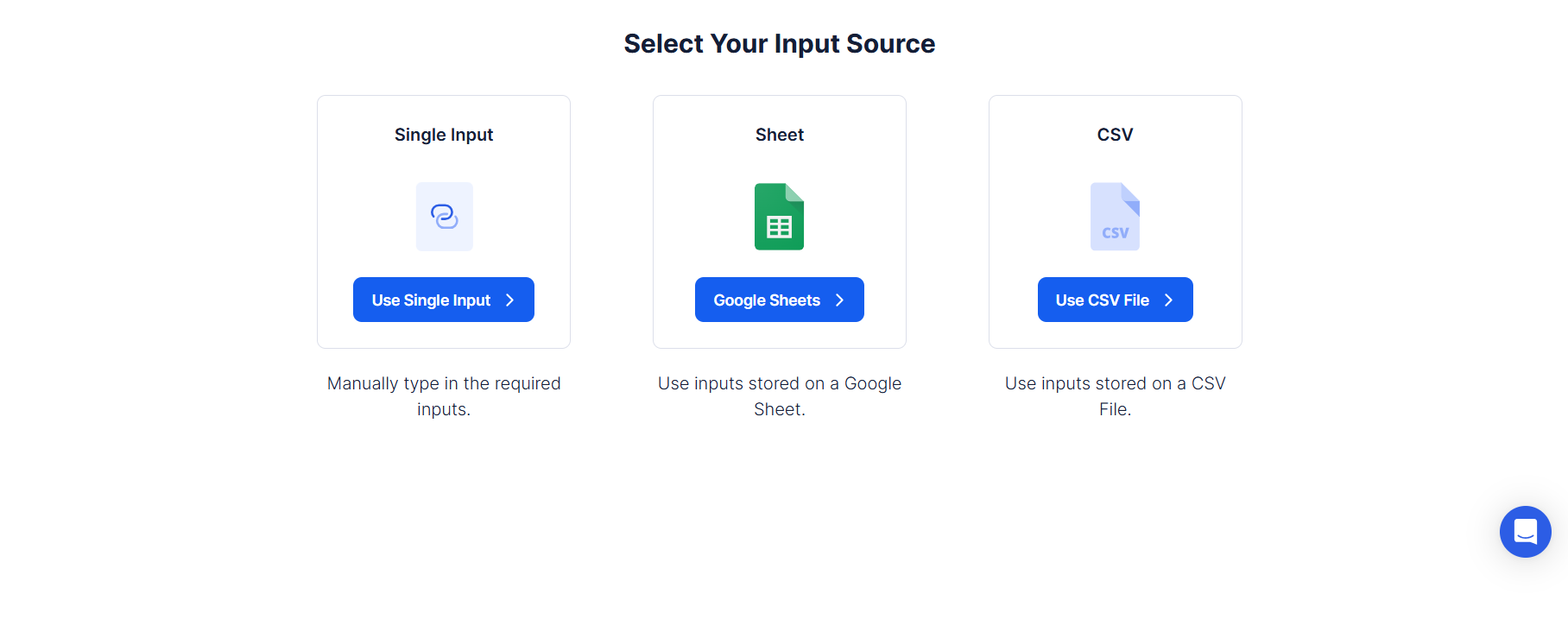
You can run the automation using a single product name or in bulk using Google Sheets or a CSV file.
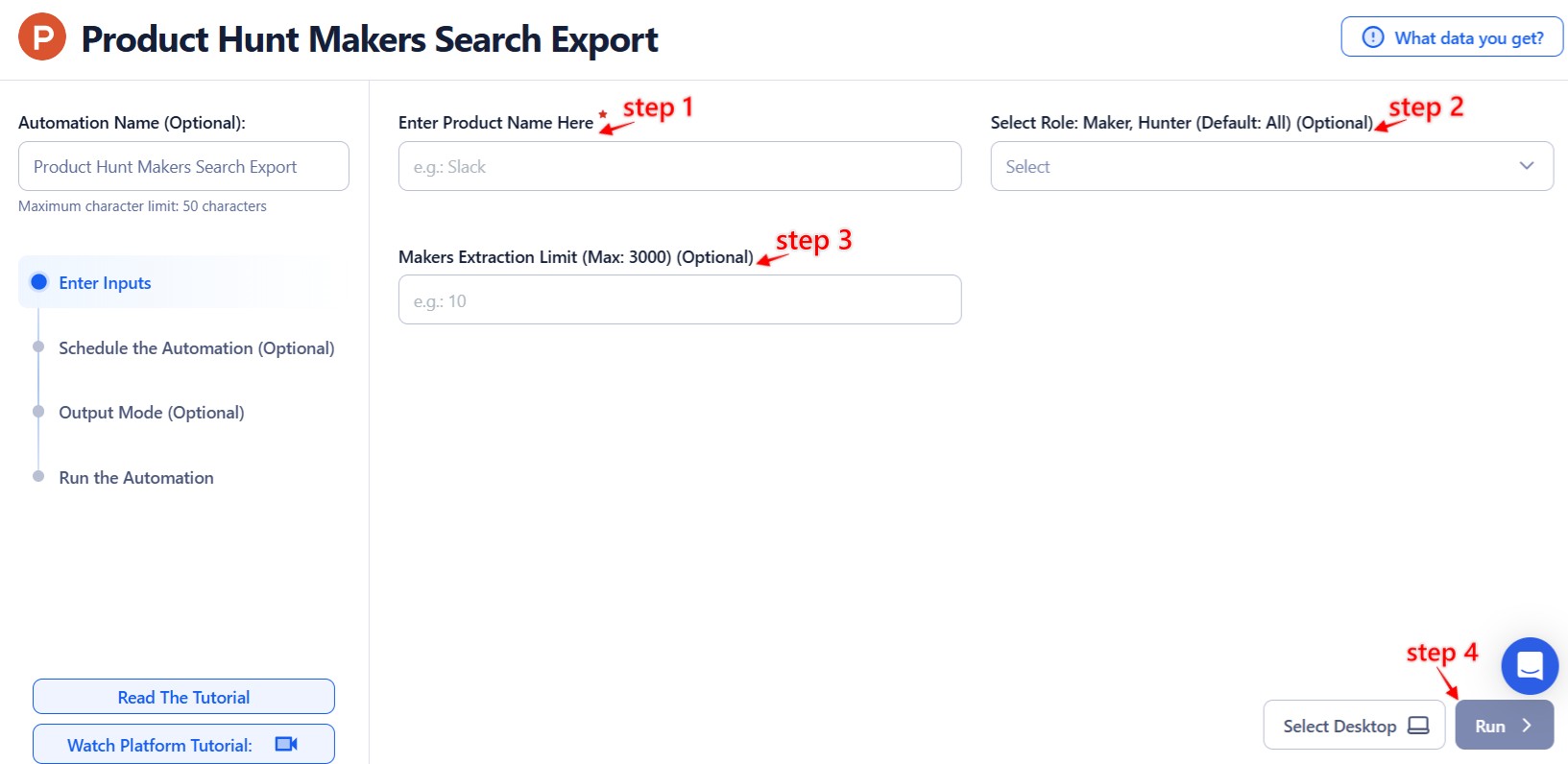
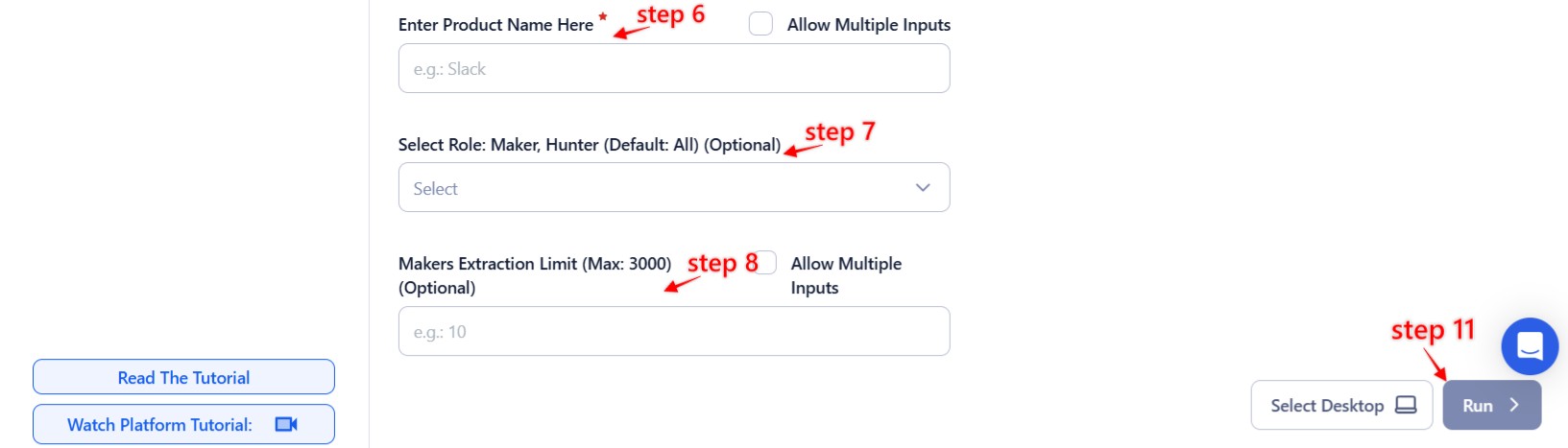
Use this option to extract makers from a single Product Hunt listing.
- Enter Product Name: Type the exact name of the product as it appears on Product Hunt (e.g., “Slack”).
- Select Role (Optional): Choose to filter by Maker, Hunter, or leave it as All (default) to extract both.
- Makers Extraction Limit (Max: 3000): Define how many maker or hunter profiles to extract.
Google Sheets
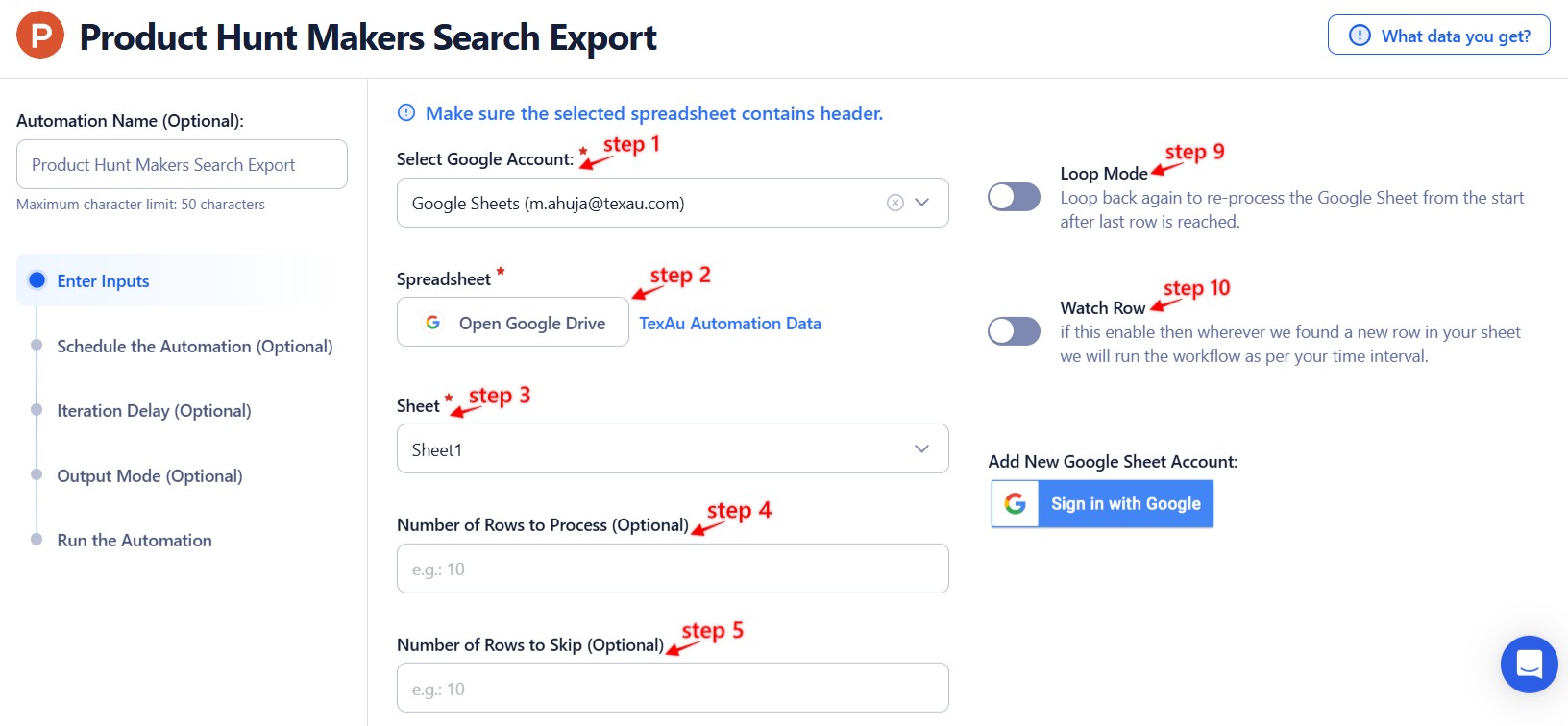
Best for extracting makers from multiple products at once.
Connect your Google account
Use Add New Google Sheet Account to link your account.
Select your spreadsheet
Click Open Google Drive to choose the sheet that contains product names.
Adjust processing options
- Number of Rows to Process (Optional): Set how many rows to run.
- Number of Rows to Skip (Optional): Skip rows if needed.
Optional Advanced Feature:
Loop Mode: Re-process the sheet from the beginning once all rows are completed — helpful for recurring updates.
Watch Row (Optional)
Watch Row triggers the automation whenever new product URLs are added to Google Sheets.
Watch Row Schedule:
-
None
-
Scheduling Intervals (e.g., every 15 minutes, every hour)
-
One-Time Execution
-
Daily Execution
-
Weekly Recurrence (e.g., every Wednesday and Friday)
-
Monthly Specific Dates (e.g., 5th and 30th)
-
Custom Fixed Dates (e.g., November 19)
Default: Every 15 minutes for 5 days unless modified.
Process a CSV File
Use this for one-time extraction with a static list.
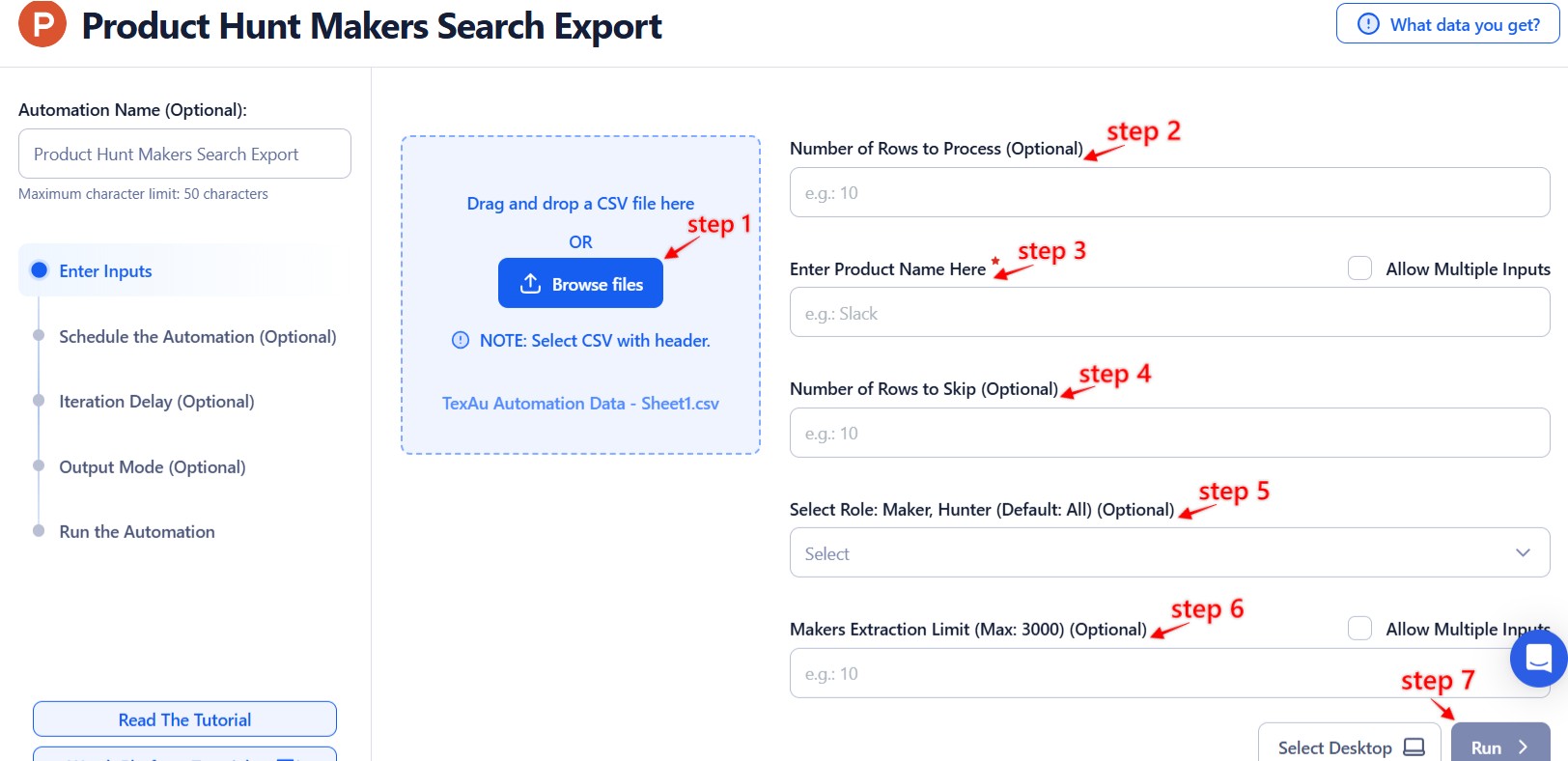
Upload the file
Choose your CSV file with valid product names.
Adjust processing settings
- Number of Rows to Process (Optional)
- Number of Rows to Skip (Optional)
- Makers Extraction Limit: Max 3000 makers per product name.
Step 3: Run the automation on TexAu Desktop
- Open the automation setup and select Desktop Mode.
- Click Choose a Desktop to Run this Automation.
- From the platform, select your connected desktop (status will show as "Connected").
- Click “Use This” after selecting the desktop to run the automation on your local system.
Step 4: Schedule the Automation (Optional)
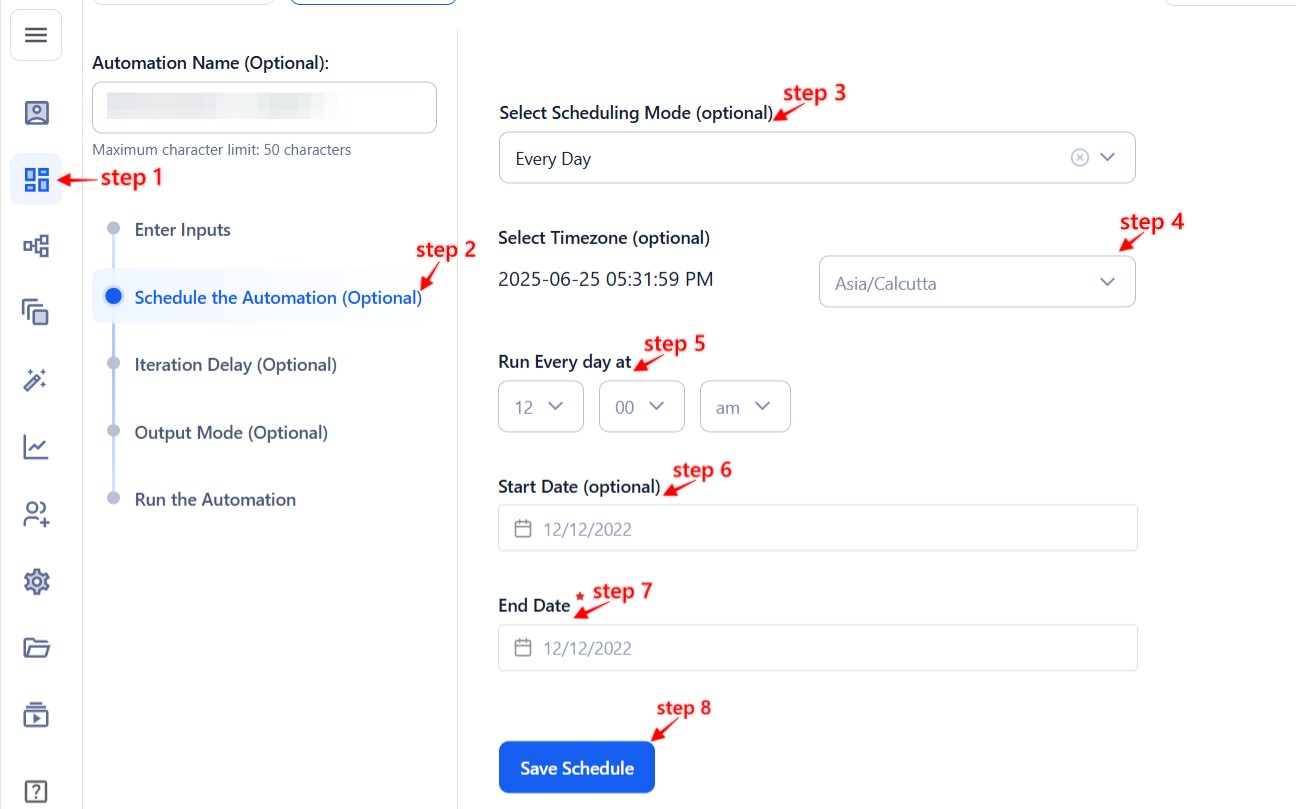
Set up a schedule to monitor and export makers from a specific Product Hunt listing periodically. Click Schedule and configure the start time and recurrence frequency:
-
None
-
At Regular Intervals (e.g., every 8 hours)
-
Once
-
Every Day
-
On Specific Days of the Week (e.g., every Tuesday and Thursday)
-
On Specific Days of the Month (e.g., the 1st and 20th)
-
On Specific Dates (e.g., November 19)
Tip: Scheduling helps you stay updated on new makers added to product listings over time.
Step 5: Set an Iteration Delay (Optional)
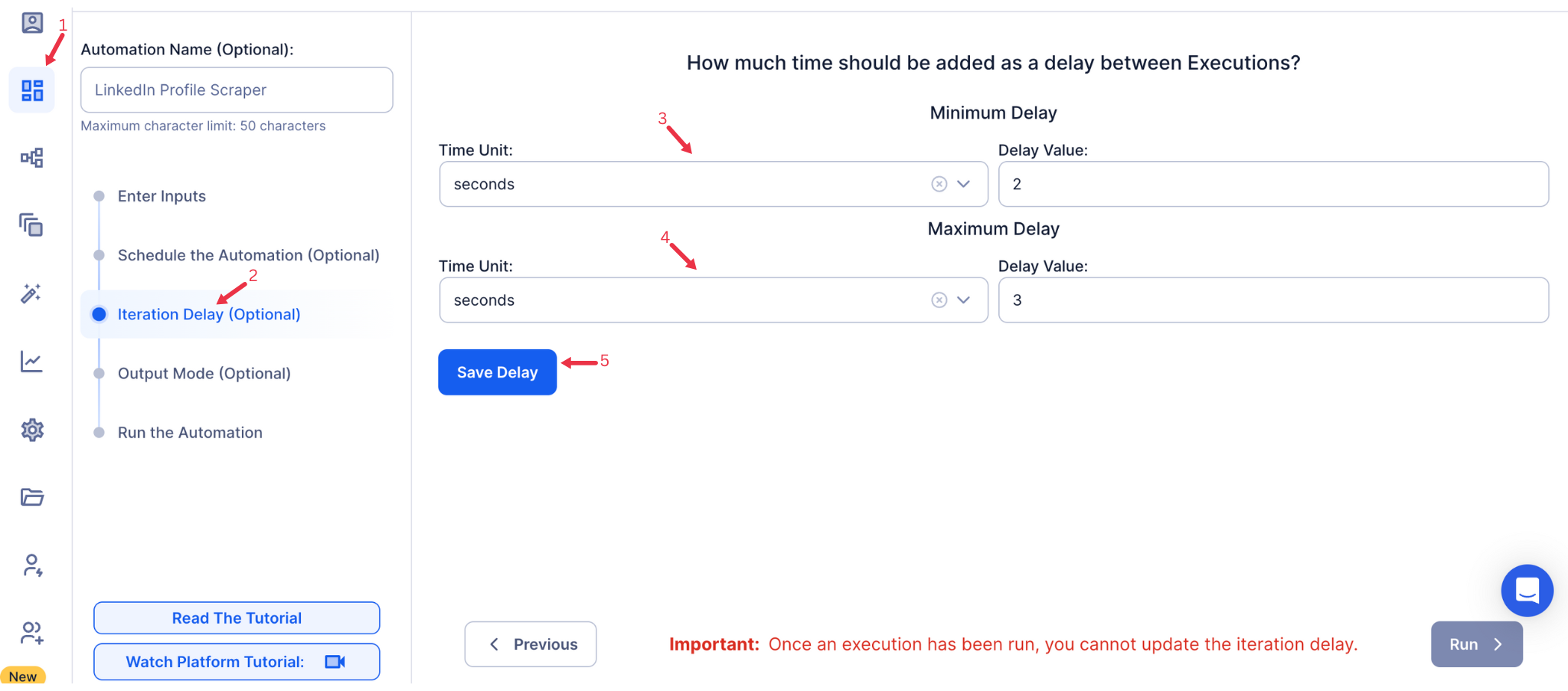
Avoid detection and simulate human-like activity by setting an iteration delay. Choose minimum and maximum time intervals to add randomness between actions. This makes your activity look natural and reduces the chance of being flagged.
- Minimum Delay: Enter the shortest interval (e.g., 10 seconds).
- Maximum Delay: Enter the longest interval (e.g., 20 seconds).
Tip: Random delays keep your automation safe and reliable.
Note: This feature is applicable only when using Google Sheets or CSV as input sources.
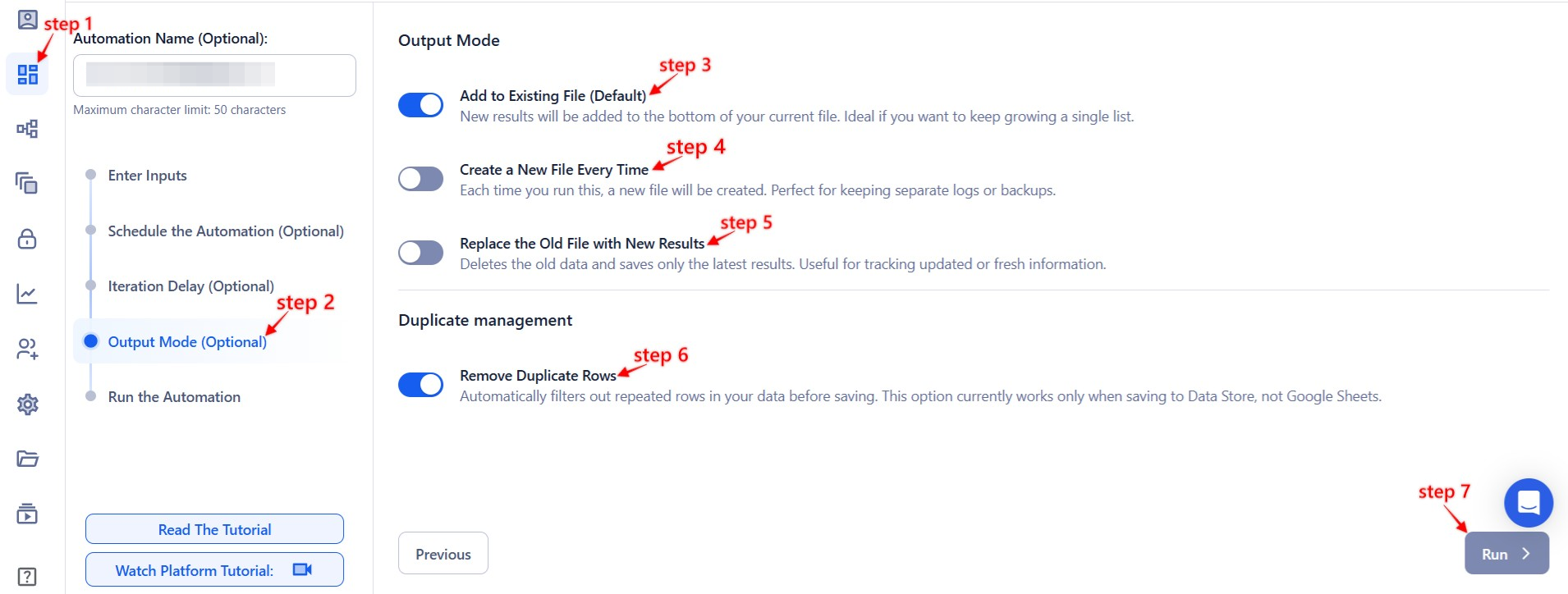
Step 6: Choose Your Output Mode (Optional)
Choose how to save and manage the extracted maker data. TexAu provides the following options:
- Append (Default): Adds new results to the end of existing data, merging them into a single CSV file.
- Split: Saves new results as separate CSV files for each automation run.
- Overwrite: Replaces previous data with the latest results.
- Duplicate Management: Enable Deduplicate (Default) to remove duplicate rows.
Tip: Google Sheets export is useful for building maker/hunter outreach lists, team collaboration, or analyzing contributor activity over time.
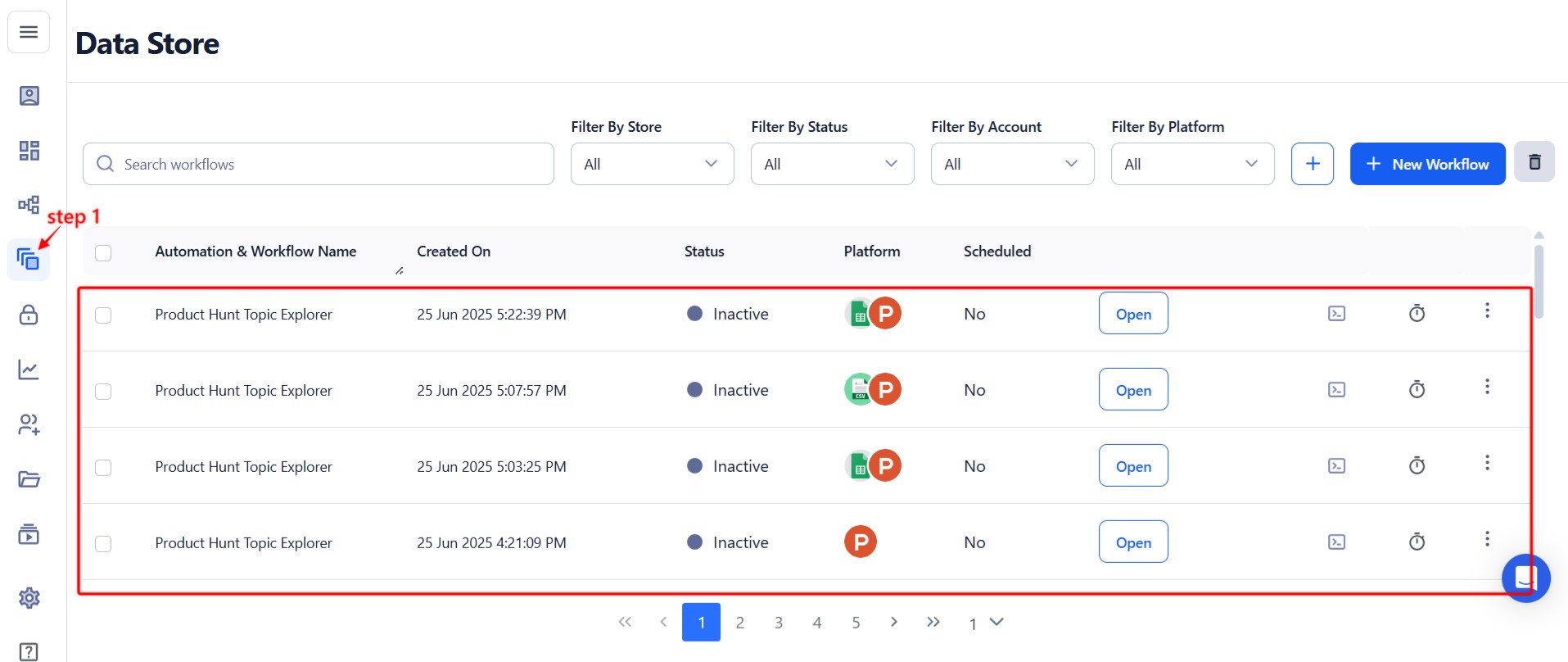
Step 7: Access the Data from the Data Store
Once the automation completes, navigate to the Data Store section in TexAu to view or download the results. Locate the Product Hunt Makers Search Export entry and click See Data to access the extracted product information.
The Product Hunt Makers Search Export automation is a quick way to discover the people behind the tools. Whether you’re prospecting, building founder lists, or studying maker communities, this tool helps you find and organize relevant creator data efficiently.
Run this automation on your own machine.
TexAu V2 Desktop runs every automation locally — your real session, your real IP, unlimited hours, no proxies. One-time $1,999, no subscription, 5 years of updates.