Product Hunt Post Commenters Export
Learn how to extract Product Hunt commenters using TexAu. Step-by-step setup to collect usernames, comments, and export to Google Sheets or CSV.
Last updated
The **Product Hunt Post Commenters Export** automation in TexAu helps founders, marketers, and community managers extract valuable insights from Product Hunt conversations. With this tool, you can collect commenter usernames, comments, and timestamps from any product post. TexAu allows you to run th
The Product Hunt Post Commenters Export automation in TexAu helps founders, marketers, and community managers extract valuable insights from Product Hunt conversations. With this tool, you can collect commenter usernames, comments, and timestamps from any product post. TexAu runs this automation on your own machine, and export results to Google Sheets or CSV.
Follow this step-by-step guide to configure and run the Product Hunt Post Commenters Export automation.
Step 1: Log in to TexAu and Find the Automation
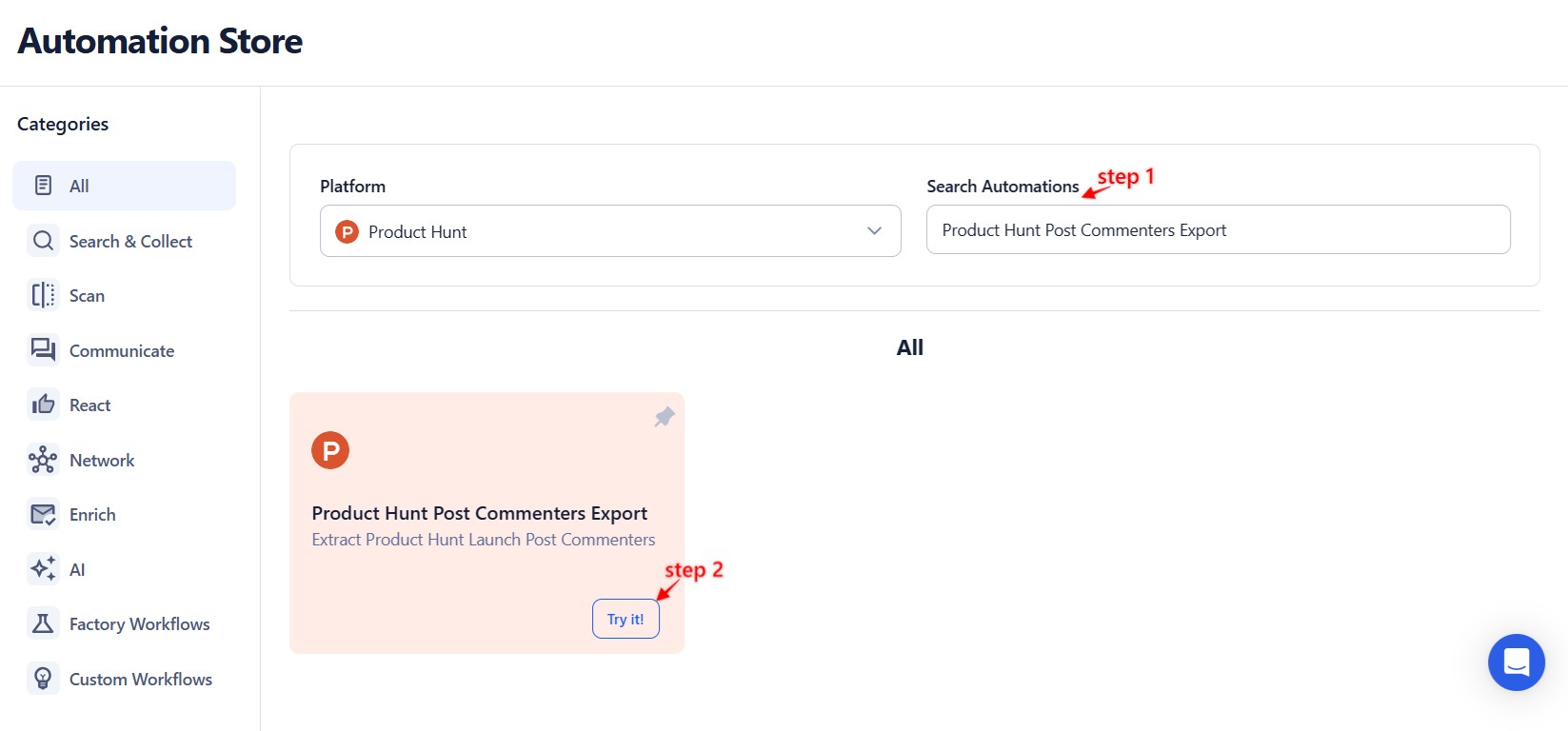
First, log in to your account at TexAu at the TexAu V2 Desktop app. Next visit the the Automation Store, search for Product Hunt Post Commenters Export and select it to open the configuration page.
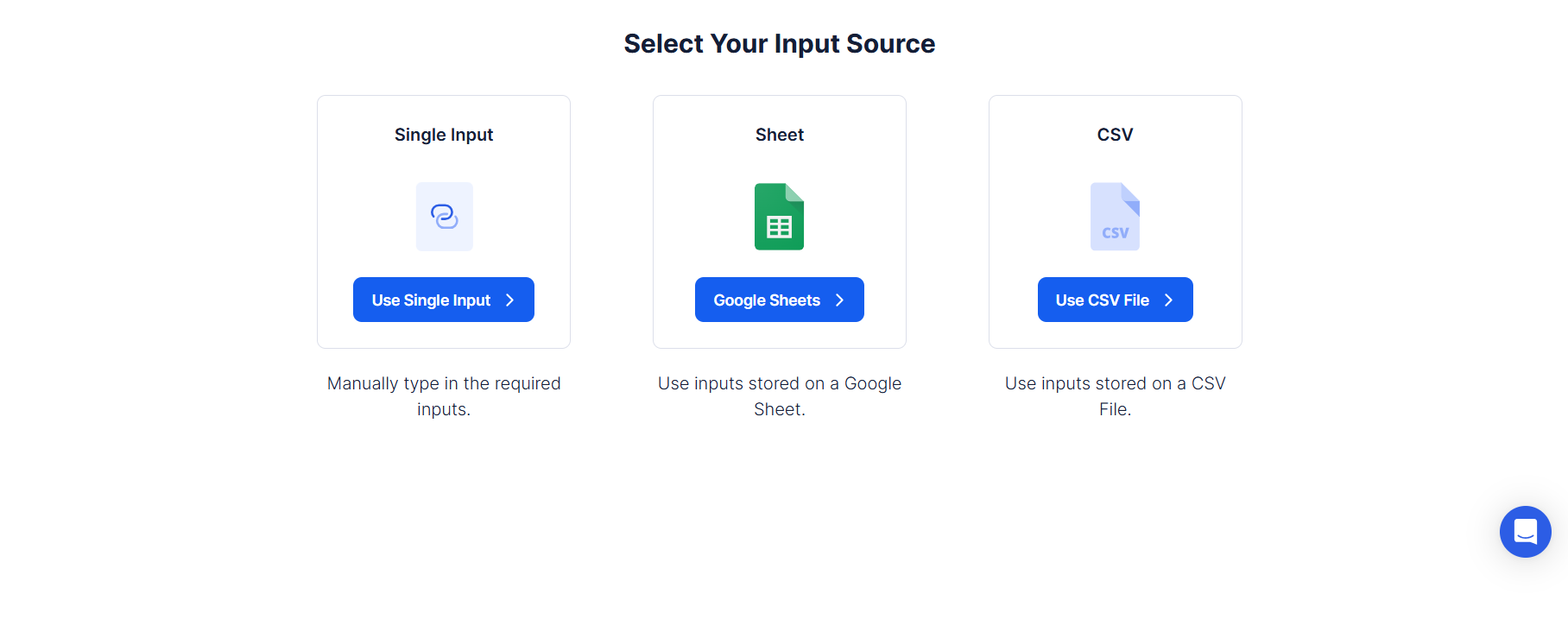
Step 2: Select Your Input Source
This automation allows you to extract commenters from any Product Hunt post, either by entering a single URL or using bulk input options like Google Sheets or a CSV file.
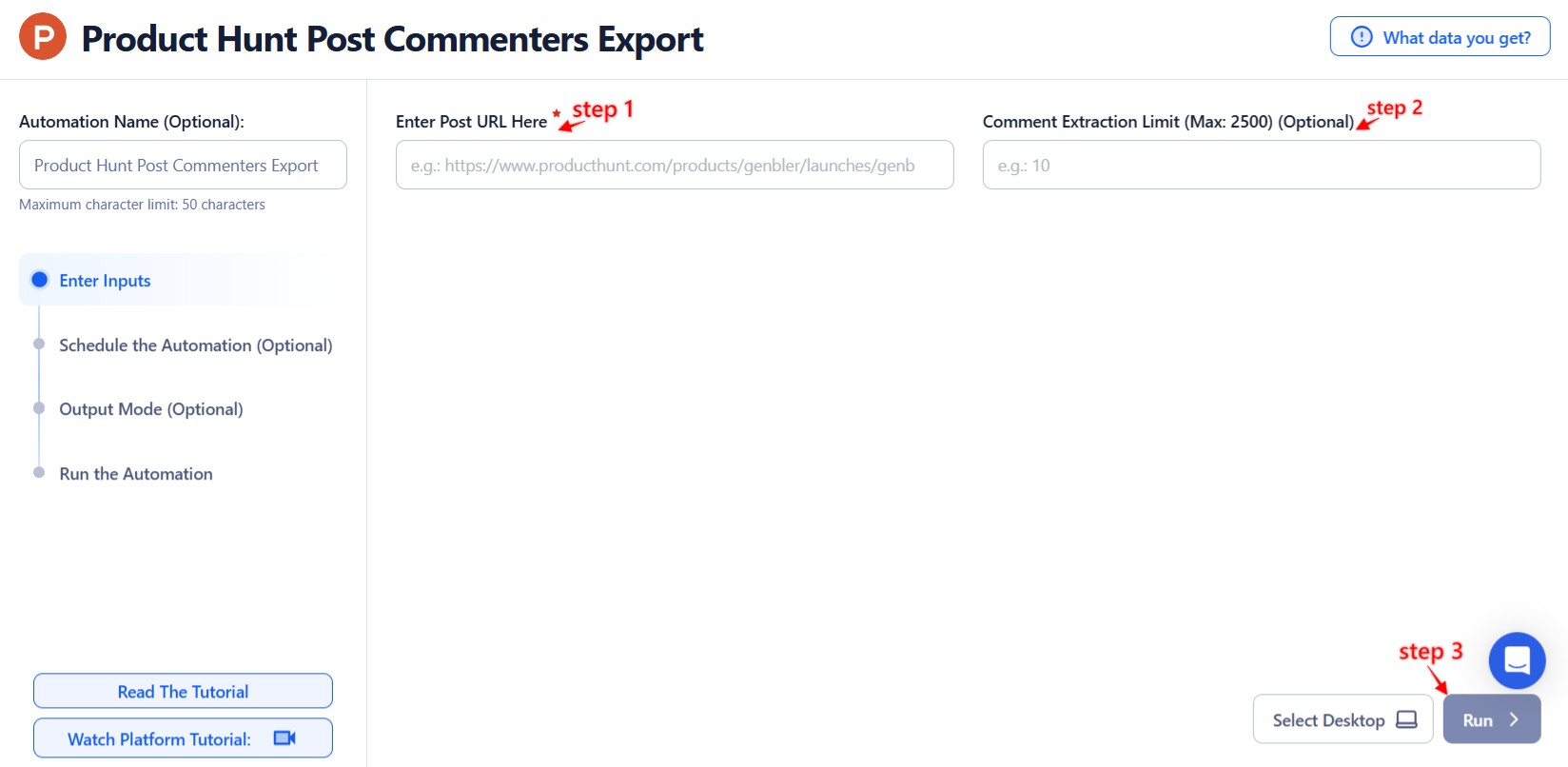
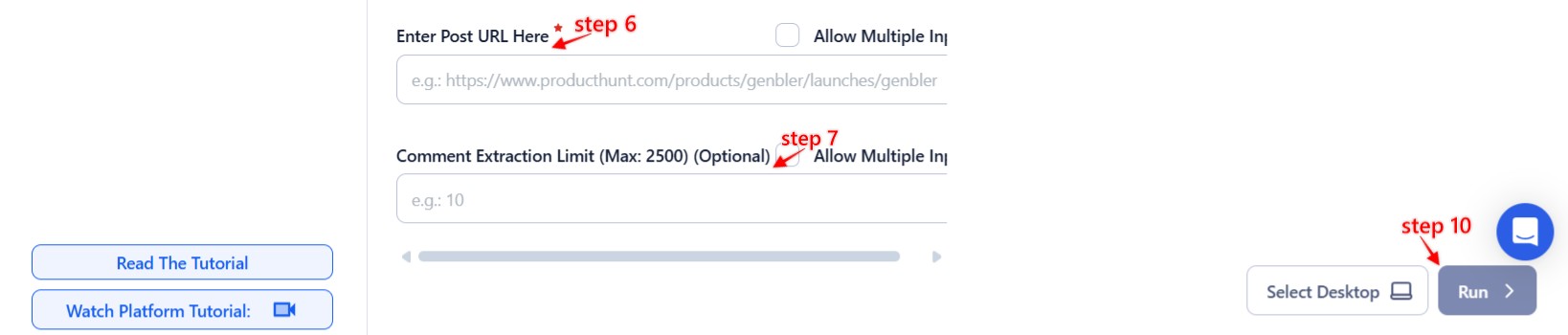
Single Input
Use this option to extract commenters from a single Product Hunt post.
- Product Hunt URL: Paste the URL of the Product Hunt post you want to scrape.
- Limit: Optionally set the number of comments to extract.
- Sort: Choose how you want the comments to be sorted – best, newest, or relevance.
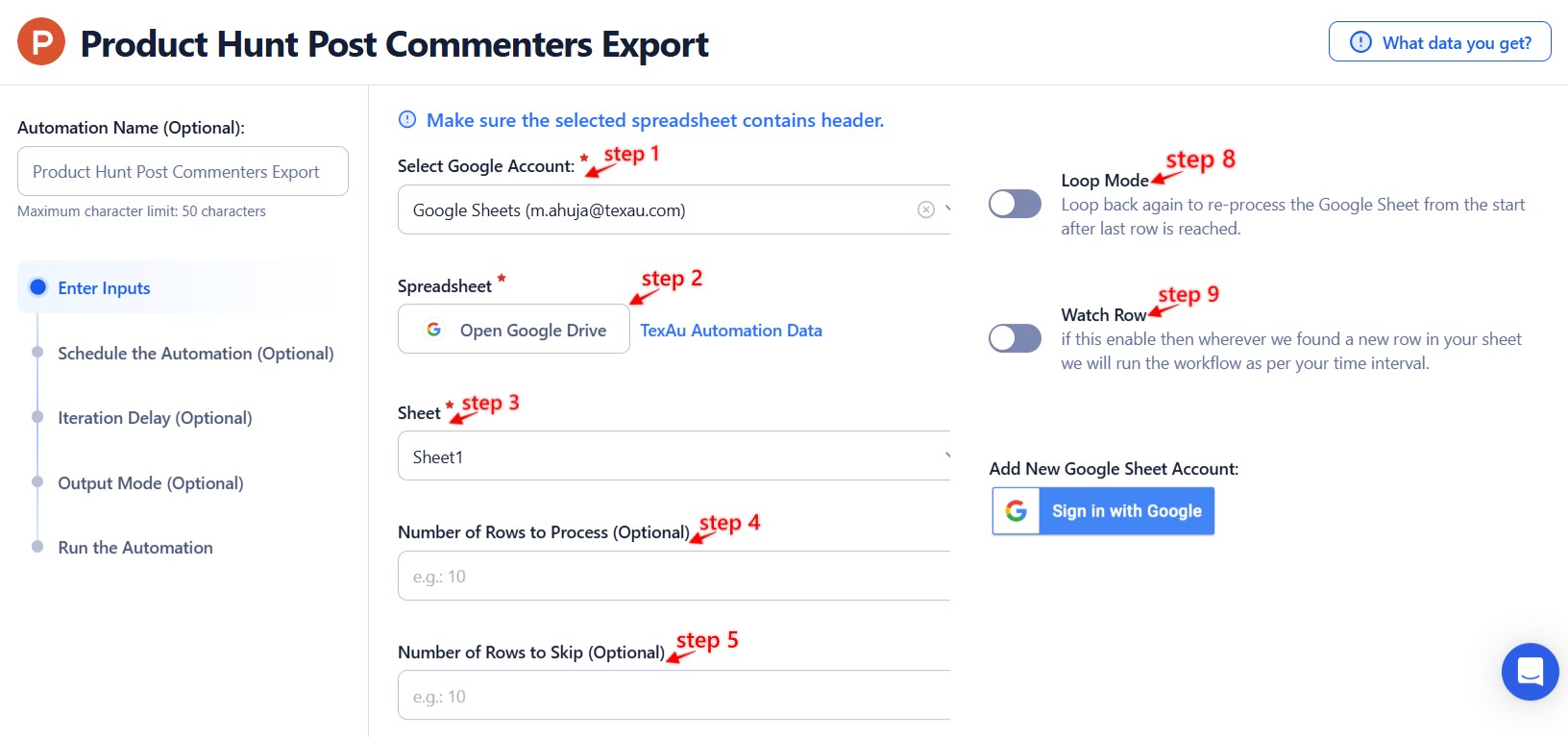
Google Sheets
Use this option to extract commenters from multiple Product Hunt posts listed in a Google Sheet.
- Select Google Account: Connect your Google account or select an existing one.
- Select Your Spreadsheet: Open Google Drive and select the spreadsheet and sheet containing Product Hunt URLs.
Processing Options:
- Number of Rows to Process (Optional): Define how many rows to process.
- Number of Rows to Skip (Optional): Skip rows if needed.
- Comment Limit: Apply to limit comments per post.
- Sort: Choose best, newest, or relevance.
Loop Mode (Optional)
Turn on Loop Mode to restart the process from the top once all rows have been processed.
Watch Row (Optional)
Watch Row detects new rows added to the Google Sheet and automatically triggers the automation.
Watch Row Schedule
- None
- Every 15 Minutes (default)
- Hourly, Daily, Weekly, or Monthly
- Custom Specific Dates
- By default, Watch Row scans every 15 minutes and runs for five days unless changed.
Process a CSV File
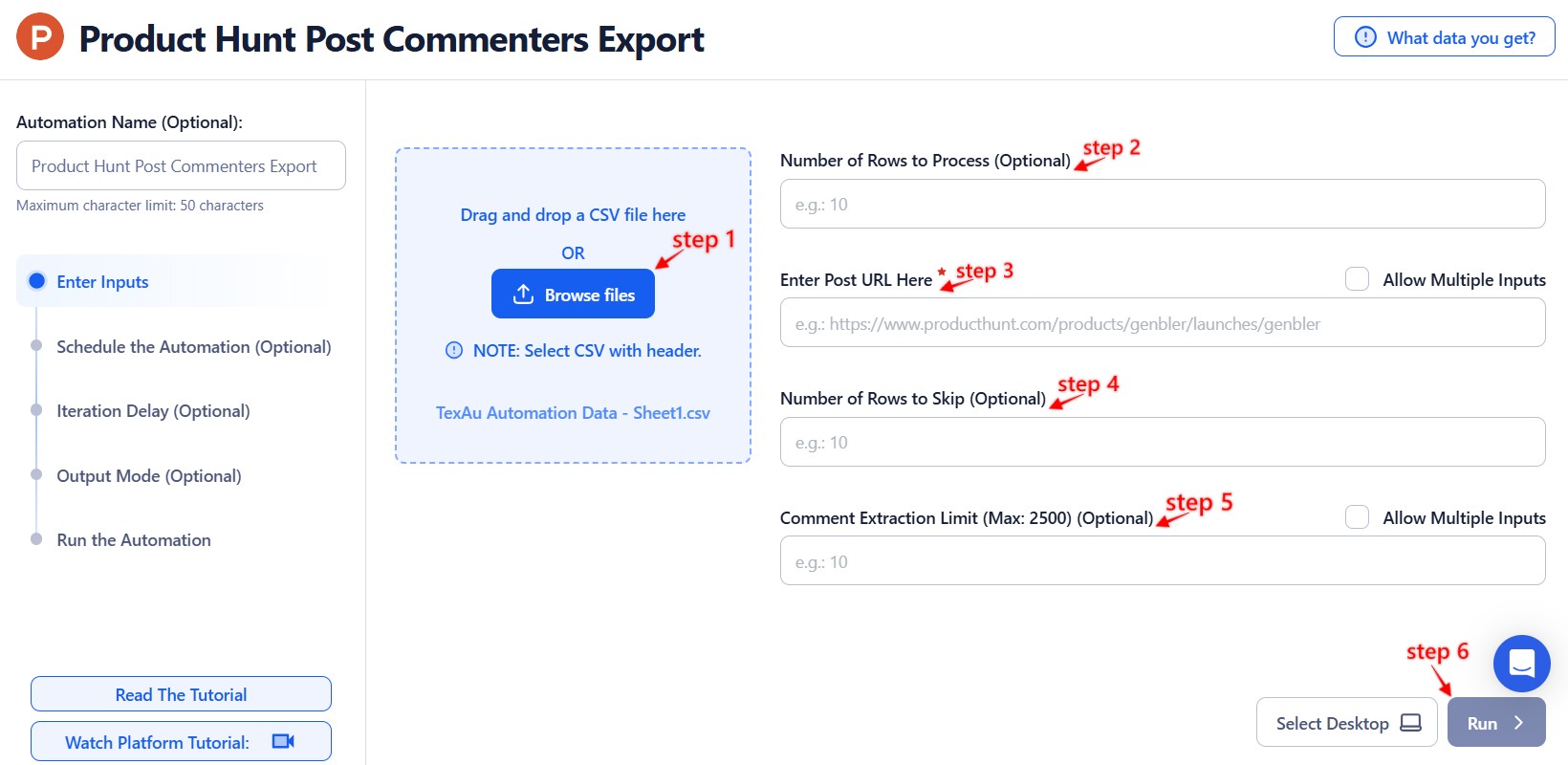
This option allows you to work with a static list of Product Hunt post URLs.
Upload the File: Click "Upload CSV File" and select the file containing post URLs.
Adjust Settings:
- Number of Rows to Process (Optional)
- Number of Rows to Skip (Optional)
- Comment Limit
- Sort Order
Step 3: Run the automation on TexAu Desktop
- Open the automation setup and select Desktop Mode.
- Click Choose a Desktop to Run this Automation.
- From the platform, select your connected desktop (status will show as "Connected").
- Click “Use This” after selecting the desktop to run the automation on your local system.
Step 4: Schedule the Automation (Optional)
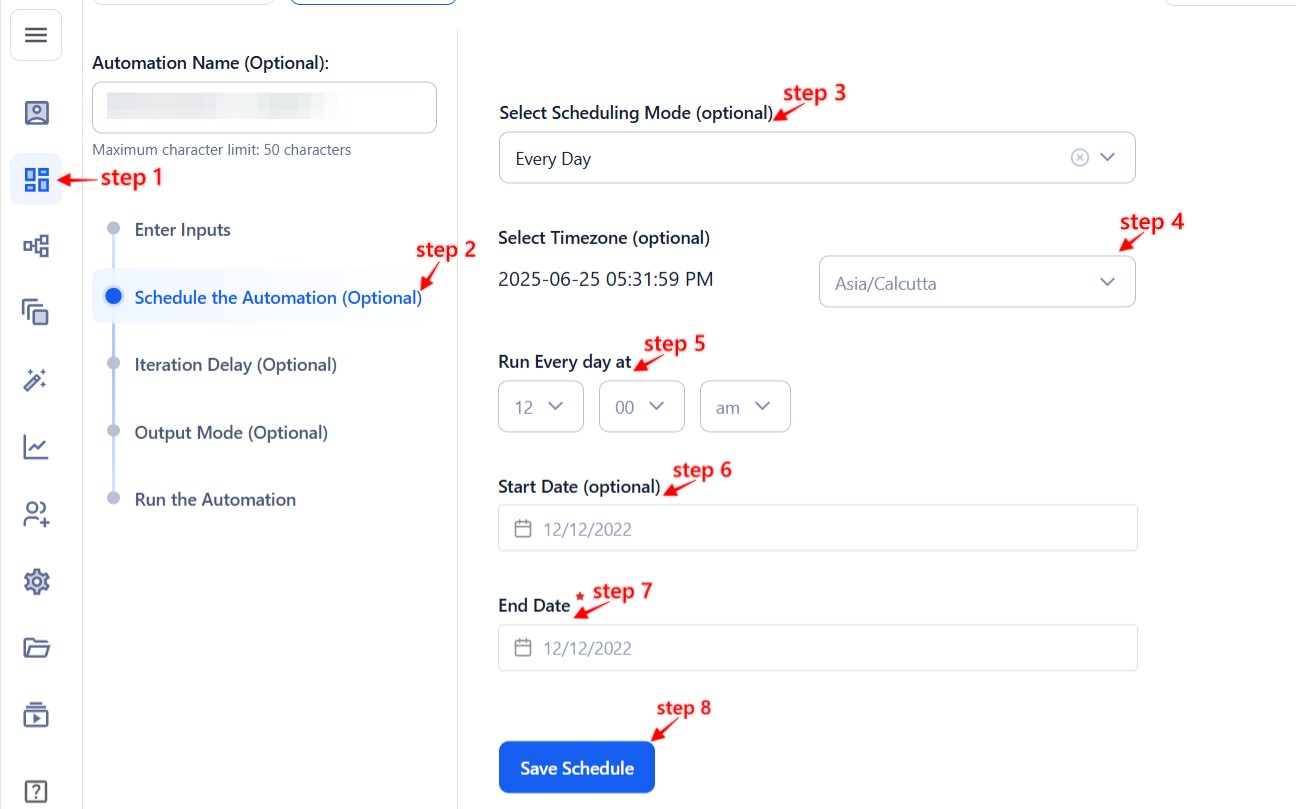
TexAu lets you schedule when and how often the automation should run. Click Schedule and choose one of the following:
- None
- At Regular Intervals (e.g., every 6 hours)
- Once
- Every Day
- On Specific Days of the Week
- On Specific Days of the Month
- On Custom Dates
Tip: Scheduling helps automate weekly scans of Product Hunt posts for new conversations.
Step 5: Set an Iteration Delay (Optional)
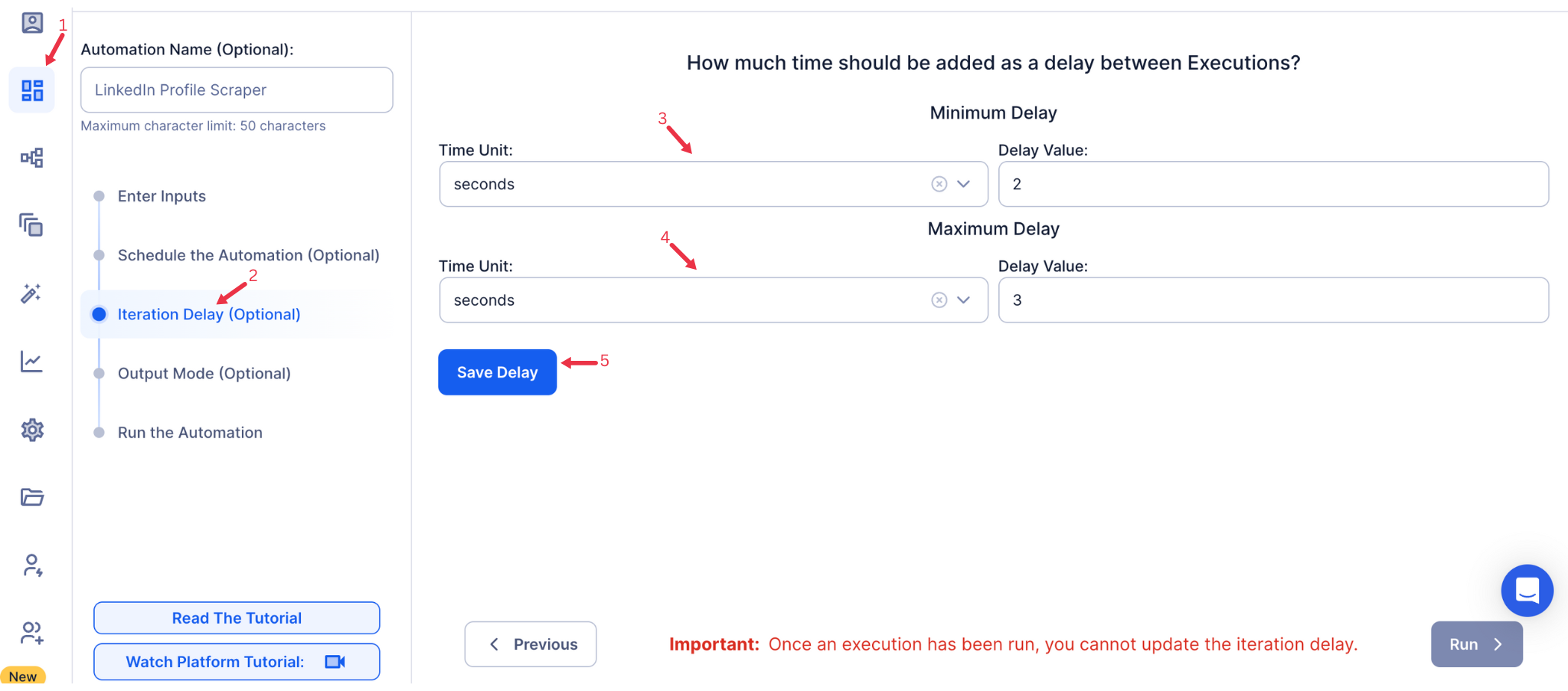
Use Iteration Delay to create a natural time gap between each comment extraction, mimicking human behavior. Set a Minimum Delay and Maximum Delay between each task. Choose your time units: seconds, minutes, or hours. However, it is only applicable to Google sheet and CSV.
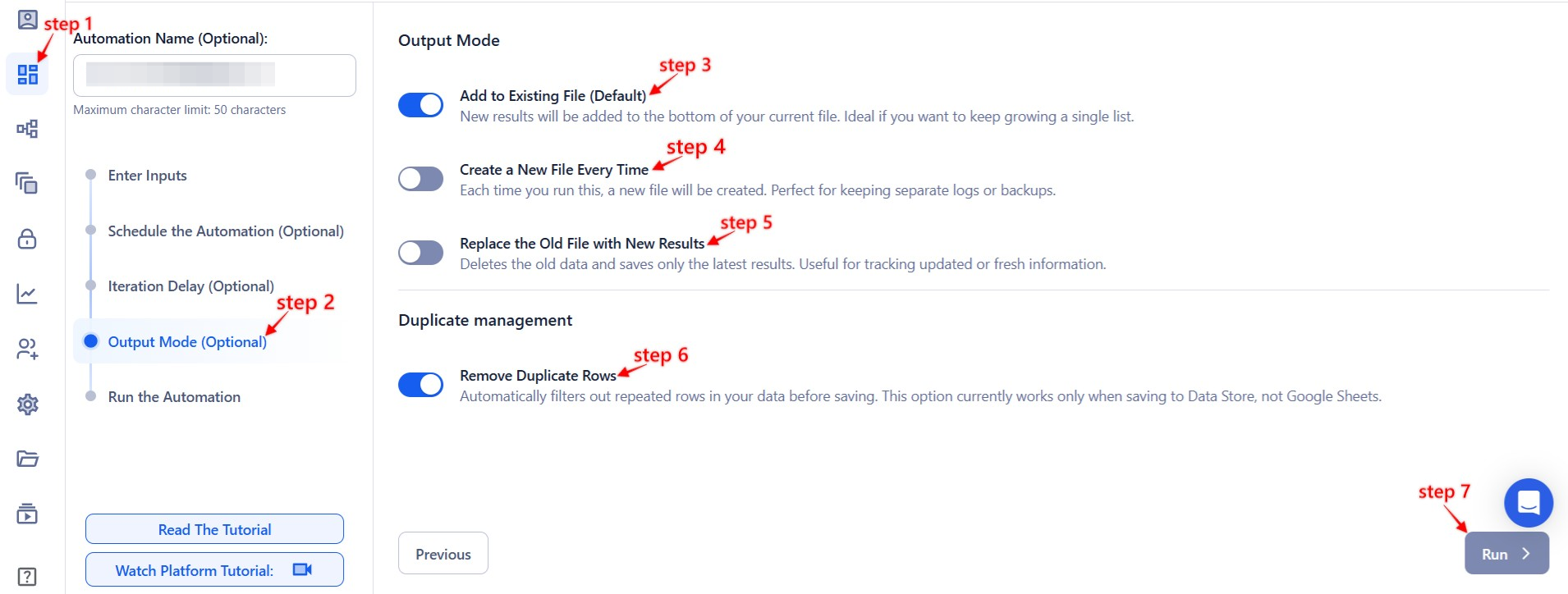
Step 6: Choose Your Output Mode (Optional)
Manage how your extracted comment data is saved.
- Export Destination: Choose Google Sheets or CSV.
- Write Mode:
- Append (Default): Add new data to existing file.
- Split: Create a new file for each run.
- Overwrite: Replace old data with new results.
- Duplicate Management: Enable Deduplicate to avoid processing duplicate post URLs.
- Tip: Google Sheets makes it easy to share and analyze comments in real-time.
Step 7: Access the Data from the Data Store
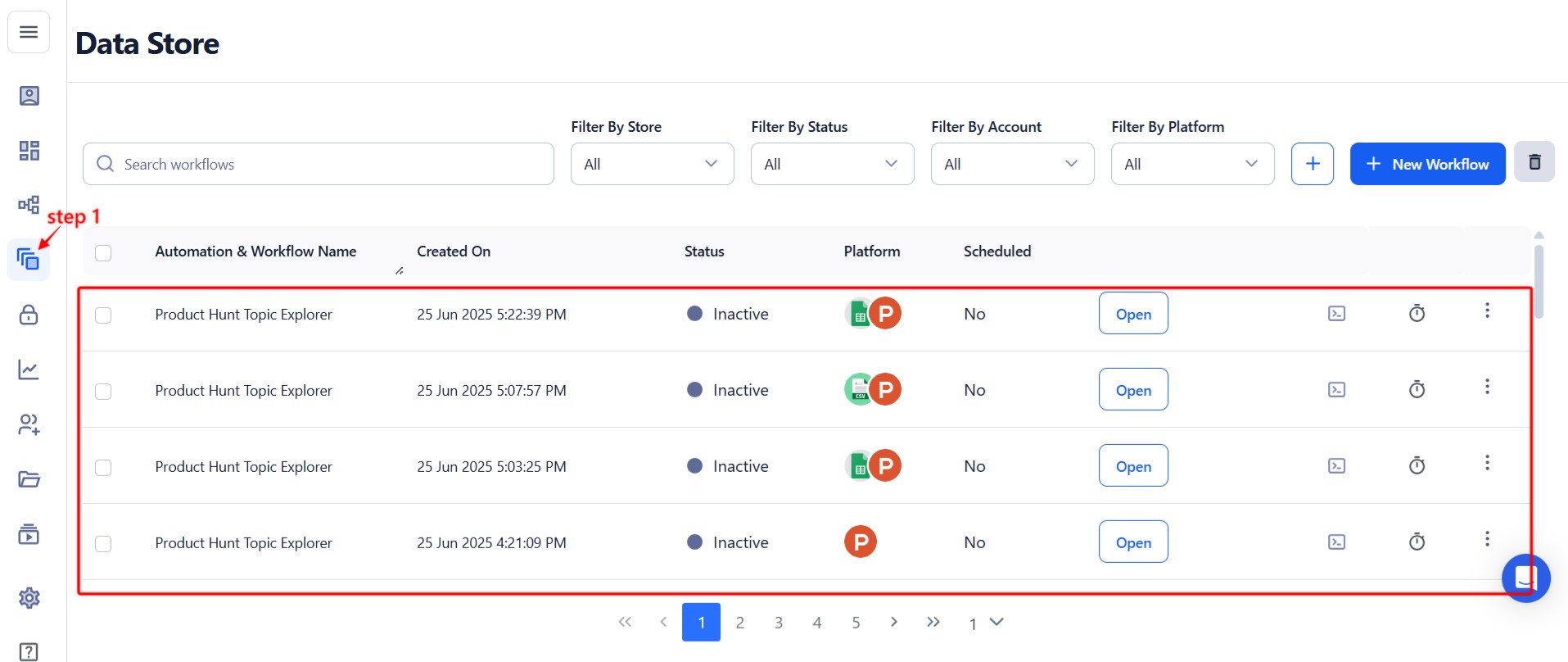
After the automation finishes, go to the Data Store inside TexAu. Find the Product Hunt Post Commenters Export automation and click See Data to view or download your results.
Screenshot Suggestion: Show the Data Store screen with the "See Data" button highlighted.
The Product Hunt Post Commenters Export automation gives you an efficient way to understand conversations around products. With bulk input, flexible scheduling, and export options, this tool helps you turn community insights into valuable leads, feedback, or marketing opportunities. Use it to monitor engagement, analyze sentiment, or fuel your next outreach campaign.
Run this automation on your own machine.
TexAu V2 Desktop runs every automation locally — your real session, your real IP, unlimited hours, no proxies. One-time $1,999, no subscription, 5 years of updates.