Product Hunt Product Launches Scraper
Use TexAu’s Product Hunt Product Launches Scraper to extract real-time product data - titles, links, upvotes, and more. Track trending launches easily.
Last updated
The **Product Hunt Product Launches Scraper** automation in TexAu helps founders, marketers, analysts, and growth hackers stay updated with the latest launches on Product Hunt. This tool is designed to extract real-time product launch data—titles, URLs, descriptions, upvotes, and more—from specific
The Product Hunt Product Launches Scraper automation in TexAu helps founders, marketers, analysts, and growth hackers stay updated with the latest launches on Product Hunt. This tool is designed to extract real-time product launch data—titles, URLs, descriptions, upvotes, and more—from specific categories or keywords. With TexAu’s flexible input and export options, you can automate your tracking process and store the results in Google Sheets or CSV.
Follow this step-by-step guide to configure and run the Product Launches Scraper automation.
Step 1: Log in to TexAu and Find the Automation
TexAu makes it easy to get started with ready-to-use automation templates. From scraping product data to managing outreach, all tools are accessible from one central dashboard.
Log in to your TexAu account at the TexAu V2 Desktop app. Once logged in, go to the Automation Store, search for Product Hunt Product Launches Scraper, and select it to open the configuration page.
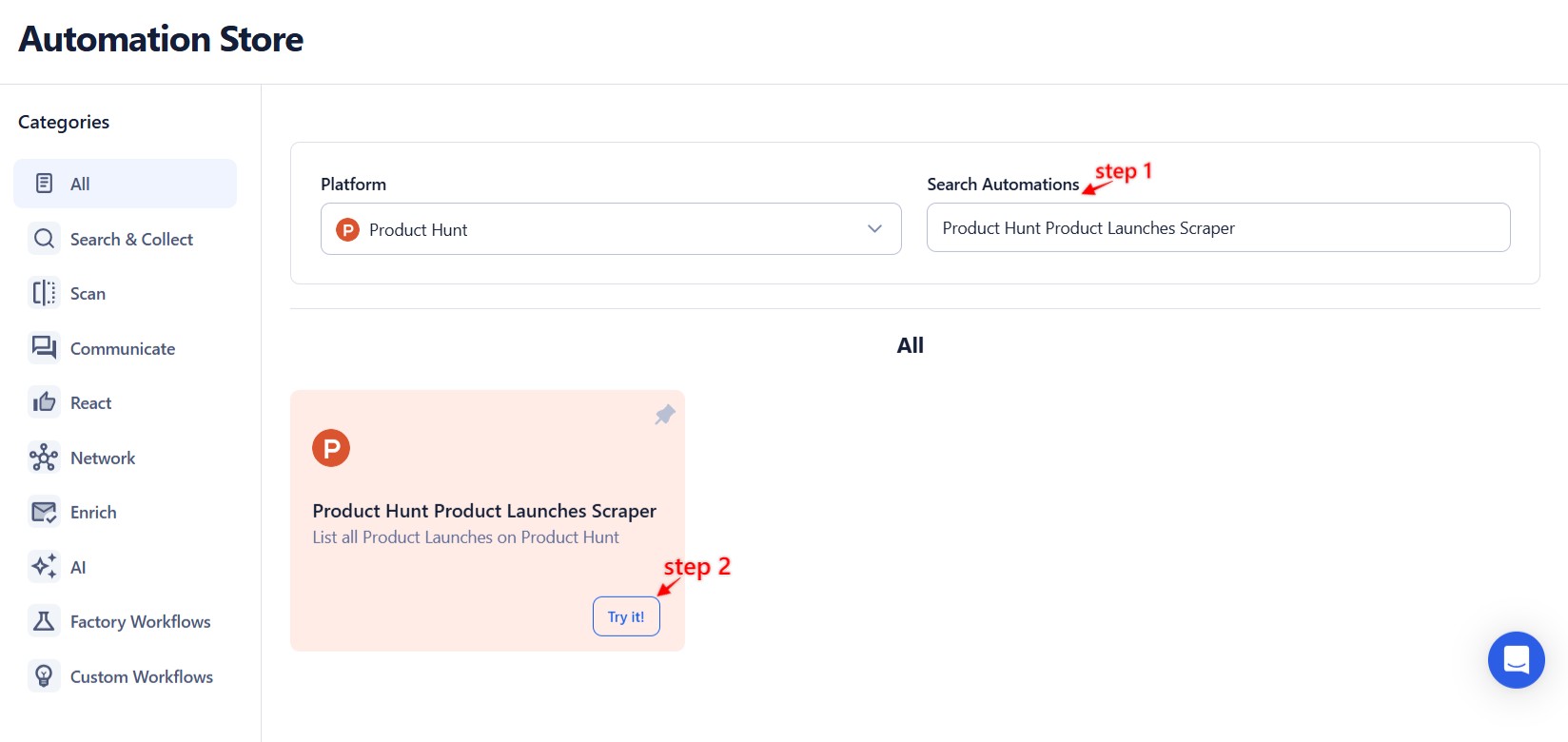
Step 2: Select Your Input Source
TexAu supports multiple input formats, giving you control over whether you want to scrape a single keyword or a bulk list from Sheets or CSV. This flexibility saves time and allows custom setups.
Choose how you want to extract Product Hunt launch data:
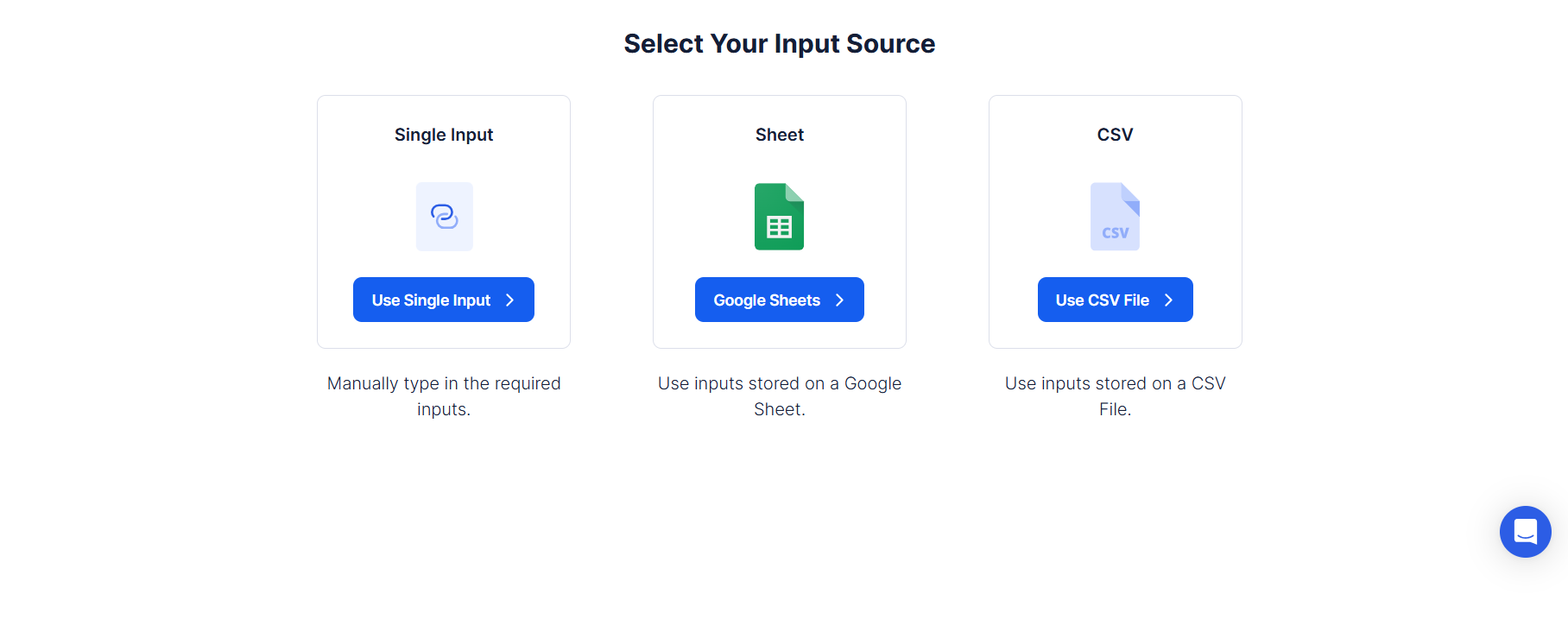
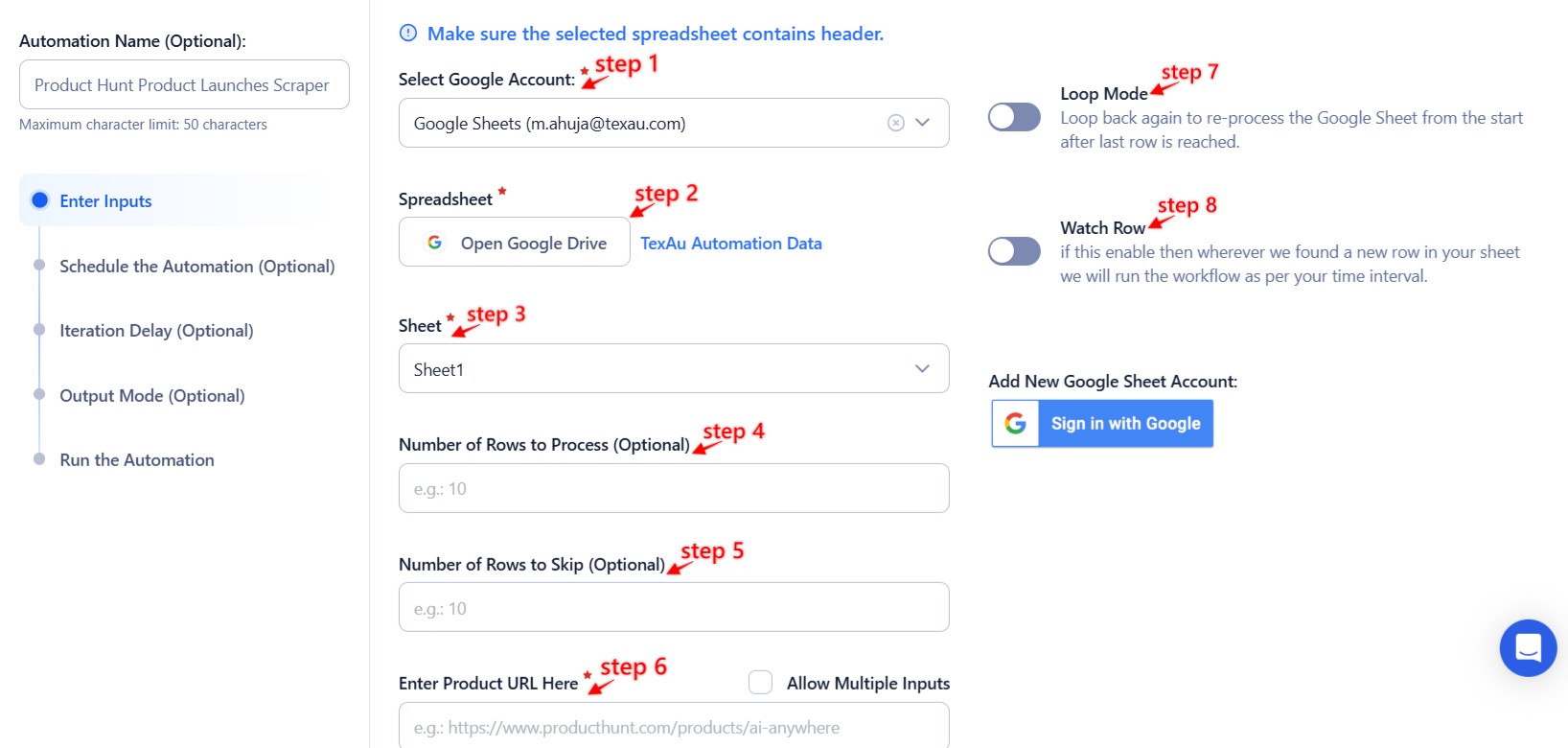
Single Input
Use this option to scrape data for a specific keyword or Product Hunt category.
Keyword or Category: Enter a search term (e.g., “AI”) or category (e.g., “Marketing”) to fetch relevant product launches.
Date Range (Optional): Set a start and end date to extract launches from a specific time period.
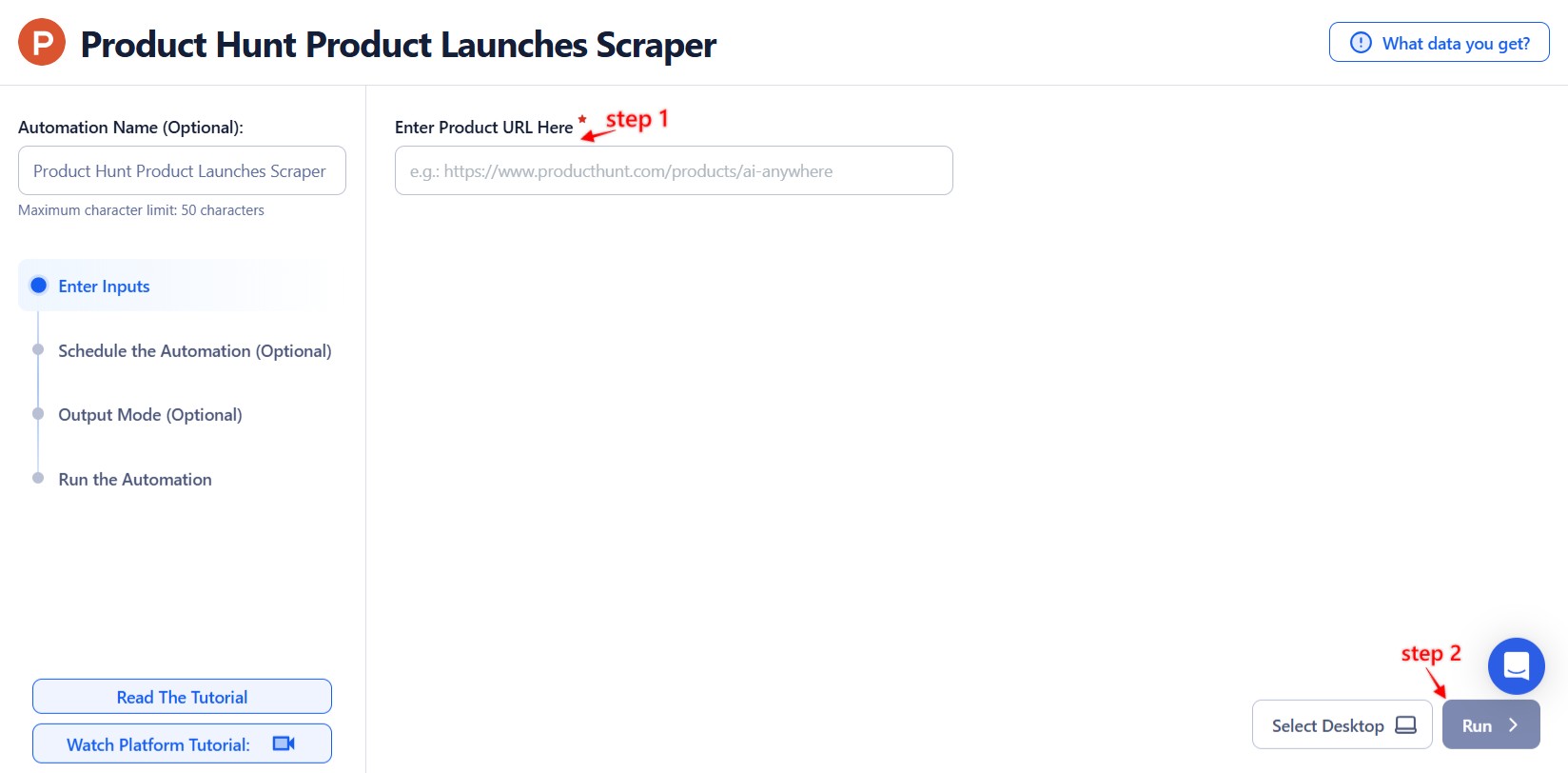
Google Sheets
Process multiple search terms or categories from a Google Sheet. This is ideal for ongoing keyword tracking.
Select Google Account: Link your Google account or use a previously connected one.
Select Your Spreadsheet: Click “Open Google Drive” and choose your file and sheet containing the input data.
Processing Options:
-
Number of Rows to Process (Optional): Specify how many rows to fetch.
-
Number of Rows to Skip (Optional): Skip the initial rows if needed.
-
Keyword Column: Include keywords or categories to search.
Loop Mode (Optional)
Turn on Loop Mode to keep reprocessing from the top once the last row is reached.
Watch Row (Optional)
The Watch Row feature enables real-time monitoring of your Google Sheet. As new rows are added, TexAu will auto-run based on your schedule.
Watch Row Schedule
- None
- Every 15 minutes (default)
- Hourly, Daily, Weekly
- Monthly or Specific Dates
Watch Row ensures you capture new data as soon as it’s added.
Process a CSV File
Use this option if your input list is stored in a CSV format.
Upload the File: Click “Upload CSV File” and choose the correct file. Ensure your file includes relevant keywords or categories.
Adjust Processing Settings:
- Number of Rows to Process (Optional): Set the number of rows to handle.
- Number of Rows to Skip (Optional): Skip rows if needed before starting.
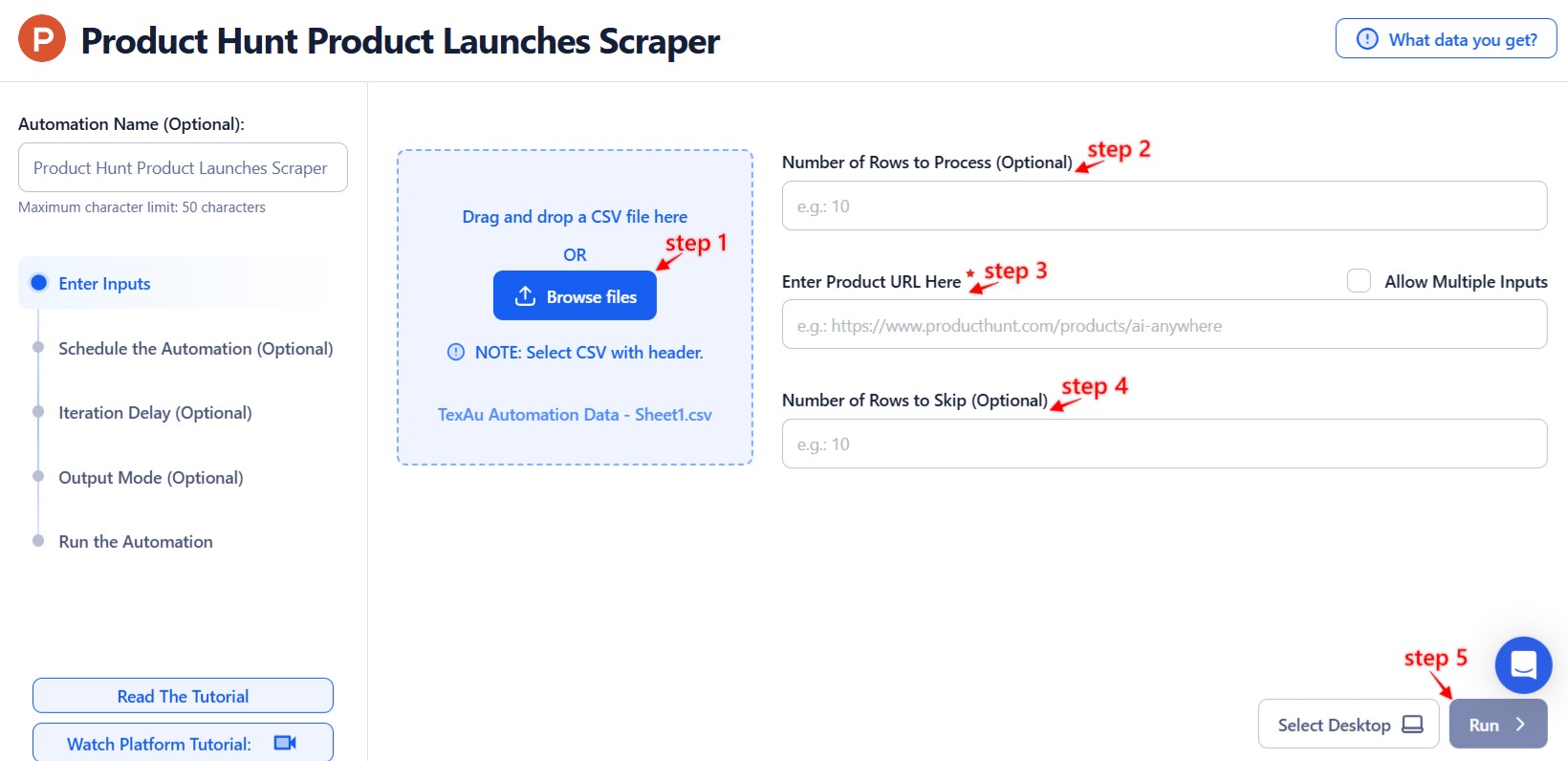
Step 3: Run the automation on TexAu Desktop
- Open the automation setup and select Desktop Mode.
- Click Choose a Desktop to Run this Automation.
- From the platform, select your connected desktop (status will show as "Connected").
- Click “Use This” after selecting the desktop to run the automation on your local system.
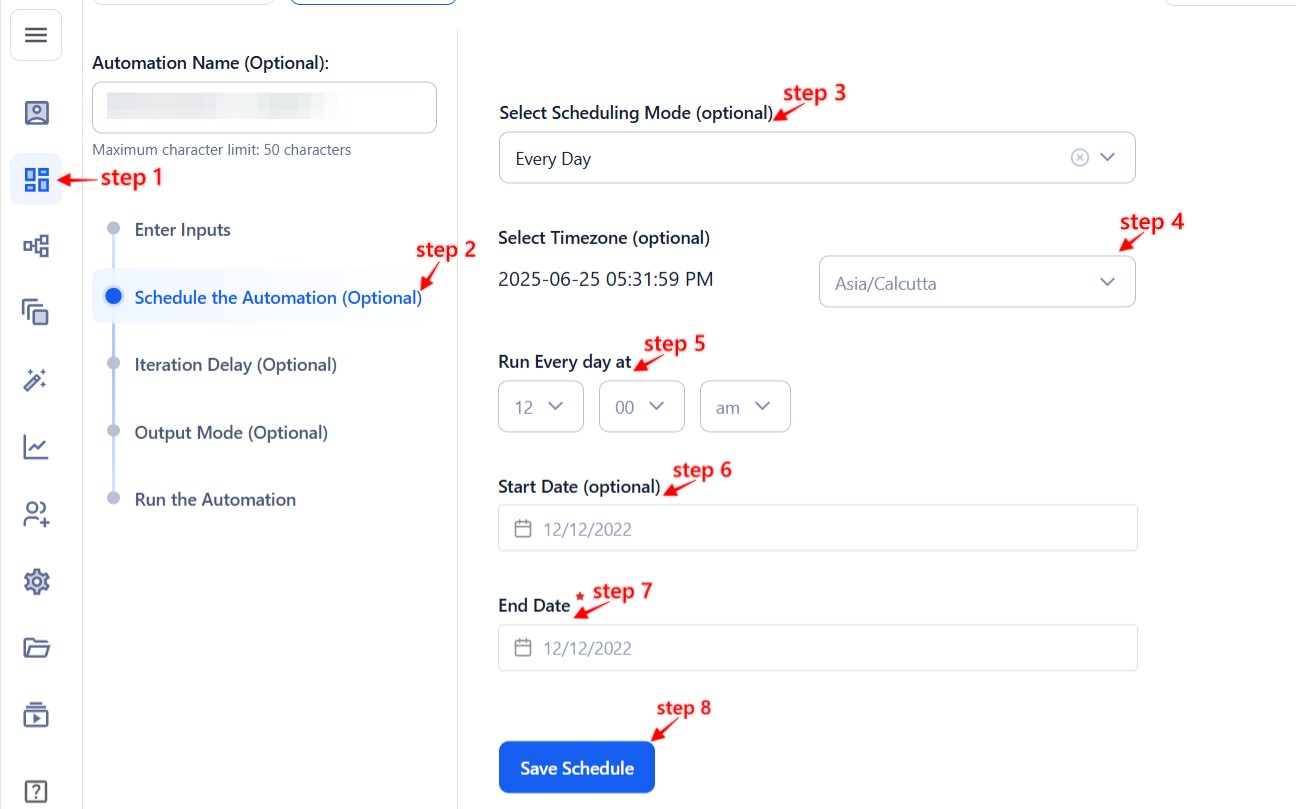
Step 4: Schedule the Automation (Optional)
TexAu helps you stay consistent with automation by allowing scheduled runs. This feature is perfect for tracking launches at regular intervals.
Click Schedule and choose one of the following options:
- None
- At Regular Intervals (e.g., every 12 hours)
- Once
- Every Day
- On Specific Days of the Week
- On Specific Days of the Month
- On Specific Dates
Tip: Automate weekly or daily launch scrapes to keep your reports or outreach updated.
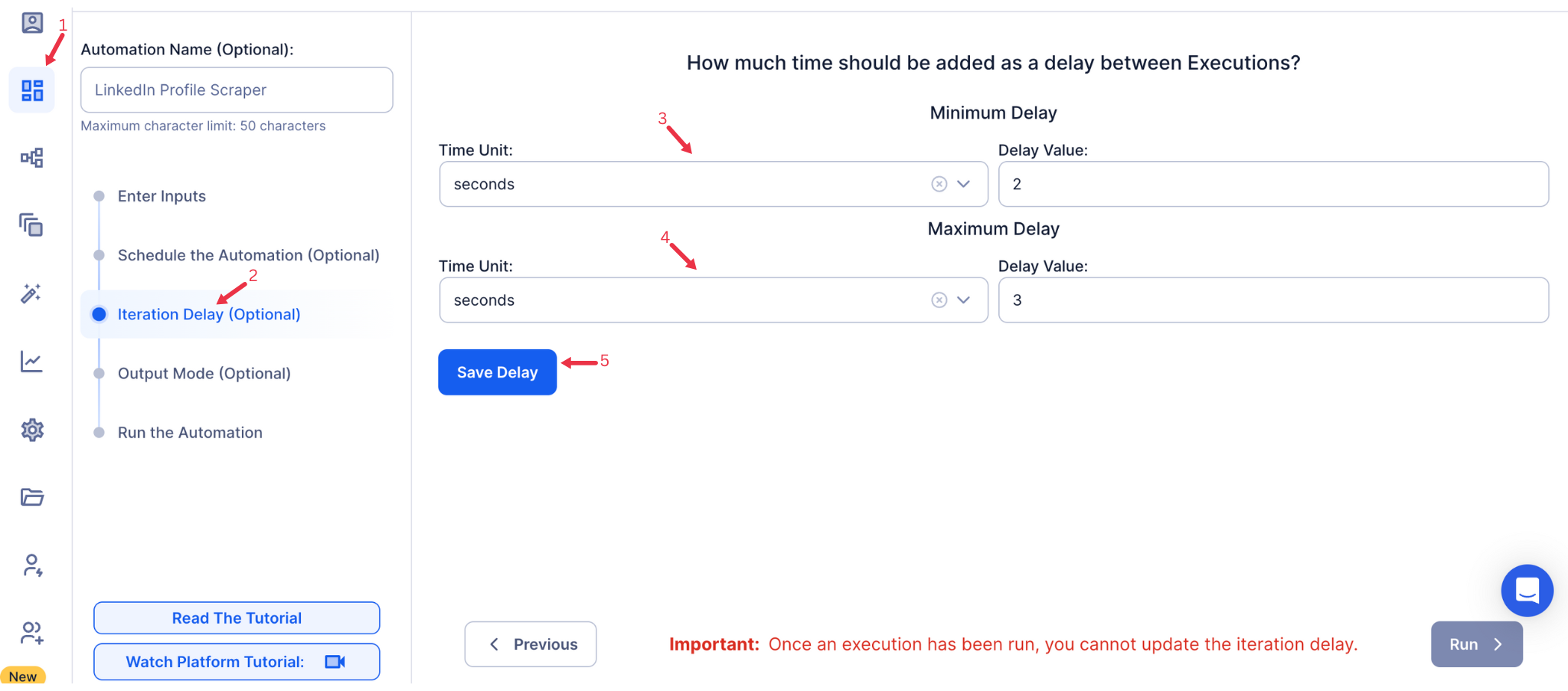
Step 5: Set an Iteration Delay (Optional)
To avoid API limits or suspicious behaviour, TexAu allows you to configure a natural delay between iterations. This keeps automation smooth and safe.
Set Minimum Delay and Maximum Delay to vary the time between each request. You can choose from seconds, minutes, or hours. This feature is applicable only when using Google Sheets or CSV as input sources.
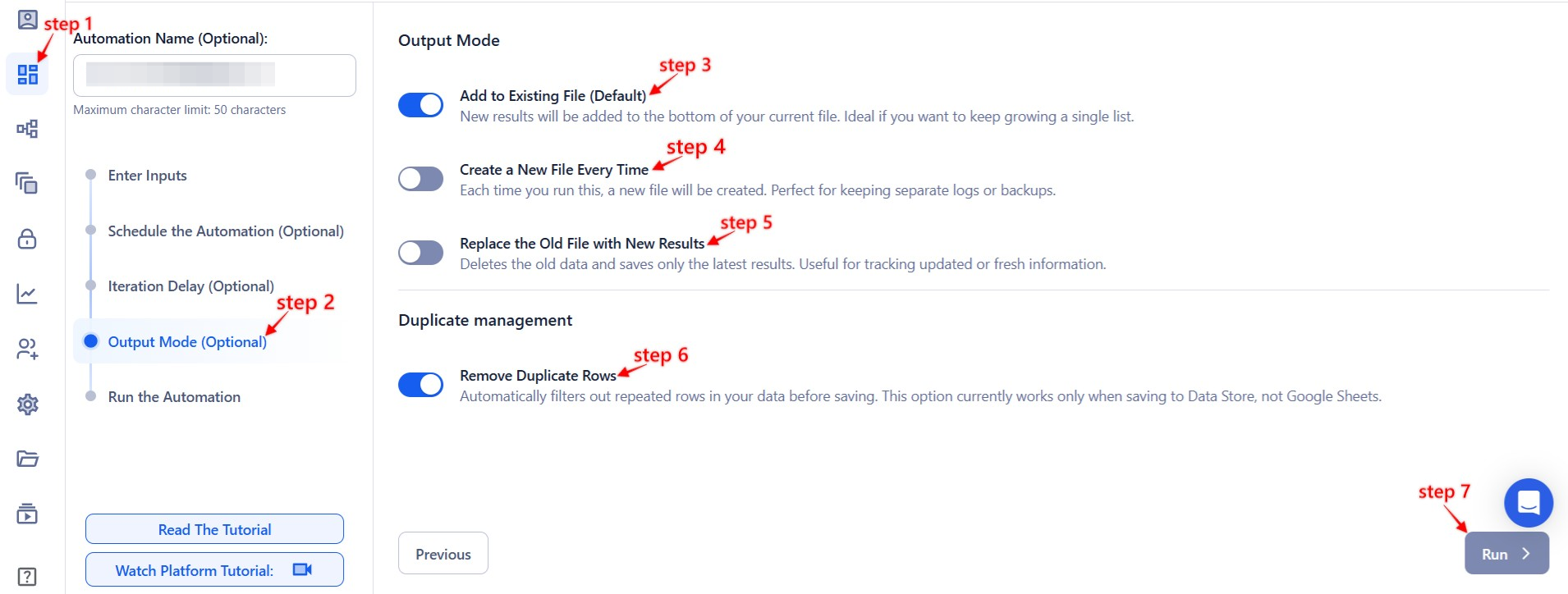
Step 6: Choose Your Output Mode (Optional)
TexAu gives you complete control over where and how your results are stored. You can export your data to Google Sheets or CSV based on your workflow.
- Export Options: Choose to export results to Google Sheets or CSV.
- Output Management:
- Append (Default): Adds results to existing data.
- Split: Creates a new file for each run.
- Overwrite: Replaces previous output.
- Duplicate Management: Enable Deduplicate to skip previously processed entries.
Tip: Use Google Sheets for team collaboration or connecting with external tools via Zapier or Make.
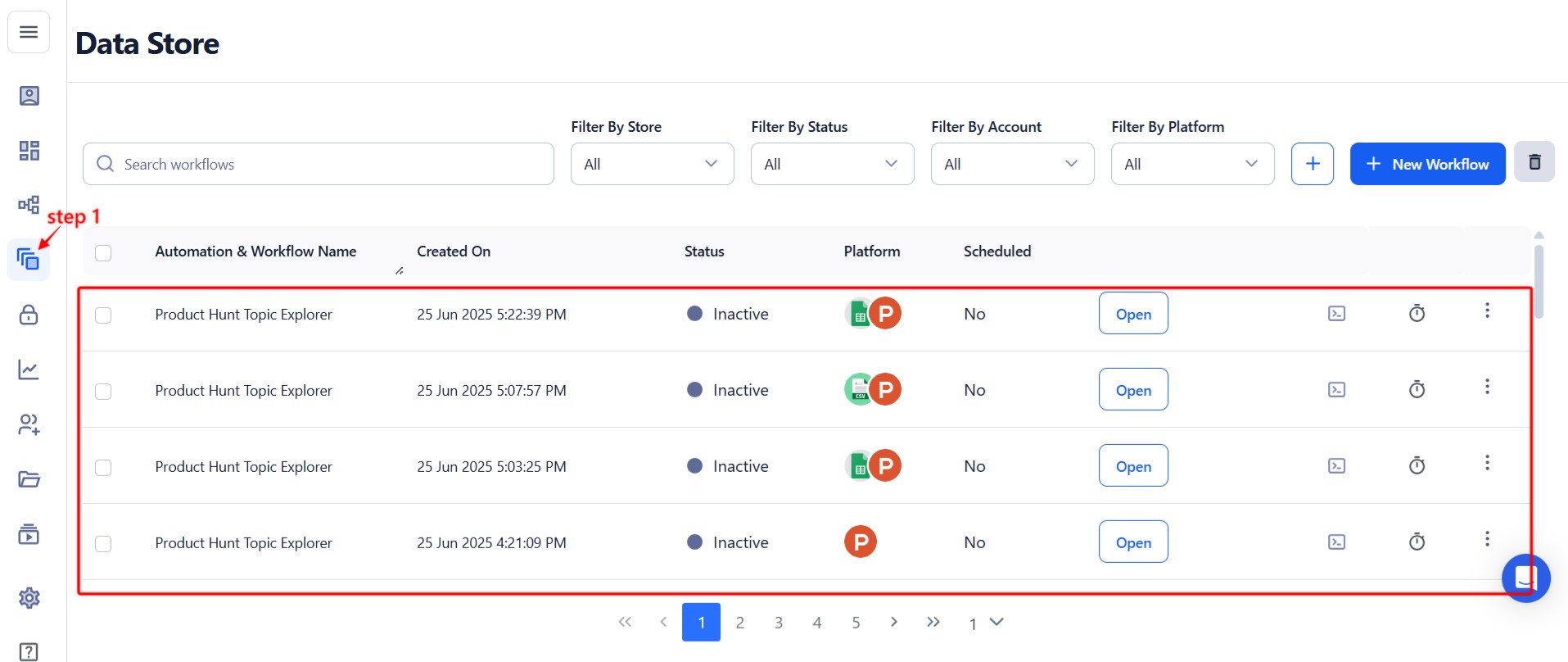
Step 7: Access the Data from the Data Store
Once the automation completes, TexAu stores your results securely in the Data Store. You can download them anytime or integrate with other tools.
Go to the Data Store section, locate the Product Launches Scraper automation, and click See Data to view or download your launch results.
Screenshot Suggestion: Highlight the Data Store page showing the scraped product launch results.
The Product Hunt Product Launches Scraper automation helps you monitor the latest tech trends, scout competitors, and track product categories with zero manual effort. With support for keyword filtering, scheduling, and easy export, TexAu lets you turn Product Hunt into a consistent lead or insight source—automated, efficient, and always up-to-date.
Run this automation on your own machine.
TexAu V2 Desktop runs every automation locally — your real session, your real IP, unlimited hours, no proxies. One-time $1,999, no subscription, 5 years of updates.