Product Hunt Product Makers Export
Automate data scraping from Product Hunt makers and export insights with TexAu. Save time, grow smarter, and power up your outreach in one click.
Last updated
The **Product Hunt Product Makers Export** automation in TexAu empowers founders, product marketers, and growth hackers to instantly extract detailed information about Product Hunt makers and their products—streamlining everything from lead generation to market analysis. It consistently pulls maker
The Product Hunt Product Makers Export automation in TexAu empowers founders, product marketers, and growth hackers to instantly extract detailed information about Product Hunt makers and their products—streamlining everything from lead generation to market analysis. It consistently pulls maker names, product details, and launch metadata, saving/exporting this to Google Sheets or CSV with your own machine flexibility.
Follow this step-by-step guide to configure and run the Product Makers Export automation.
Step 1: Log in to TexAu and Find the Automation
Log in to your TexAu account at the TexAu V2 Desktop app. Once logged in, go to the Automation Store, search for Product Makers Export, and select it to open the configuration page.
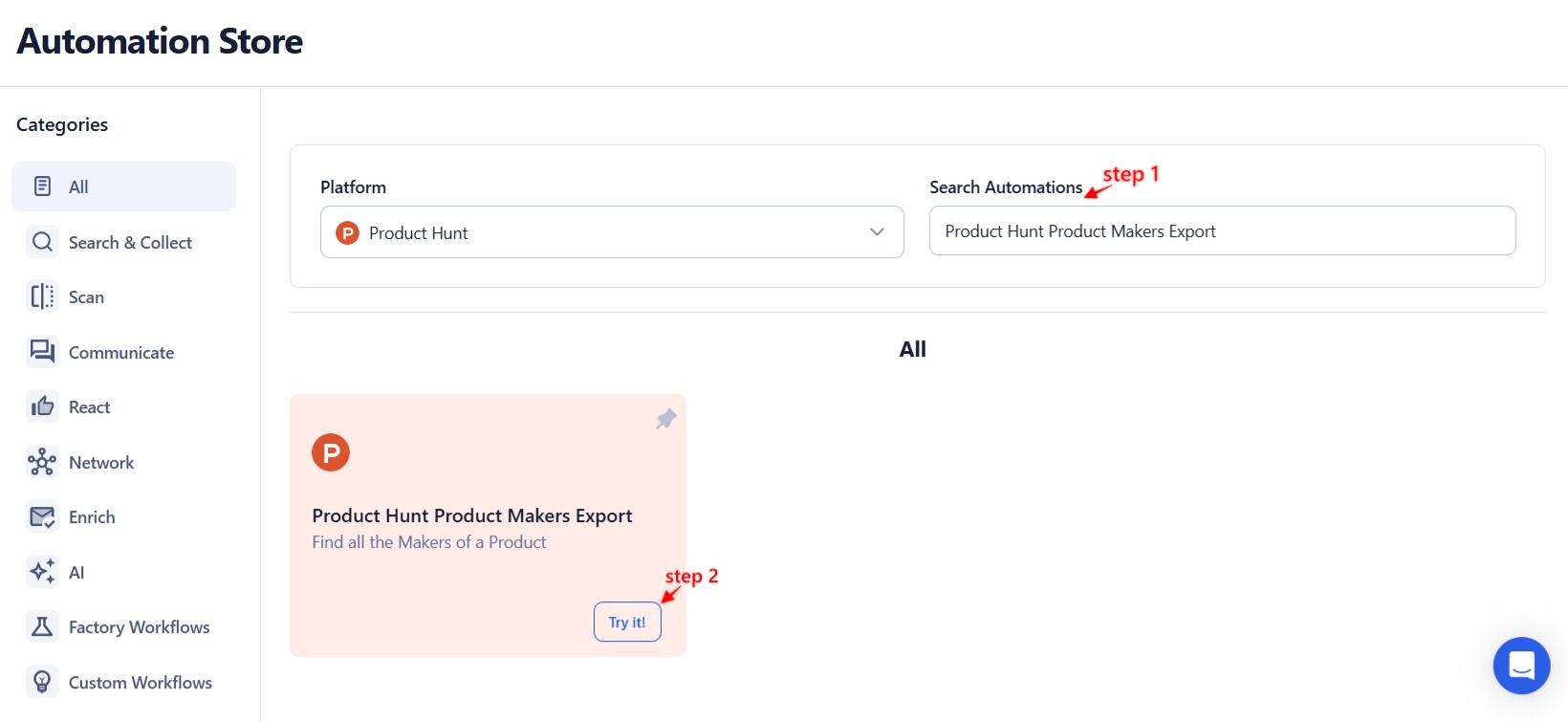
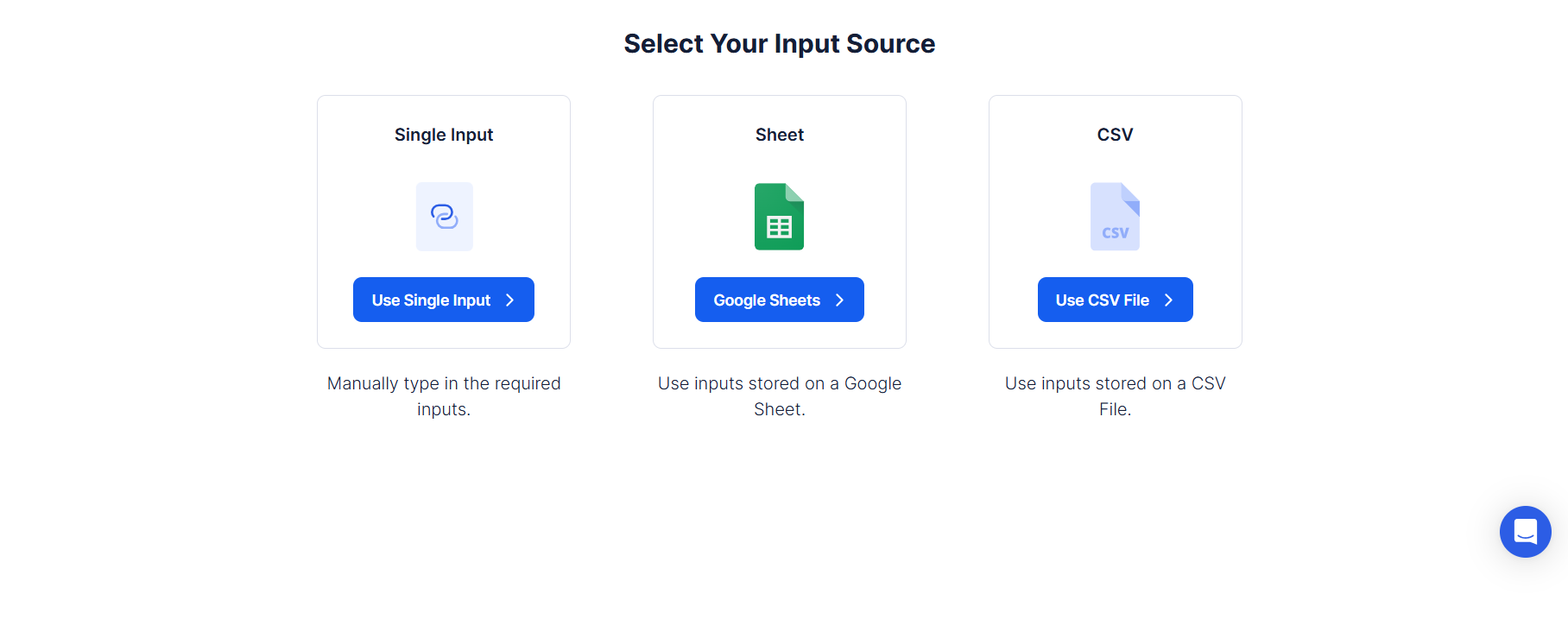
Step 2: Select Your Input Source
TexAu offers multiple input options for automating the extraction of Product Hunt topics, making it easy for growth teams, founders, and researchers to stay on top of the latest tools. Choose how you want to feed Product Hunt data into the automation:
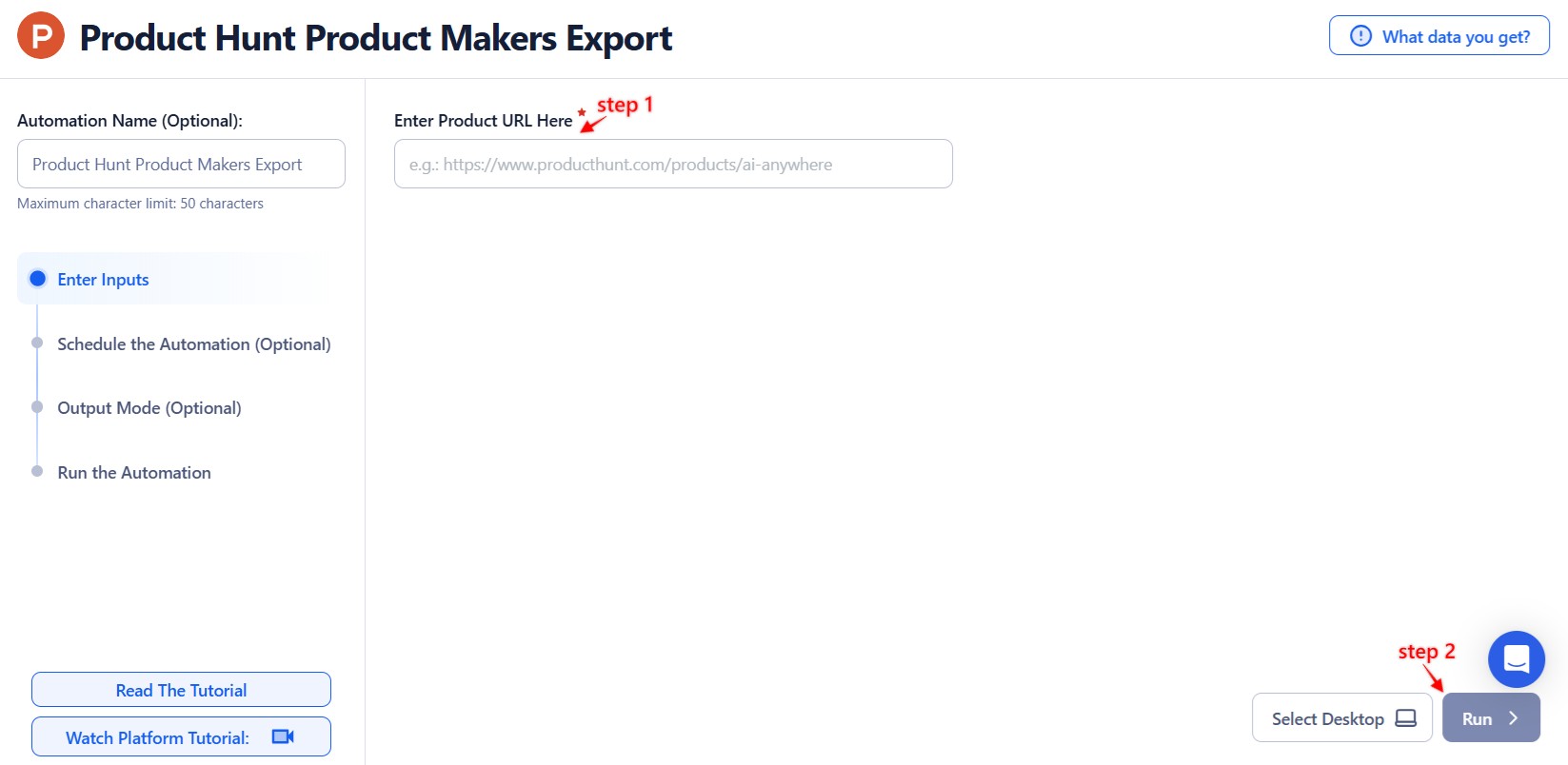
Single Input
Use this if you want to extract maker information from a single Product Hunt post.
Product Hunt URL: Paste a specific product post URL (e.g., https://www.producthunt.com/posts/sample-product).
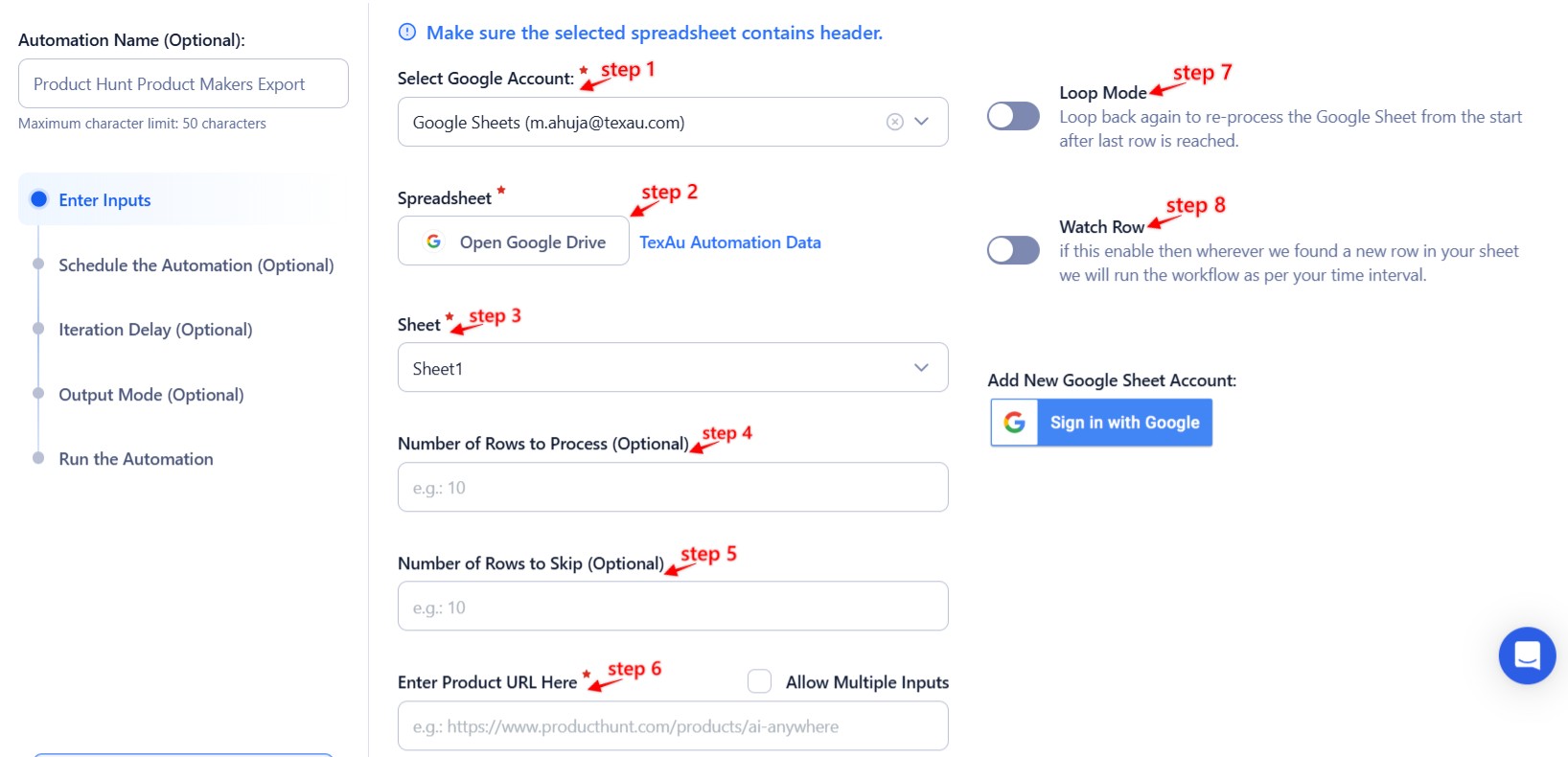
Google Sheets
To bulk extract maker data from multiple Product Hunt posts or keywords listed in a Google Sheet.
- Select Google Account: Link your Google account or choose an existing one.
- Select Your Spreadsheet: Click "Open Google Drive" to locate your sheet. Choose the file and worksheet with Product Hunt URLs or keywords.
Processing Options:
-
Number of Rows to Process (Optional): Specify how many rows you want to extract.
-
Number of Rows to Skip (Optional): Skip the first few rows if needed.
-
Data Column: Ensure the sheet contains a column with valid Product Hunt links or search keywords.
Loop Mode (Optional)
Enable Loop Mode to allow TexAu to reprocess from the start after reaching the end of the sheet.
Watch Row (Optional)
Automatically monitor the sheet for new entries and trigger the automation when a new row appears.
Watch Row Schedule
-
None
-
Every 15 Minutes (default)
-
Every Hour
-
Once Daily
-
Weekly Recurrence
-
Monthly Dates
-
Custom Dates
-
Watch Row runs for 5 days by default unless changed.
Process a CSV File
If you have a CSV list of product URLs or keywords, you can follow these steps:
Upload the File: Click "Upload CSV File" and select the file.
Adjust Settings:
- Rows to Process: Number of rows you want TexAu to handle.
- Rows to Skip: Skip rows from the top of your file, if needed.
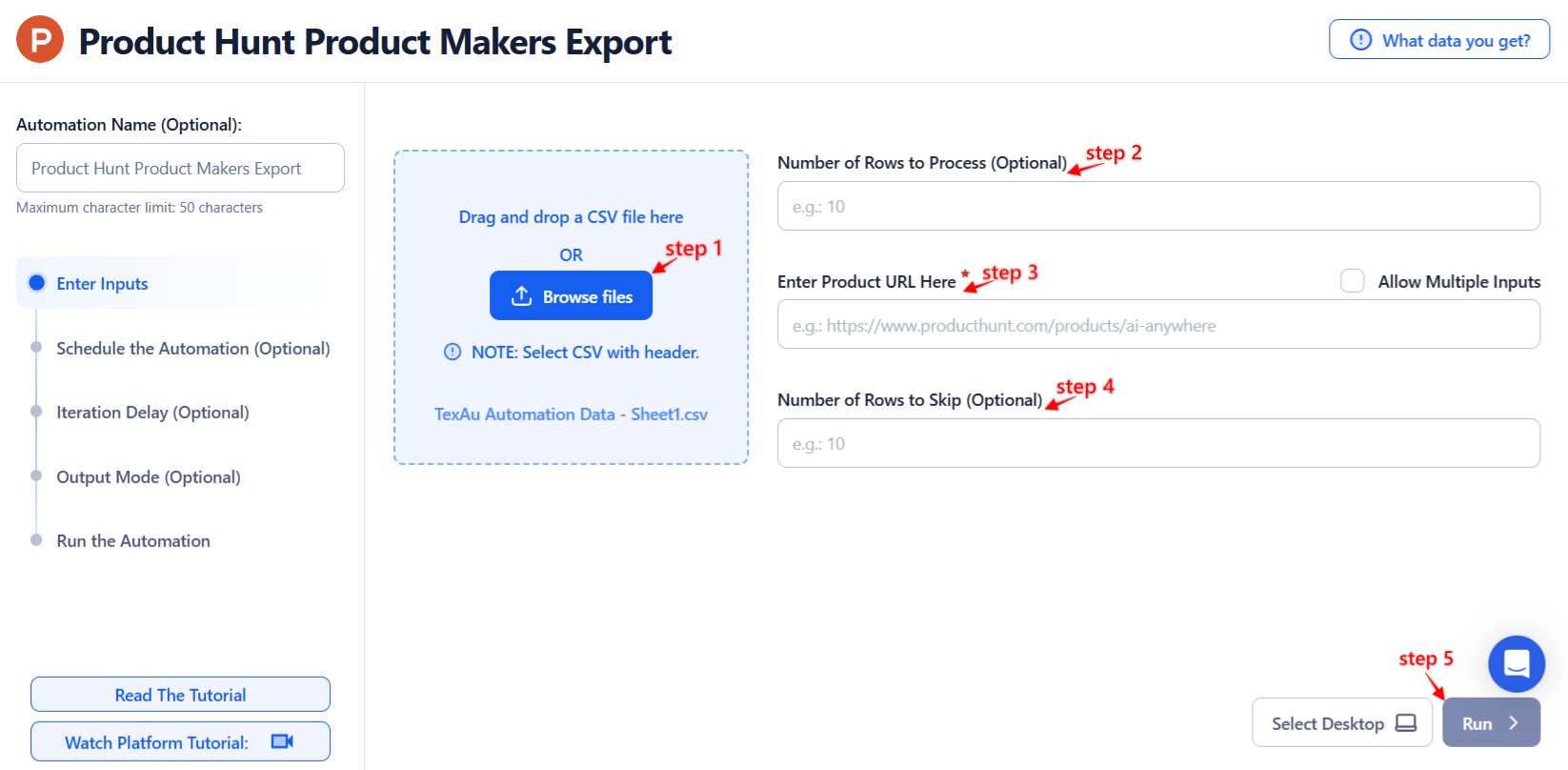
Step 3: Run the automation on TexAu Desktop
- Open the automation setup and select Desktop Mode.
- Click Choose a Desktop to Run this Automation.
- From the platform, select your connected desktop (status will show as "Connected").
- Click “Use This” after selecting the desktop to run the automation on your local system.
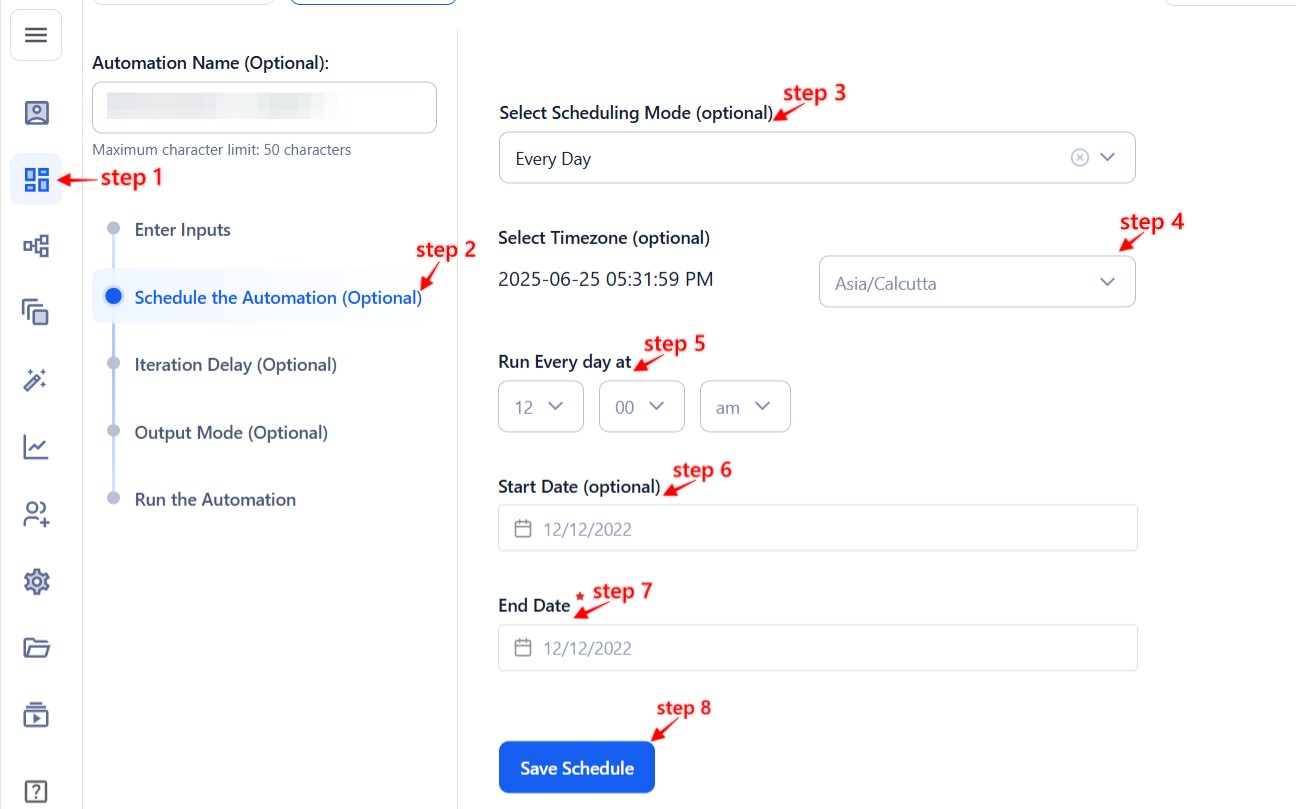
Step 4: Schedule the Automation (Optional)
Next, you can click the Schedule option to automate exports at your preferred frequency:
- None
- At Intervals (e.g., every 12 hours)
- Once
- Daily
- Weekly
- Monthly
- Specific Dates
Tip: Ideal for regular tracking of new Product Hunt launches or maker updates.
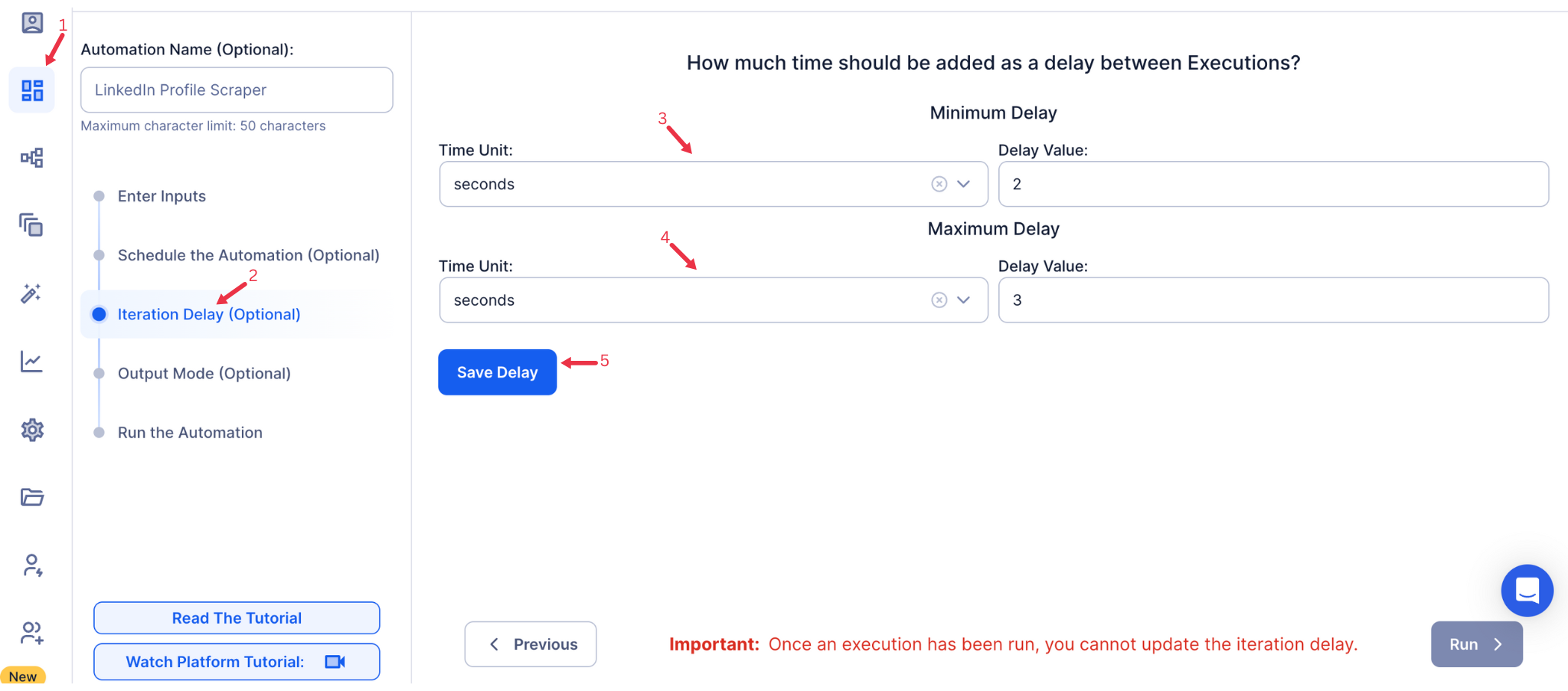
Step 5: Set an Iteration Delay (Optional)
To mimic human behavior and avoid rate limits, you can also set:
- Minimum Delay
- Maximum Delay
You can configure delays in seconds, minutes, or hours between each data fetch. However, it is only applicable to Google sheet and csv
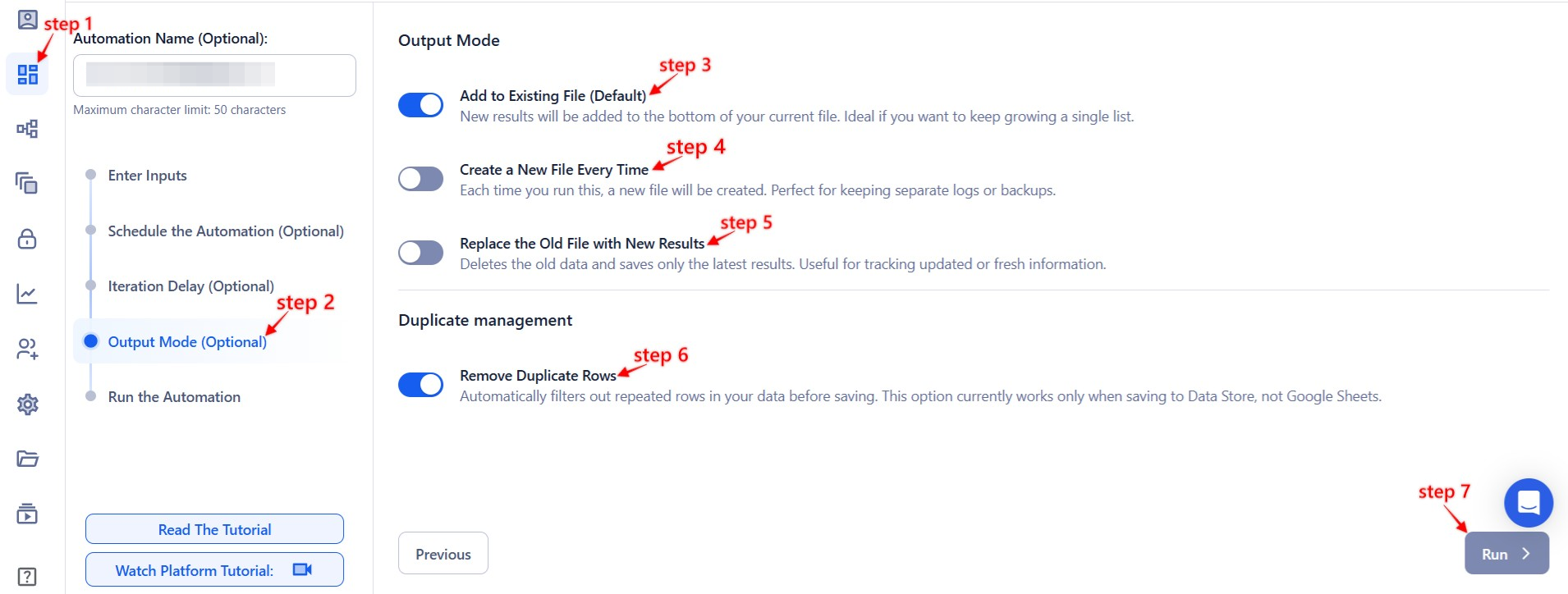
Step 6: Choose Your Output Mode (Optional)
Next, you need to decide how to save the output:
- Export Destination: Google Sheets or CSV file.
- Write Options:
- Append (default): Adds data to the existing file.
- Split: Creates a new file every time.
- Overwrite: Replaces old data with new results.
- Deduplicate: Enable this to skip duplicate entries and avoid reprocessing.
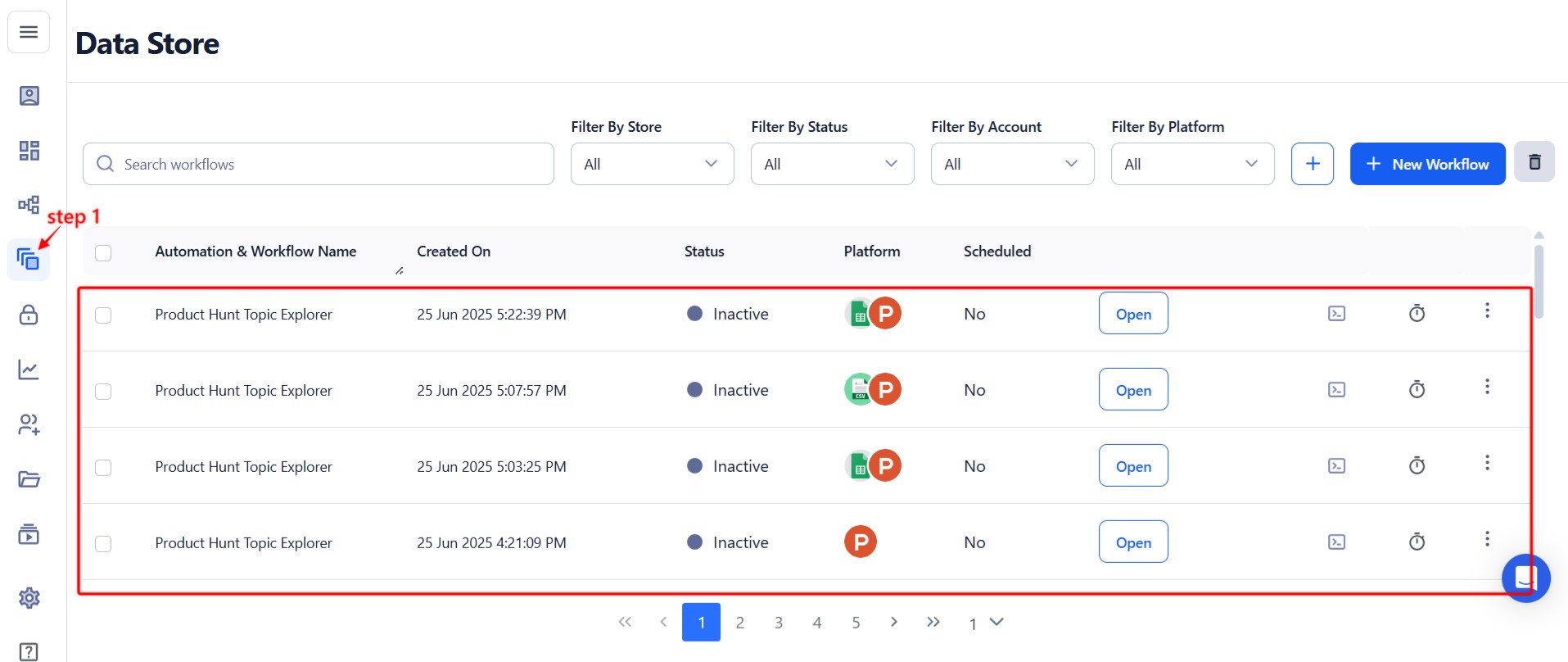
Step 7: Access the Data from the Data Store
Once complete, go to Data Store in TexAu.
Find the Product Makers Export automation and click See Data to view or download the results.
Screenshot Suggestion: Highlight the “See Data” button on the Data Store page.
The Product Hunt Product Makers Export automation helps you discover and track key players launching on Product Hunt. Whether you’re generating leads, researching trends, or identifying influencers—this tool gives you reliable, exportable access to real-time product and maker data with minimal effort.
Run this automation on your own machine.
TexAu V2 Desktop runs every automation locally — your real session, your real IP, unlimited hours, no proxies. One-time $1,999, no subscription, 5 years of updates.