Product Hunt Products of The Day Export
Automatically export top Product Hunt launches by date with TexAu’s Products of The Day automation. Save data to Google Sheets or CSV.
Last updated
The **Product Hunt Products of The Day Export** automation in TexAu helps founders, marketers, product researchers, and growth hackers stay updated on the latest launches. This tool extracts the most upvoted Product Hunt posts for a specific day, giving you access to product names, links, makers, an
The Product Hunt Products of The Day Export automation in TexAu helps founders, marketers, product researchers, and growth hackers stay updated on the latest launches. This tool extracts the most upvoted Product Hunt posts for a specific day, giving you access to product names, links, makers, and descriptions. With TexAu’s automation, you can schedule daily tracking, save results to Google Sheets or CSV, and run it on your own machine.
Follow this step-by-step guide to configure and run the Product Hunt Products of The Day Export automation.
Step 1: Log in to TexAu and Find the Automation
TexAu makes accessing data automation simple with a centralised dashboard and searchable automation store.
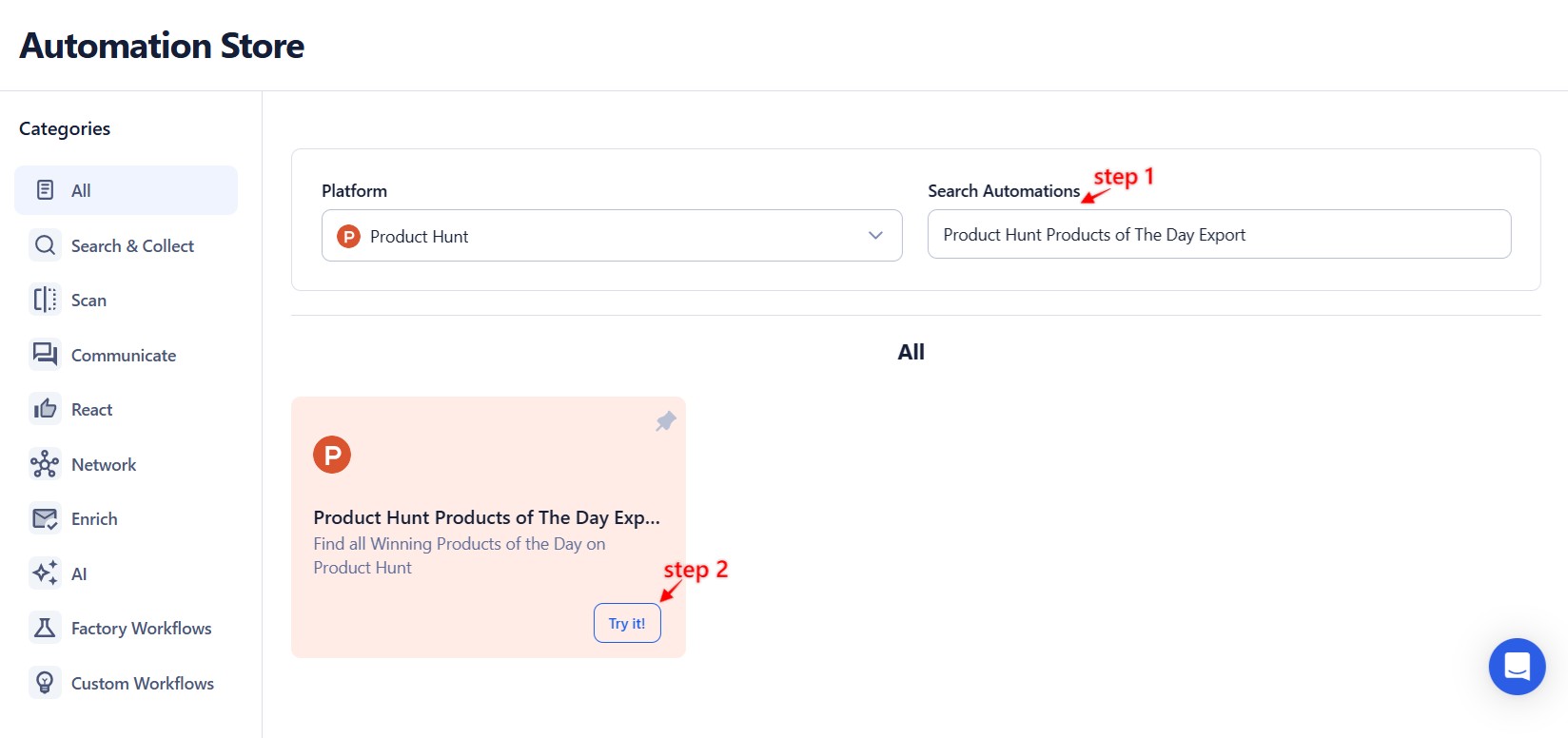
Log in to your TexAu account at the TexAu V2 Desktop app. Once logged in, go to the Automation Store, search for Product Hunt Products of The Day Export, and click on it to open the setup page.
Step 2: Select Your Input Source
TexAu supports multiple input types to help you extract data for one date or multiple dates in bulk. Choose what fits your workflow best.
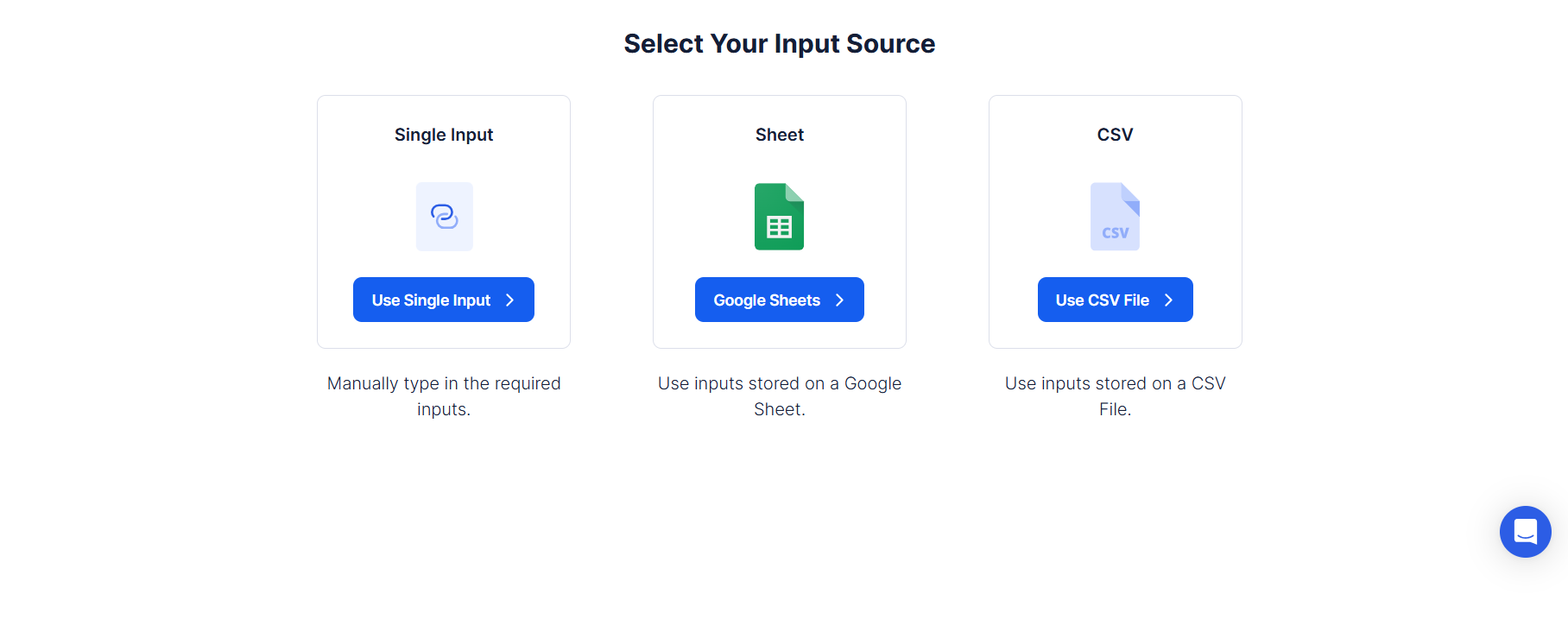
Single Input
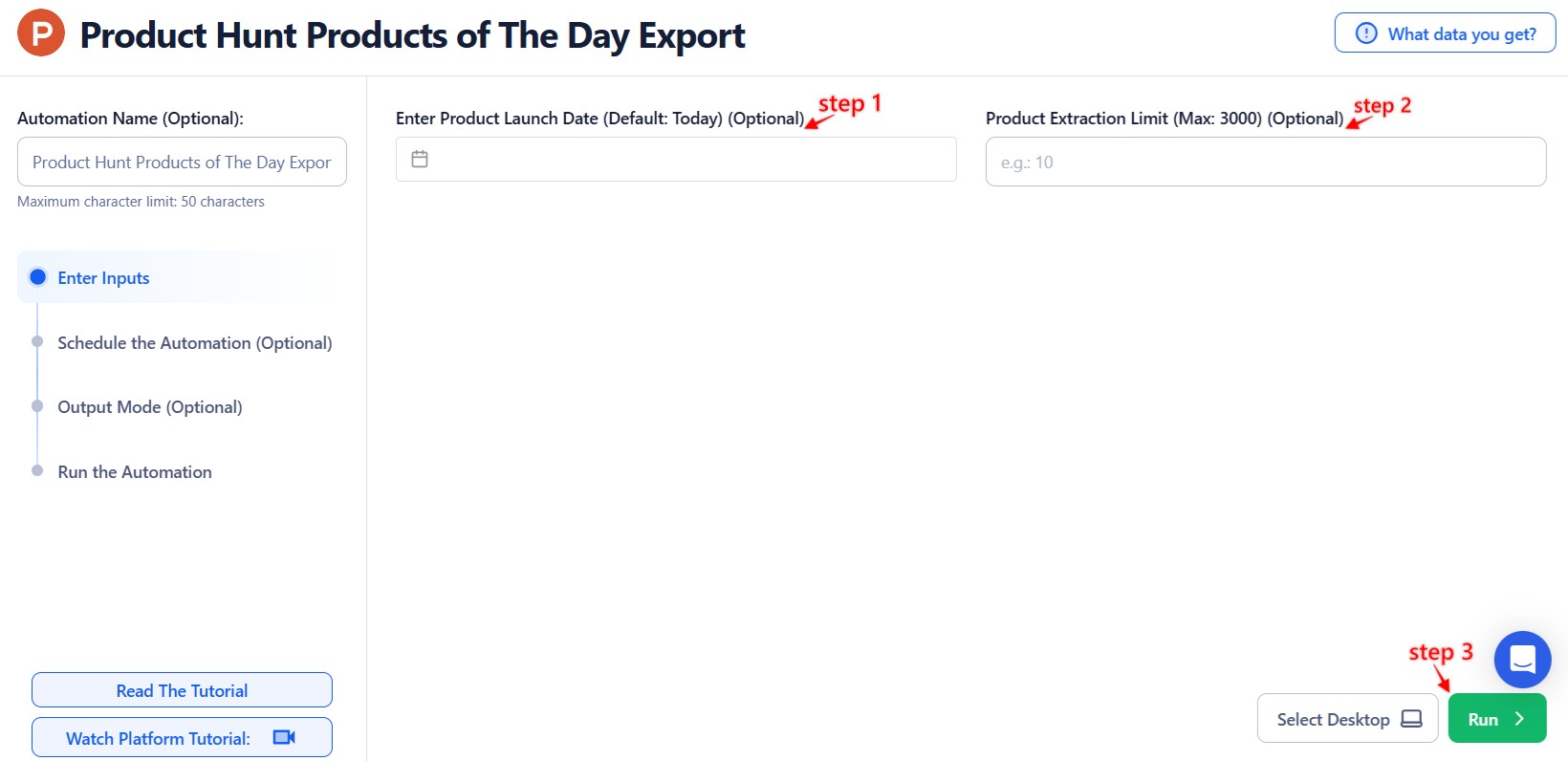
Use this to export product data for a specific date.
Date: Enter the Product Hunt date in YYYY-MM-DD format (e.g., 2024-06-20). TexAu will fetch all the top products launched on that day.
Google Sheets
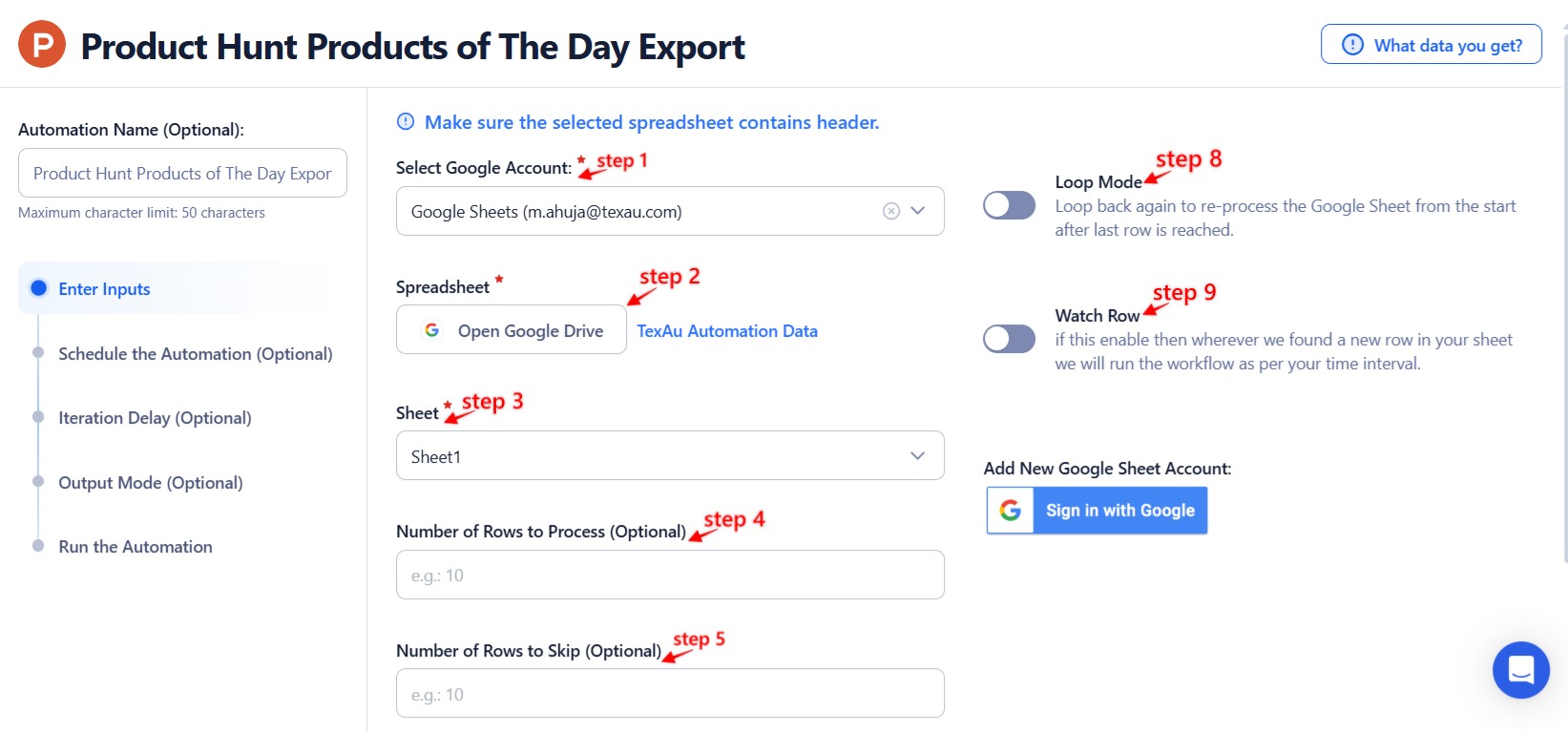
Use this option to pull products from multiple dates listed in a Google Sheet.
Select Google Account: Connect your Google account or choose an existing one.
Select Your Spreadsheet: Click "Open Google Drive" and choose the Google Sheet containing dates in YYYY-MM-DD format.
Processing Options:
- Number of Rows to Process (Optional): Specify how many dates to process.
- Number of Rows to Skip (Optional): Define how many rows to skip before starting.
- Date Column: Ensure one column contains valid Product Hunt dates.
Loop Mode (Optional)
Turn on Loop Mode to reprocess the Google Sheet from the top after all rows are completed.
Watch Row (Optional)
Enable Watch Row to detect new date entries in your Google Sheet and trigger automation automatically.
Watch Row Schedule:
- None
- Scheduling Intervals (e.g., every 15 minutes, hourly)
- One-Time Execution
- Daily Execution
- Weekly Recurrence
- Monthly Specific Dates
- Custom Fixed Dates
By default, Watch Row scans every 15 minutes and runs for five days unless changed.
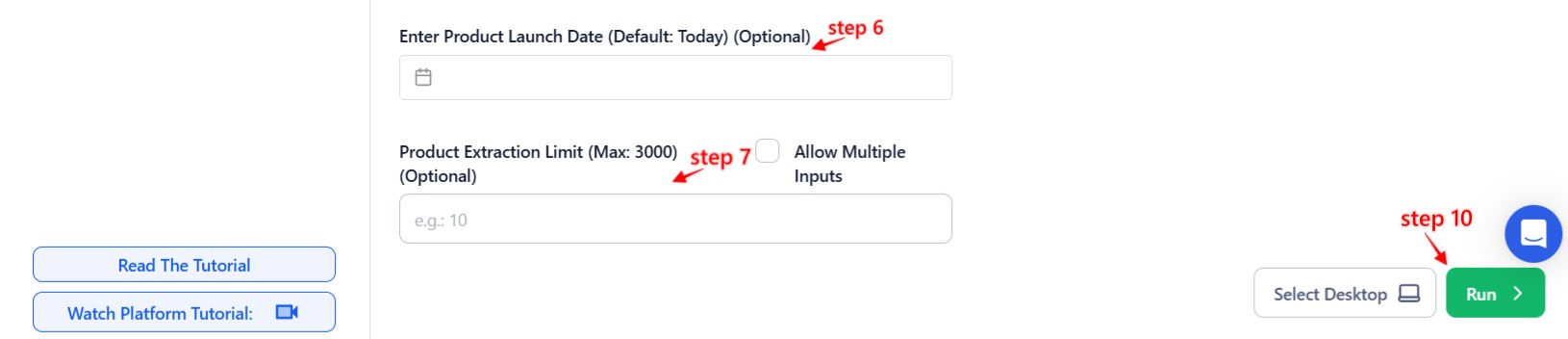
Process a CSV File
Use this for static lists of dates stored in a CSV file.
Upload the File: Click "Upload CSV File" and select the CSV containing Product Hunt dates in YYYY-MM-DD format.
Adjust Processing Settings:
- Number of Rows to Process (Optional): Set how many rows to process.
- Number of Rows to Skip (Optional): Define how many rows to skip before starting.
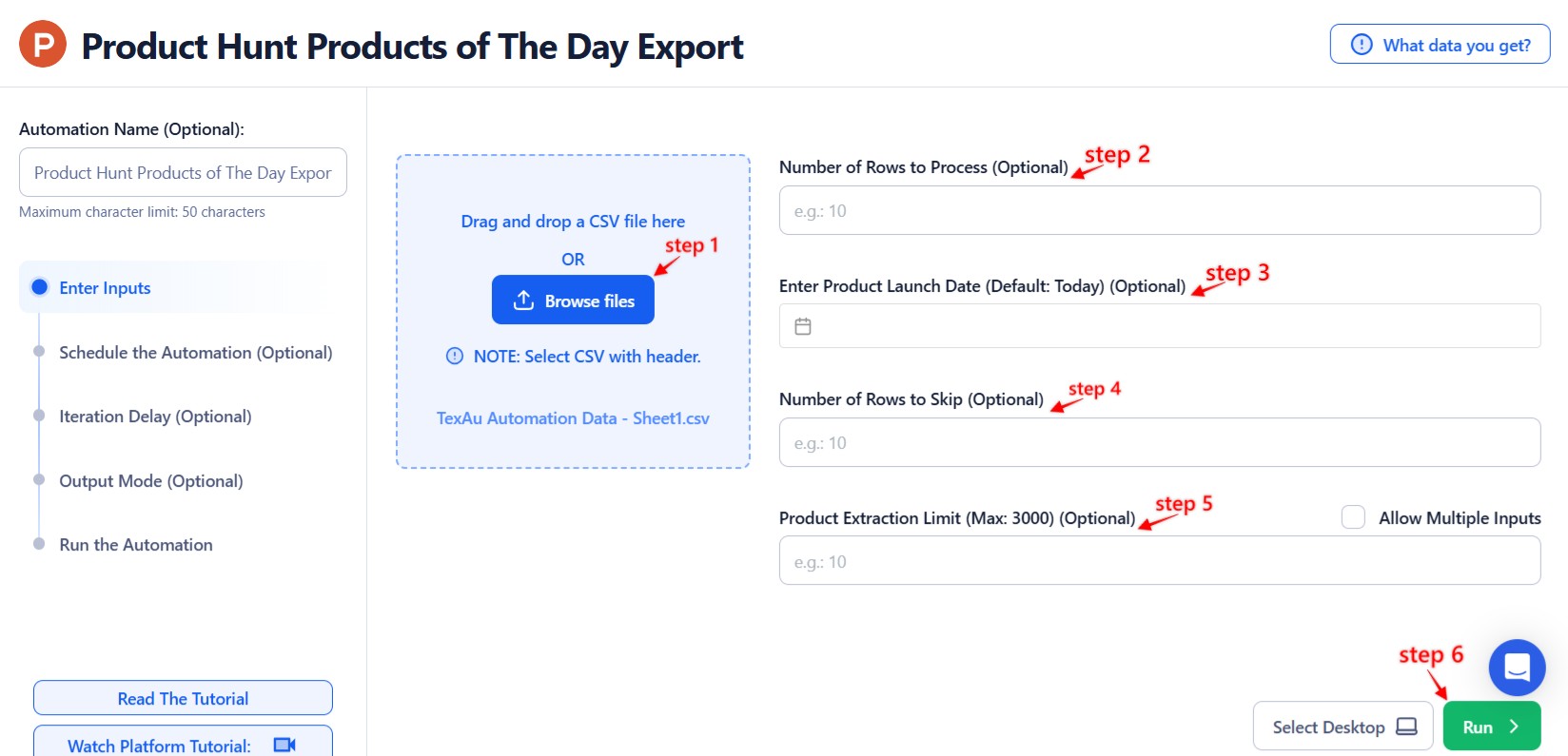
Step 3: Run the automation on TexAu Desktop
- Open the automation setup and select Desktop Mode.
- Click Choose a Desktop to Run this Automation.
- From the platform, select your connected desktop (status will show as "Connected").
- Click “Use This” after selecting the desktop to run the automation on your local system.
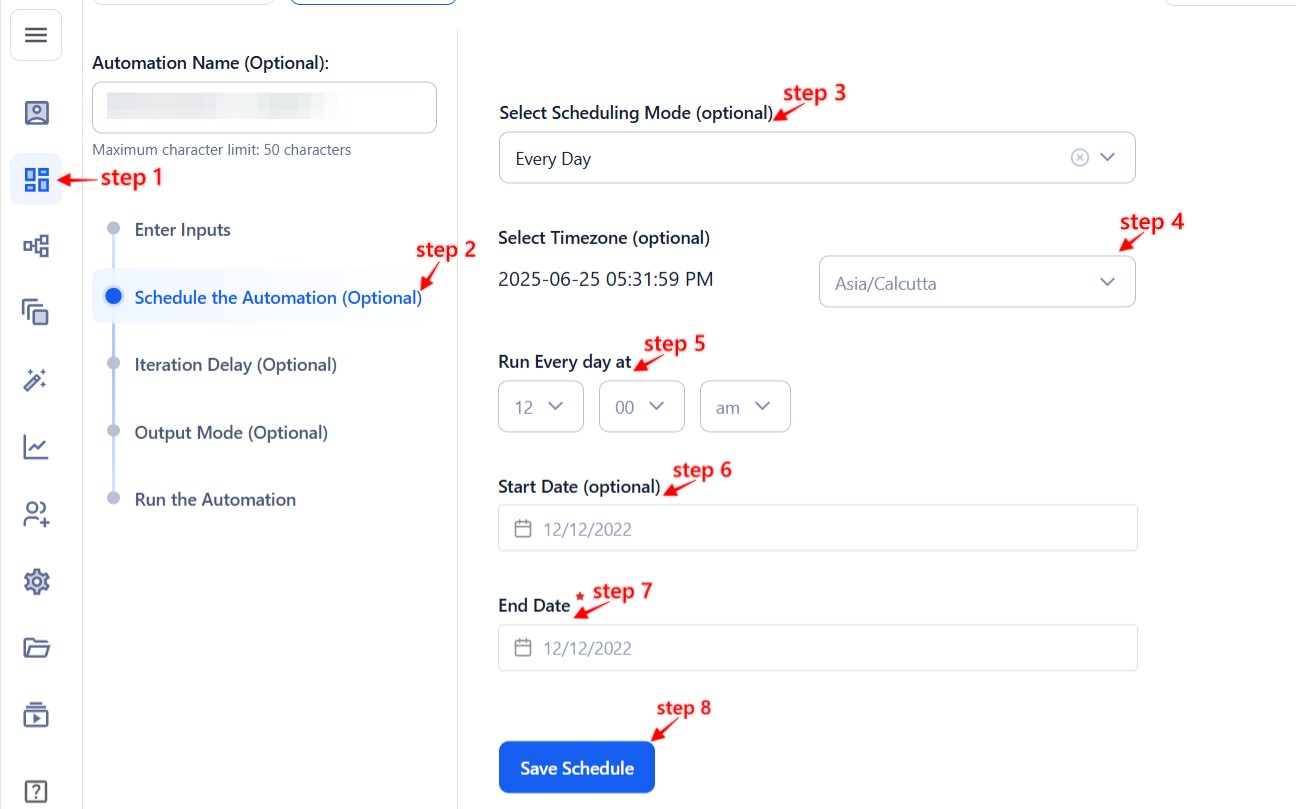
Step 4: Schedule the Automation (Optional)
TexAu enables task automation by letting you configure when and how often it runs.
Click Schedule and choose from the following options:
- None
- At Regular Intervals (e.g., every 12 hours)
- Once
- Every Day
- On Specific Days of the Week (e.g., Monday, Thursday)
- On Specific Days of the Month (e.g., 1st, 15th)
- On Specific Dates (e.g., January 5)
Tip: Automate your daily export to stay updated on trending products effortlessly.
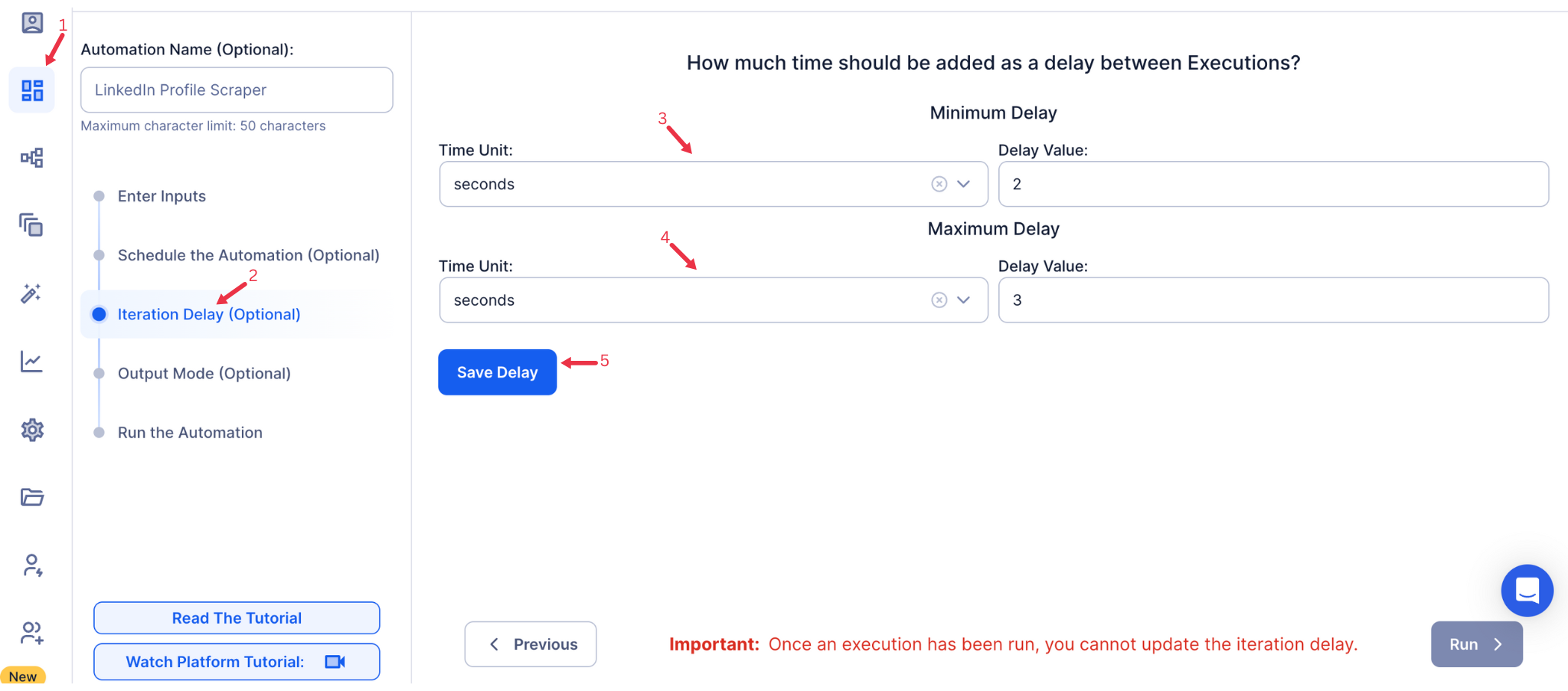
Step 5: Set an Iteration Delay (Optional)
TexAu allows you to pace your automation with configurable delays between tasks, preventing API throttling.
Set Minimum Delay and Maximum Delay between each product-day export. Choose delay units like seconds, minutes, or hours for natural pacing. This feature is applicable only when using Google Sheets or CSV as input sources.
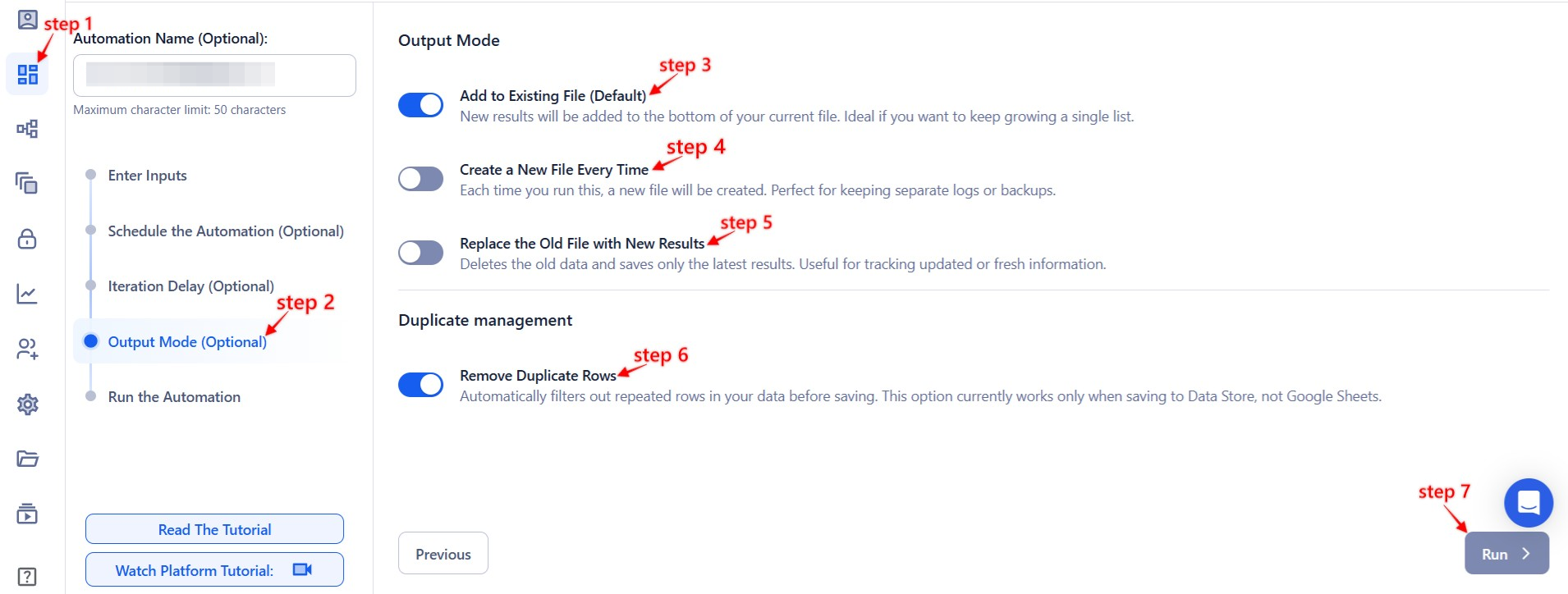
Step 6: Choose Your Output Mode (Optional)
TexAu lets you manage and export your data the way you prefer, with flexible output settings.
- Export Options: Choose between Google Sheets and CSV.
- Output Management:
- Append (Default): Adds data to the existing file.
- Split: Creates a new file for each run.
- Overwrite: Replaces previous data with the latest.
- Duplicate Management: Enable Deduplicate to prevent duplicate entries in the output.
Tip: Use Google Sheets for collaborative product tracking and instant sharing.
Step 7: Access the Data from the Data Store
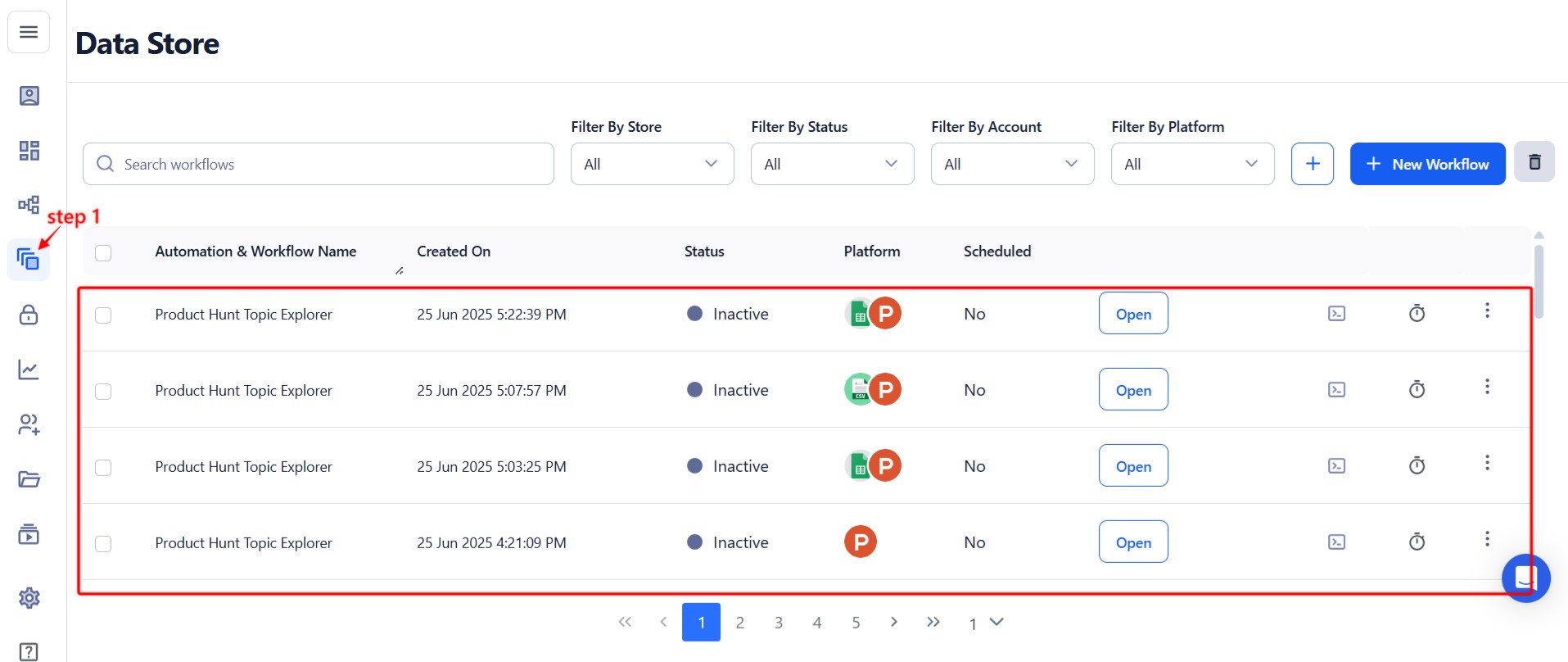
TexAu automatically stores your exported data so you can view or download it anytime. Go to the Data Store tab in TexAu. Locate the Product Hunt Products of The Day Export automation and click See Data to open or export the results.
Screenshot Suggestion: Show the Data Store screen with the "See Data" button highlighted.
The Product Hunt Products of The Day Export automation keeps you informed of trending launches, helping you spot emerging tools, startup ideas, and growth opportunities. With support for bulk input, automation scheduling, and output to Sheets or CSV, this tool is perfect for daily product discovery at scale.
Run this automation on your own machine.
TexAu V2 Desktop runs every automation locally — your real session, your real IP, unlimited hours, no proxies. One-time $1,999, no subscription, 5 years of updates.