LinkedIn Service Search Export
Extract and track pending LinkedIn invites in seconds. Manage connection requests, follow up efficiently, and stay in control of your outreach.
Last updated
LinkedIn has long been known as a powerful platform for professional networking, offering individuals and businesses the opportunity to connect with peers, colleagues, and potential clients. As the world's largest professional network, LinkedIn provides valuable access to a vast pool of professional
LinkedIn has long been known as a powerful platform for professional networking, offering individuals and businesses the opportunity to connect with peers, colleagues, and potential clients. As the world's largest professional network, LinkedIn provides valuable access to a vast pool of professionals offering a wide range of specialized services across numerous industries. Whether you're looking for freelancers, consultants, or full-service agencies, LinkedIn offers a wealth of talent and expertise that can help elevate your business or project.
For businesses, recruiters, marketers, and entrepreneurs, LinkedIn serves as a dynamic resource for discovering service providers who can fulfill specific needs, whether it’s for a one-time project or an ongoing business relationship. However, manually searching and compiling data on service providers can be a time-consuming and inefficient task. That's where TexAu’s LinkedIn Service Search Export tool comes in—automating this data collection process to provide structured, actionable insights for lead generation, market research, and networking opportunities.
TexAu's LinkedIn Service Search Export simplifies and accelerates the process of identifying relevant service providers, offering the ability to automate data extraction, organize it into a structured format, and update it in real-time. This tool is essential for anyone looking to tap into LinkedIn’s wealth of professional services and streamline their search efforts. Whether you’re conducting market research, building lead lists, or seeking partnerships, TexAu offers a solution that saves time, enhances efficiency, and maximizes networking opportunities.
Key Features of TexAu's LinkedIn Service Search Export
TexAu’s LinkedIn Service Search Export tool provides a comprehensive, automated solution for gathering valuable service provider data from LinkedIn. Below are the key features of this tool that help professionals and businesses optimize their outreach and analysis.
Comprehensive Service Data Extraction
TexAu extracts detailed service data from LinkedIn profiles, including key information that can be used for outreach, research, or collaboration opportunities. The tool gathers the following data points:
- Service Provider Names: Automatically extract the names of individuals offering specific services.
- Job Titles: Gain insight into the professional role of service providers to understand their area of expertise.
- Companies and Industries: Identify which companies or industries service providers are affiliated with, helping you target professionals in relevant sectors.
- Locations: Know where your service providers are based to aid in geographical targeting.
- Services Offered: Extract detailed descriptions of the services offered, such as "content writing," "web development," "SEO consulting," etc.
- LinkedIn Profile URLs: Access the direct URLs of LinkedIn profiles for easy follow-up or further engagement.
Example: A company looking to create content marketing campaigns in the tech industry can use TexAu to extract a list of freelance content writers offering services in this field, enabling the business to reach out directly to qualified professionals.
Customizable Filters
TexAu allows users to apply highly customizable filters to refine their service provider search, ensuring that the data extracted is highly relevant to specific business goals. Filters include:
- Location: Narrow your search by city, state, or country.
- Industry: Focus your search on professionals offering services in specific industries, such as technology, healthcare, marketing, and more.
- Service Type: Filter by the exact service provided (e.g., "SEO services," "brand consulting," "software development").
- Keywords: Extract profiles that mention specific keywords related to the services you’re targeting. For those looking to refine their search further, LinkedIn Mutual Connections Export allows you to identify shared connections between you and service providers, improving outreach effectiveness.
Example: If you're seeking a consultant for SEO in New York, TexAu allows you to filter your search results to only show professionals offering "SEO consulting" services within the city of New York, providing a focused, targeted list of potential collaborators.
Bulk Data Export
TexAu offers the ability to extract large volumes of service provider data simultaneously, saving you the time and hassle of manually reviewing profiles one by one. This bulk export feature allows users to compile comprehensive lists of service providers in minutes.
Example: If you're conducting market research for a new digital marketing tool, you can use TexAu to gather data on over 100 professionals offering digital marketing services. The tool automates the data extraction process, providing you with a comprehensive list that can be further analyzed or used for outreach.
Export Formats
Once you’ve extracted the data, TexAu offers flexible export options, allowing you to download the information in convenient file formats such as CSV or Excel. This makes it easy to integrate the exported data into your existing systems, such as CRMs, marketing platforms, or spreadsheets for further analysis.
Example: After exporting a list of service providers, you can import the data into a CRM system to track and manage outreach efforts, or export it to Excel for further analysis, such as sorting by industry or location. For those who need to track engagement across LinkedIn content, LinkedIn Profile Activity Export ensures that you get up-to-date activity data on professionals and their interactions.
Real-Time Updates
The real-time update feature ensures that your extracted service provider data is always current and relevant. This means that as new professionals list their services or change their profiles, TexAu automatically updates the exported data to reflect the most recent information.
Example: If you’re tracking consultants offering data analytics services, TexAu ensures you get the most up-to-date list of professionals, with regular updates to include newly active providers or any changes to existing profiles.
Challenges Addressed by TexAu’s LinkedIn Service Search Export
Manual searches for service providers on LinkedIn can present several challenges, especially when dealing with large volumes of data or when needing to conduct outreach across multiple industries. TexAu addresses these challenges by automating the data extraction process and consolidating information into a structured format.
Manual Search Limitations
Manually searching for service providers on LinkedIn involves reviewing hundreds, if not thousands, of profiles to find the right match. This can be overwhelming, time-consuming, and inefficient, especially if you’re seeking professionals in niche markets or industries.
TexAu automates the search process, significantly reducing the time spent gathering data. By leveraging the advanced filtering capabilities of TexAu, users can quickly compile lists of service providers who match their criteria, allowing for a more efficient and streamlined approach.
Example: A marketing team seeking consultants with expertise in "social media strategy" no longer has to sift through countless profiles to find the right professionals. TexAu automates this search, instantly generating a list of relevant consultants based on the selected filters.
Scattered Information
Data collected through manual searches is often scattered across multiple spreadsheets or sources, making it difficult to analyze and act upon. TexAu consolidates all relevant information into a single, structured report, making it easier to manage and extract insights. If you're also tracking professionals who engage with your content, LinkedIn Post Likers Export allows you to identify and analyze individuals interacting with your LinkedIn posts.
Example: If you're looking to build a list of service providers in the creative industry, TexAu compiles all relevant data—names, job titles, services offered, and more—into one organized CSV file, eliminating the need to sift through unstructured data.
Missed Opportunities
Manual data collection often results in missed opportunities due to oversight or errors in tracking service providers. TexAu ensures that no potential service providers are overlooked by keeping track of all relevant profiles and offering real-time updates when new data becomes available.
Example: If you were manually compiling a list of graphic designers offering branding services, you might miss new freelancers who only recently listed their services. TexAu’s real-time update feature ensures that new professionals are automatically included in your export, ensuring you never miss an opportunity.
Benefits of TexAu’s LinkedIn Service Search Export
TexAu offers a range of benefits that streamline the lead generation process, improve market research efforts, and facilitate targeted networking. Below are some of the top benefits:
Streamlined Lead Generation
TexAu makes it easy to build comprehensive lists of service providers that can be used for lead generation efforts. Whether you're seeking freelancers, agencies, or consultants, the tool allows you to quickly identify professionals who offer the services your business needs.
Example: A software company looking to collaborate with UX/UI designers can use TexAu to generate a list of professionals in this field, allowing them to reach out directly to potential collaborators and form strategic partnerships.
Enhanced Market Research
TexAu’s LinkedIn Service Search Export can be an invaluable tool for market research. By analyzing the data, you can identify trends in service offerings, spot industry shifts, and gauge demand for specific services. This information helps businesses adjust their strategies to meet evolving market needs.
Example: A digital marketing firm might use TexAu to track the rise of "AI consulting" services on LinkedIn. This insight could prompt them to develop their own AI-based services to stay competitive in the market.
Targeted Outreach
By gathering detailed information on service providers, TexAu allows businesses and professionals to personalize their outreach efforts. Tailoring your messages to specific providers based on their industry, skills, or service offerings significantly increases the chances of a positive response.
Example: If you're looking to collaborate with event planners, TexAu allows you to identify planners specializing in corporate events. You can then craft personalized outreach emails, highlighting your interest in collaborating on a specific event type, increasing the likelihood of a successful partnership.
Time-Saving Automation
TexAu’s automation suite eliminates the need for manual data collection, allowing users to extract large datasets in a fraction of the time. By automating the extraction of service provider data, businesses can focus on more strategic activities rather than spending hours on manual searches.
Example: A talent acquisition team can use TexAu to extract a list of freelance designers, then immediately begin their outreach campaign, significantly cutting down the time spent on data collection.
Optimized Networking
TexAu helps identify relevant professionals in your industry, making networking more effective and efficient. By targeting service providers with specific skills or services, you can build stronger relationships and grow your network strategically.
Example: If you’re hosting a marketing webinar, TexAu can help identify influencers or consultants who specialize in digital marketing, providing you with an easy way to connect and collaborate on promoting the event.
Use Cases for TexAu’s LinkedIn Service Search Export
TexAu’s LinkedIn Service Search Export tool is versatile and can be used by professionals in various fields. Below are some key use cases:
Sales Teams
Sales teams can use the tool to identify potential clients or partners offering specific services. The extracted data helps sales teams build targeted lists for outreach and lead nurturing. For sales teams looking to expand their outreach and discover potential business leads, LinkedIn Company Search Export can complement this process by providing detailed insights into businesses and their key employees.
Example: A sales team selling CRM software can use TexAu to identify service providers who may need CRM solutions, such as marketing consultants, real estate agents, or healthcare providers.
Marketers
Marketers can analyze trends in service offerings and use the data to craft targeted campaigns. The tool helps identify key service providers to partner with for co-marketing opportunities, product launches, or other promotional efforts.
Example: A marketing team promoting a new social media management tool can use TexAu to identify and target professionals offering social media strategy services.
Recruiters
Recruiters can find professionals with niche skills for project-based or long-term hiring needs. TexAu helps recruiters identify freelancers and consultants with specialized expertise. For recruiters looking for a more advanced way to find top candidates, LinkedIn Recruiter Search Export enables them to extract LinkedIn profiles of professionals who match their hiring criteria.
Example: A recruiter specializing in tech hiring can use TexAu to identify freelance developers who specialize in specific programming languages or platforms.
Business Owners
Business owners can use TexAu to identify service providers for outsourcing tasks or finding experts to collaborate with on projects.
Example: A business owner looking to outsource their HR operations can use TexAu to find consultants who specialize in HR management.
Advanced Features of TexAu’s LinkedIn Service Search Export
TexAu’s LinkedIn Service Search Export also offers advanced features that provide even more refined control over your data extraction:
Keyword-Based Filtering
With keyword-based filtering, you can target professionals who mention specific terms in their LinkedIn profiles. This feature is especially useful for finding providers who offer niche services or have specialized skills.
Example: You could filter for service providers who mention “content strategy” in their profile titles or descriptions, giving you a list of professionals who specialize in that area.
Experience-Level Insights
TexAu allows you to filter service providers by their years of experience or endorsements. This feature ensures you can identify highly experienced professionals who are likely to offer top-quality services. For those looking to track professionals' career activity over time, LinkedIn Profile Activity Export is a valuable tool to monitor recent updates, job changes, and content interactions.
Example: You may focus on service providers who have been working in their field for over five years, ensuring that you're reaching out to professionals with substantial experience.
Industry-Specific Searches
TexAu enables users to perform searches based on specific industries, helping businesses find service providers in niche markets.
Example: A fintech company can target consultants offering services tailored to the financial technology sector, ensuring they are collaborating with professionals who understand the industry’s unique challenges.
Real-Life Applications
TexAu’s LinkedIn Service Search Export has proven effective in real-world scenarios. Here are a few case studies:
-
Case Study 1: Marketing Growth
A marketing agency used TexAu to identify freelance content writers, boosting their campaign engagement by 20%. By analyzing trends in the service data, they were able to focus their outreach on writers who specialized in high-demand topics. To further analyze engagement, they used LinkedIn Post Likers Export to track who was engaging with industry-relevant content.
-
Case Study 2: Recruitment Optimization
A recruiter specializing in creative industries used TexAu to identify professionals offering motion graphics services, reducing their hiring time by 30%. The tool allowed them to find top talent more efficiently.
-
Case Study 3: Business Expansion
A business owner expanding internationally used TexAu to identify consultants offering market entry strategies. They successfully found the right partners to guide their expansion into new regions.
Conclusion
TexAu’s LinkedIn Service Search Export tool revolutionizes the process of discovering and connecting with service providers on LinkedIn. By automating data extraction, providing real-time updates, and offering customizable filters, the tool helps professionals streamline lead generation, improve market research, and network more effectively. Whether you're building a list of freelancers, identifying consultants, or researching service trends, TexAu simplifies and accelerates the process, saving you valuable time and resources. Leverage TexAu today to unlock the full potential of LinkedIn’s professional network.
TexAu’s LinkedIn Service Search Export automation enables you to efficiently gather LinkedIn profile data based on specific services, eliminating manual data collection. This guide will walk you through each setup step, allowing you to streamline the export of LinkedIn Service Search data directly into formats like Google Sheets or CSV files for seamless use.
Step 1: Log in to the TexAu App and Locate the Automation
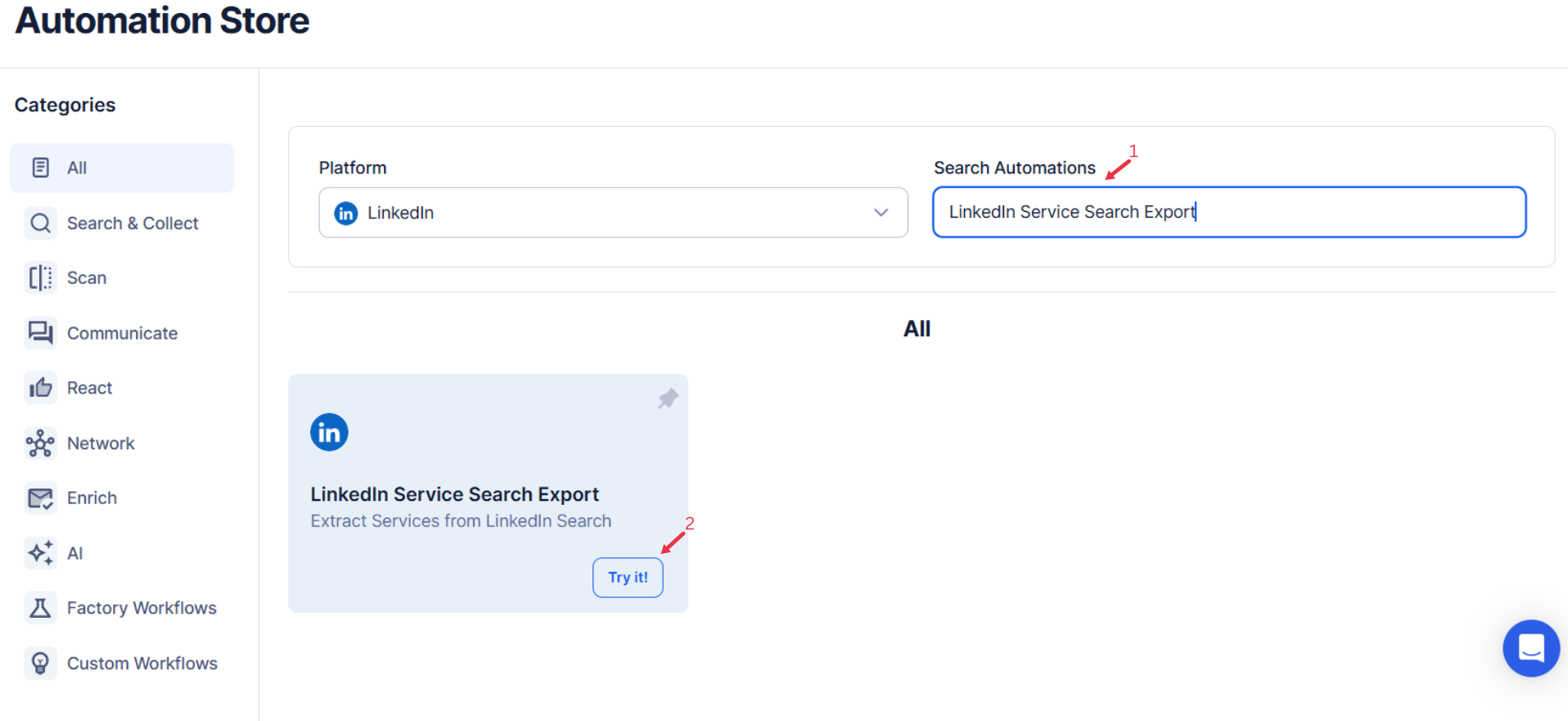
Log in to your TexAu account at [TexAu](the TexAu V2 Desktop applogin). Go to the Automation Store and locate the LinkedIn Service Search Export automation. Use the search bar to find it quickly.\

Step 2: Connect to LinkedIn with TexAu
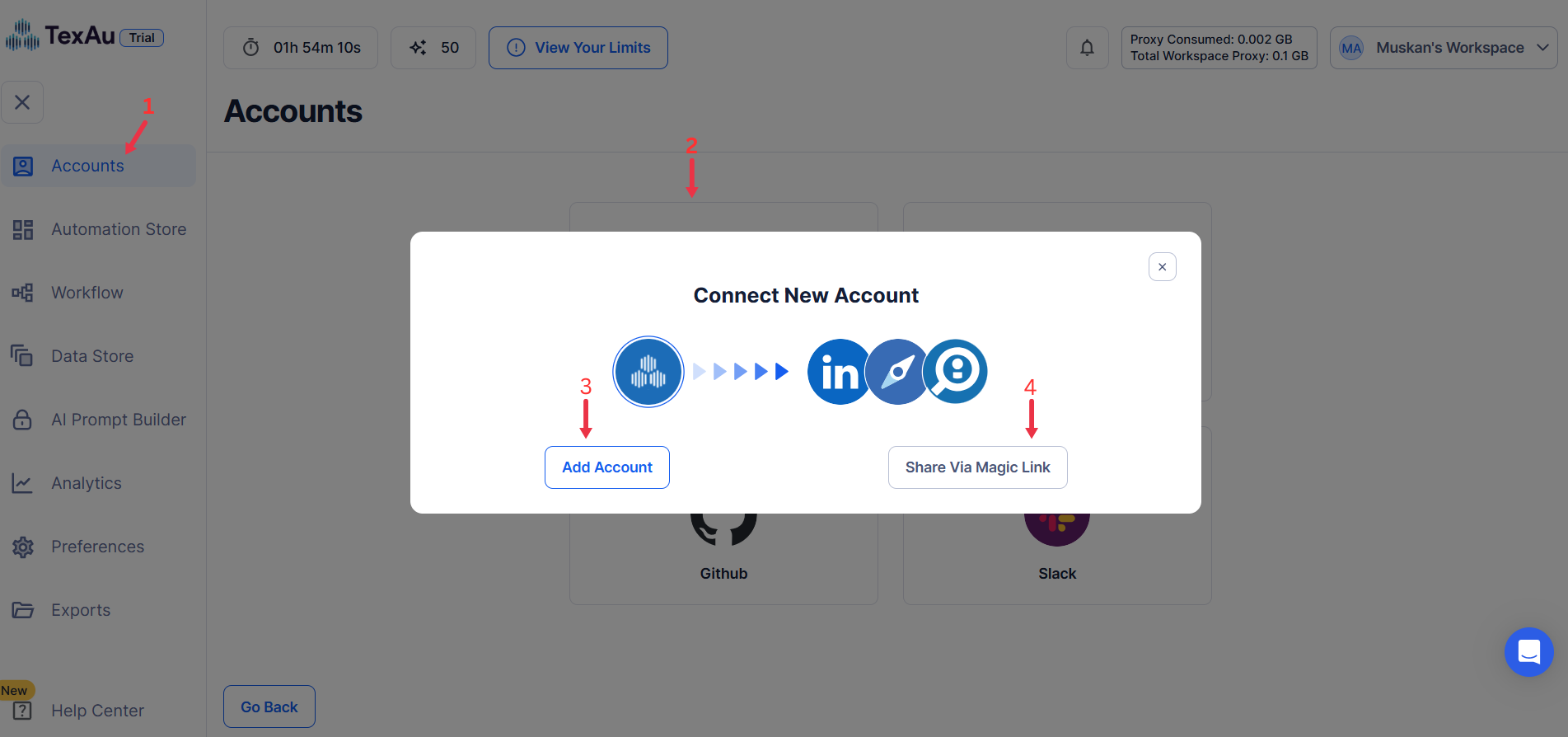
Click on Add Account and select LinkedIn. Choose one of the following connection methods:
- Share Via Magic Link: Click Share Via Magic Link, copy the URL, and paste it into your browser to access the Connect New Account page. Install the extension to complete account integration.
- Add Account option connects using TexAu’s built-in browser extension.
Tip: This step eliminates manual cookie entry, ensuring a seamless connection setup.
Step 3: Run it on your machine
Select your preferred execution mode for the automation:
-
Run the automation on your local device using your IP address to simulate manual posting.
Tip: Running locally uses your own IP and browser session, which is the safest way to automate an account you care about.Step 1: Log in to TexAu and Connect LinkedIn -
Log in to your TexAu account at the TexAu V2 Desktop app.
- Go to Accounts and connect your LinkedIn account. You can choose one of these methods:
- Share via Magic Link: Share the link, copy it to your browser, and follow the steps to integrate your LinkedIn account securely.
- Add Account: Sync cookies and browser data with TexAu for seamless integration.
- Go to Accounts and connect your LinkedIn account. You can choose one of these methods:
Tip: Use Magic Link for an easy and secure connection.

Step 2: Run it on your machine
- TexAu Desktop runs the automation on your own machine, using your IP address.
- Runs automation on your local device using your IP address.
Tip: Running locally uses your own IP and browser session, which is the safest way to automate an account you care about.
Step 3: Search for the Particular LinkedIn Automation
- Navigate to the Automation Store on TexAu.
- Use the search bar to find LinkedIn Service Search Export automation.
Step 4: Select Your Input Source
Define the input source to specify LinkedIn services for the LinkedIn Service Search Export automation. TexAu provides multiple options to suit the needs of founders, sales managers, marketers, and growth hackers. Here's how to configure each:
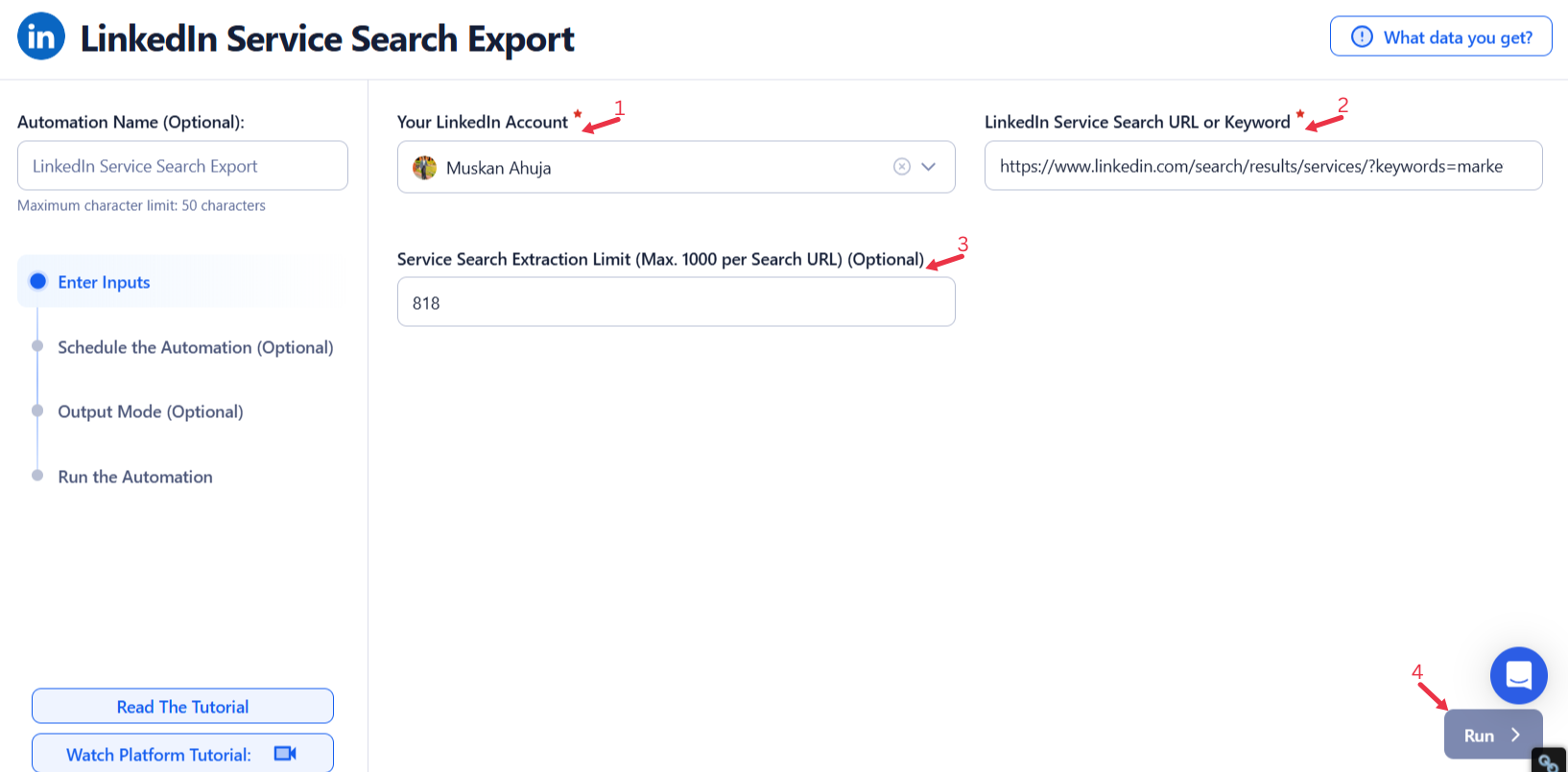
Manually Enter a Single Input
Use this option to extract information for a specific LinkedIn service search. Simply enter the LinkedIn service search URL or keyword into the input field.
- Service Search URL: Provide a LinkedIn service search URL or a keyword (e.g., "Digital Marketing Services").
- Extract Limit (Optional): Specify the maximum number of results to extract per search (up to 1,000).
- Click Run in the lower-right corner to initiate the automation.
Google Sheets
This option is ideal for extracting information from multiple service searches efficiently. Follow these steps to use Google Sheets:
-
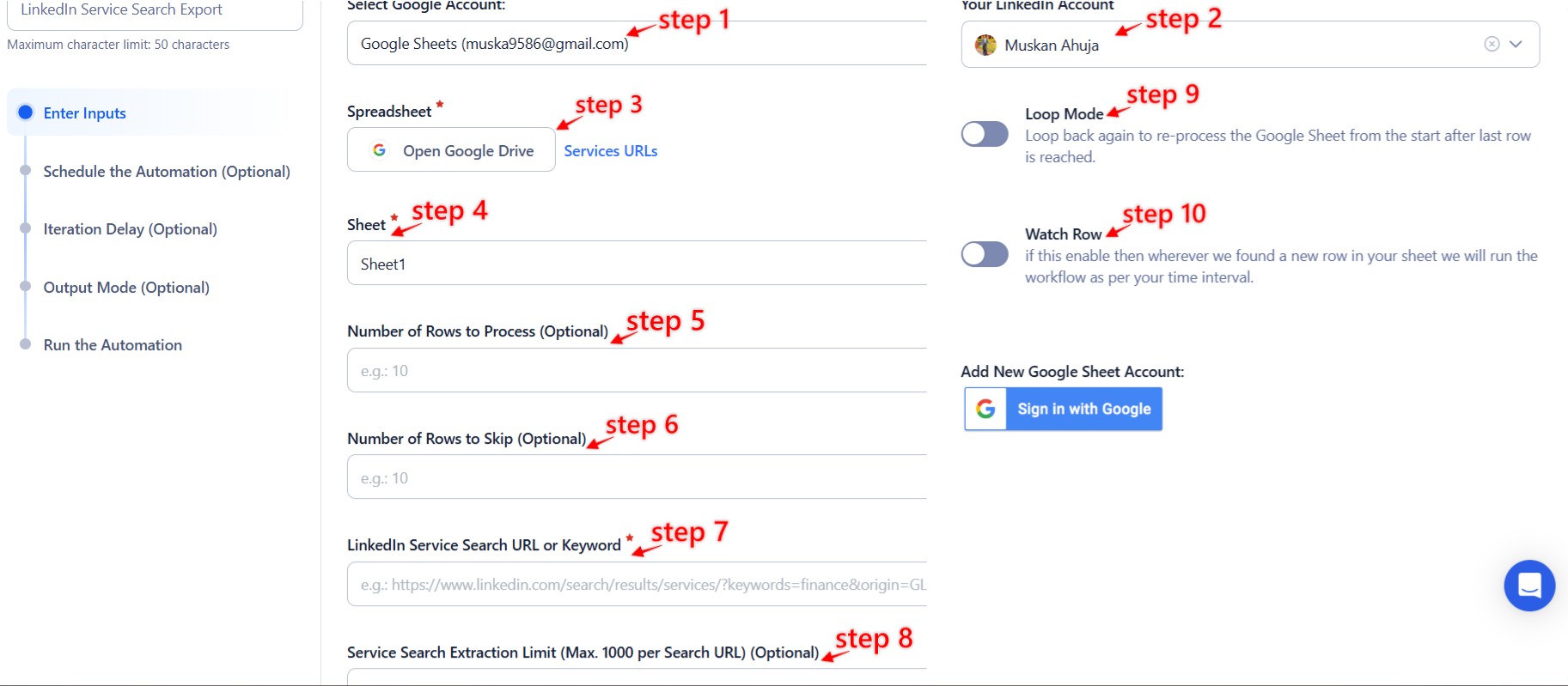
Click Select Google Account to choose your Google account or click Add New Google Sheet Account (you can add multiple Google accounts).
-
Click Accounts to select LinkedIn as the platform.
-
Click Open Google Drive to locate the Google Sheet containing service search URLs or keywords. A pop-up will display your Google Drive files.
-
Select the spreadsheet and the specific sheet containing service search URLs or keywords. Confirm the correct sheet selection to ensure accuracy.
-
Configure additional options:
- Number of Rows to Process (Optional): Define the number of rows you want to process from the sheet.
- Number of Rows to Skip (Optional): Specify rows to skip at the beginning of the sheet.
- Extract Limit (Optional): Set the maximum number of services to extract per search (up to 1,000).
- Click Run in the lower-right corner to start the automation.
Optional Advanced Feature:
-
Loop Mode: Enable Loop Mode to re-process the Google Sheet from the beginning once all rows are completed. This is useful for tasks that require recurring updates.
-
Watch Row (Optional)
Watch Row feature ensures real-time workflow automation by detecting new rows in Google Sheets and executing workflows based on changes.
Customize Watch Row by selecting a frequency and setting a monitoring period.
Watch Row Schedule
- None
- Scheduling Intervals (e.g., every 15 minutes, every hour)
- One-Time Execution
- Daily Execution
- Weekly Recurrence (e.g., every Wednesday and Sunday)
- Monthly Specific Dates (e.g., 4th and 18th)
- Custom Fixed Dates (e.g., March 8)
By default, Watch Row checks every 15 minutes and executes for five days unless modified.
With Watch Row, TexAu eliminates manual workflow execution.
CSV File
This option allows you to process LinkedIn service search inputs from a static file. Follow these steps:
- Click Upload CSV File and browse to locate the file containing service search URLs or keywords.
- Once uploaded, TexAu will display the file name and preview its content. Verify the data to confirm the correct file is selected.
- Configure additional options:
- Number of Rows to Process (Optional): Specify the number of rows to process from the CSV file.
- Number of Rows to Skip (Optional): Define rows to skip at the beginning of the file.
- Extract Limit (Optional): Set the maximum number of services to extract per search (up to 1,000).
- Click Run in the lower-right corner to initiate the automation.
Optional Advanced Feature:
- Loop Mode: Enable Loop Mode to re-process the Google Sheet from the beginning once all rows are completed. This is useful for tasks that require regular updates.
Screenshot Suggestion:
- Show the input field for "Service Search URL" with an example keyword or URL.
- Display the Google Sheets selection screen, highlighting the steps to choose a spreadsheet with service search inputs.
- Include a preview of a CSV upload, showing the file name and service search data.
These steps ensure seamless configuration for extracting data on LinkedIn services for both single and bulk data processing.

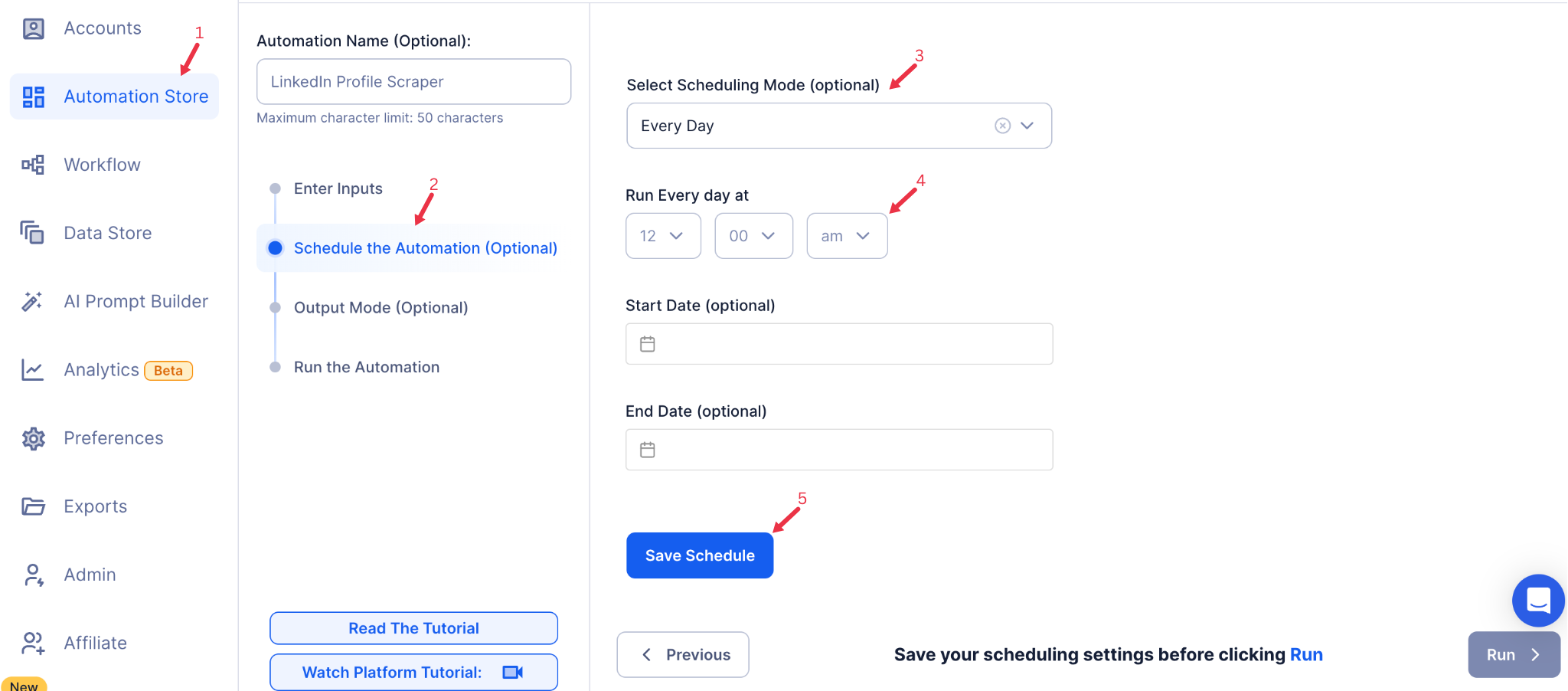
Step 5: Schedule the Automation (Optional)
Schedule the automation to run at specific times and intervals to keep alumni data updated. Select one of the following options:
- None
- At Regular Intervals (e.g., every 12 hours or daily)
- Once
- Every Day
- On Specific Days of the Week (e.g., every Monday)
- On Specific Days of the Month (e.g., the 5th and 20th)
- On Specific Dates (e.g., January 10)
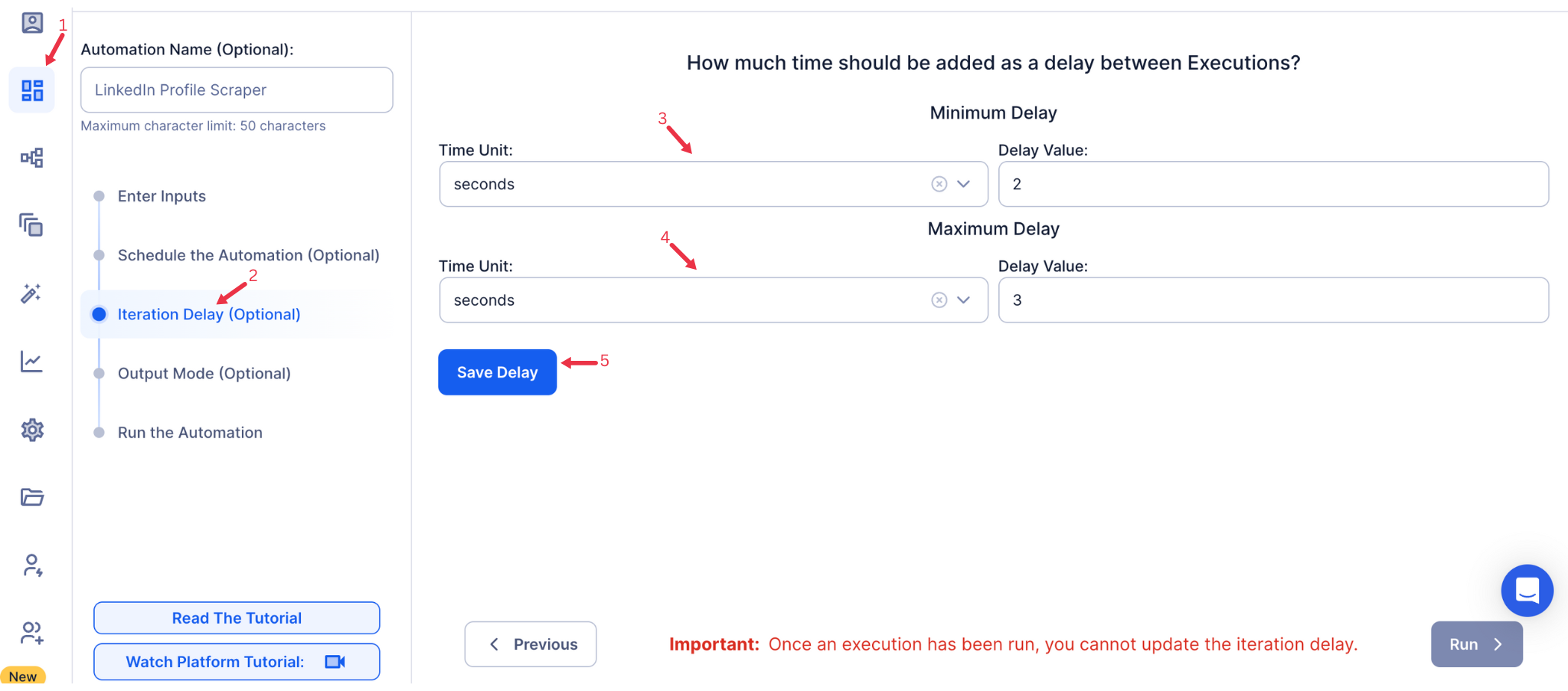
Step 6: Set an Iteration Delay (Optional)
Avoid detection and simulate human-like activity by setting an iteration delay. Choose minimum and maximum time intervals to add randomness between actions. This makes your activity look natural and reduces the chance of being flagged.
- Minimum Delay: Enter the shortest interval (e.g., 10 seconds).
- Maximum Delay: Enter the longest interval (e.g., 20 seconds).
Tip: Random delays keep your automation safe and reliable.
\
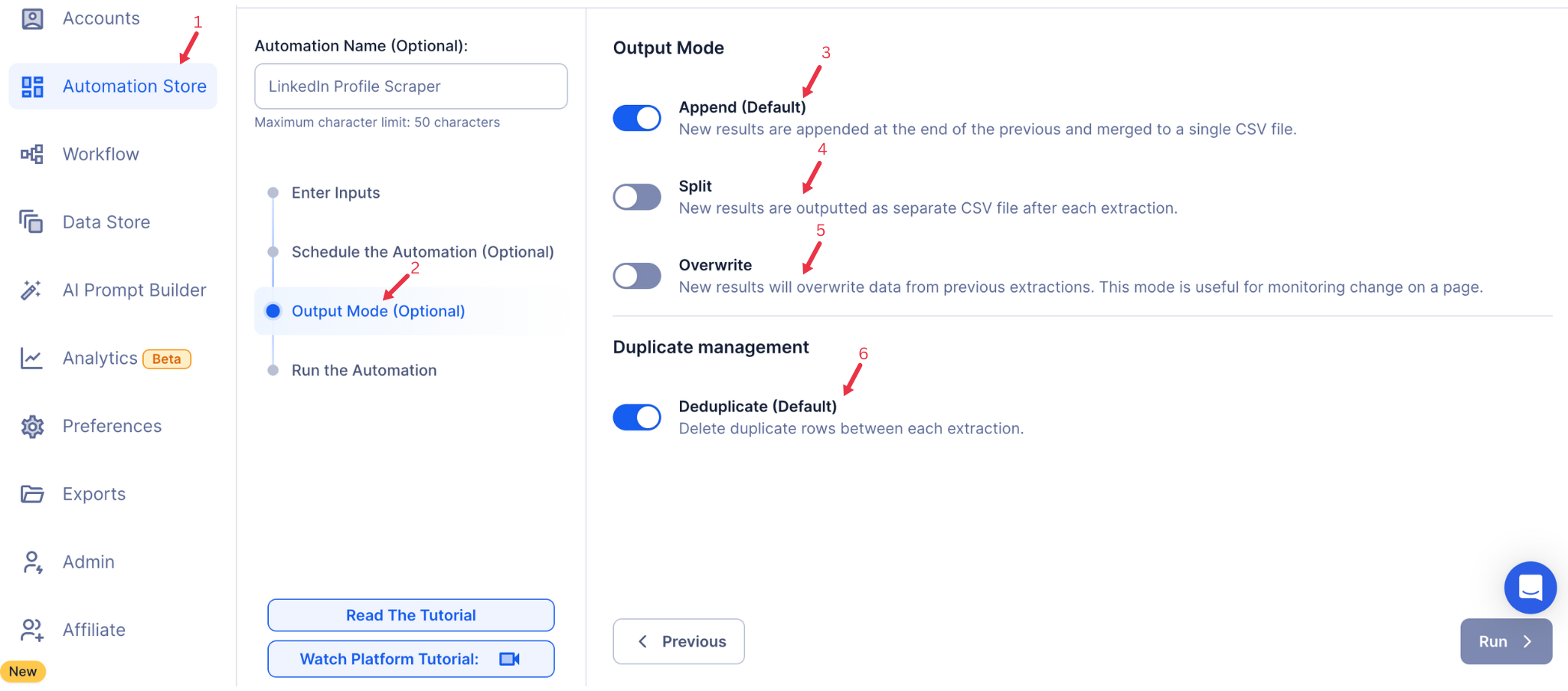
Step 7: Choose Your Output Mode (Optional)
Choose how to save and manage the extracted alumni data. TexAu provides the following options:
- Append (Default): Adds new results to the end of existing data, merging them into a single CSV file.
- Split: Saves new results as separate CSV files for each automation run.
- Overwrite: Replaces previous data with the latest results.
- Duplicate Management: Enable Deduplicate (Default) to remove duplicate rows.
Tip: Google Sheets export makes it easy to collaborate with your team in real time, particularly useful for alumni network management and analysis.
\
Step 8: Access the Data in the Data Store
Once the automation completes, go to Data Store in TexAu. Find your LinkedIn Service Search Export and click See Data to view and download your results.\

By following these steps, you can use TexAu’s LinkedIn Service Search Export automation to gather and organize LinkedIn data with ease. The automation’s flexibility to export to both your own machine, along with seamless Google Sheets integration, makes it a valuable tool for growth hackers, marketers, and sales teams. TexAu allows you to focus on strategy, while it handles the heavy lifting of data collection.
Run this automation on your own machine.
TexAu V2 Desktop runs every automation locally — your real session, your real IP, unlimited hours, no proxies. One-time $1,999, no subscription, 5 years of updates.