Google Business Name Cleaner
Clean and format Google business names effortlessly with TexAu's Business Name Cleaner. Perfect for marketers and data managers to ensure accurate and consistent business data.
Last updated
The **Google Business Name Cleaner** automation helps streamline business name lists by removing duplicates, standardizing formats, and eliminating unwanted characters or spaces. This is particularly useful for founders, marketers, sales managers, and growth hackers who deal with large datasets and
The Google Business Name Cleaner automation helps streamline business name lists by removing duplicates, standardizing formats, and eliminating unwanted characters or spaces. This is particularly useful for founders, marketers, sales managers, and growth hackers who deal with large datasets and need clean, accurate information for marketing or sales outreach. With TexAu, you can automate this process, saving time and ensuring consistency.
Follow this guide to set up and run the Google Business Name Cleaner automation with TexAu.
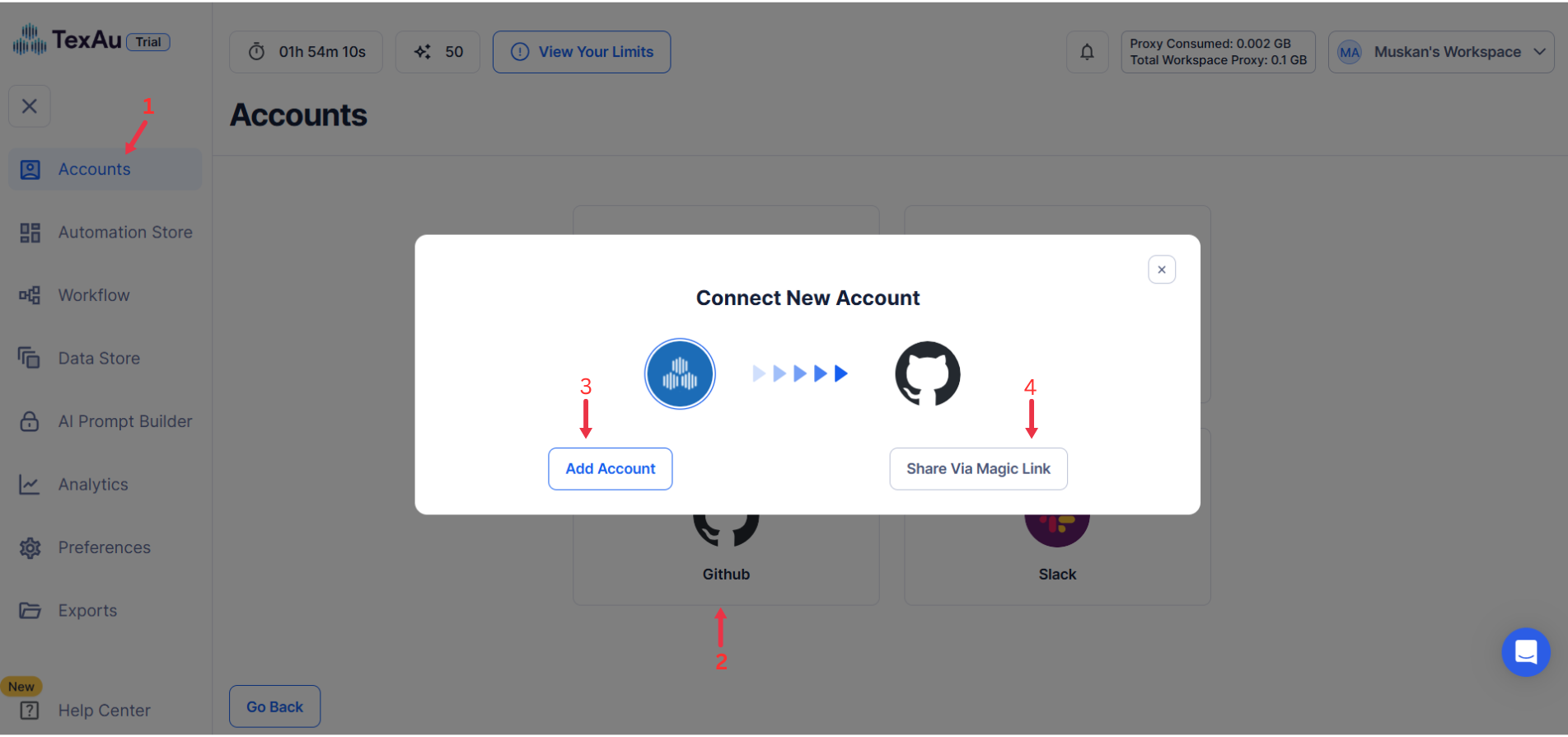
Step 1: Log in to the TexAu App and Connect GitHub
Connect your GitHub account to ensure TexAu can access relevant information. Click Add Account and select GitHub . TexAu offers two secure connection methods:
- Magic Link: Sends a secure login link to your email, providing quick access without managing cookies.
- Add Account Using Browser Extension: Log in through TexAu’s browser extension for seamless integration and direct access.
Tip: Use Magic Link for a fast and straightforward connection without additional steps.
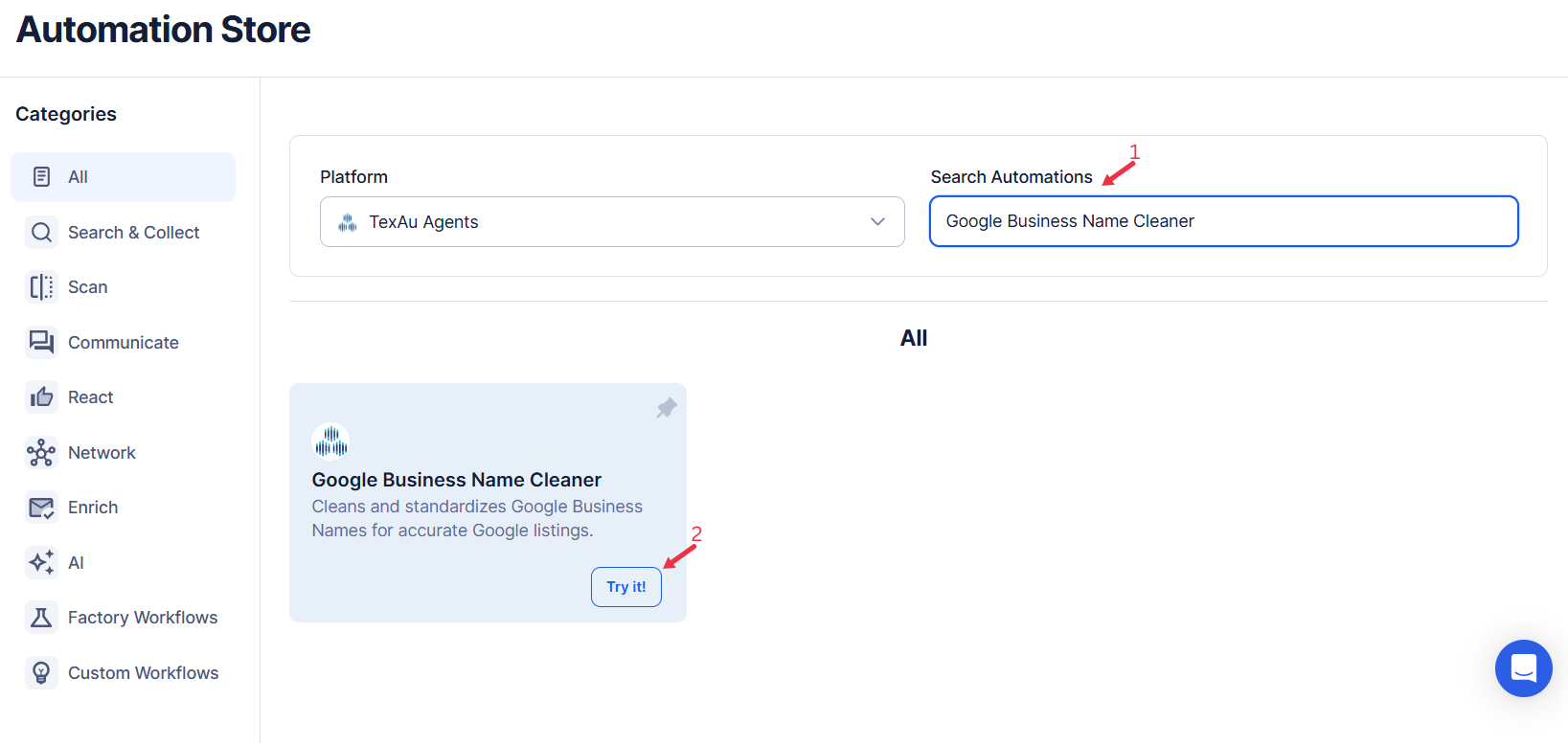
Step 2: Locate the Automation
Log in to your TexAu account at the TexAu V2 Desktop app. Navigate to the Automation Store, select Texau agents and search for Google Business Name Cleaner. This automation helps clean and organize business names efficiently.
Step 2: Select Your Input Source
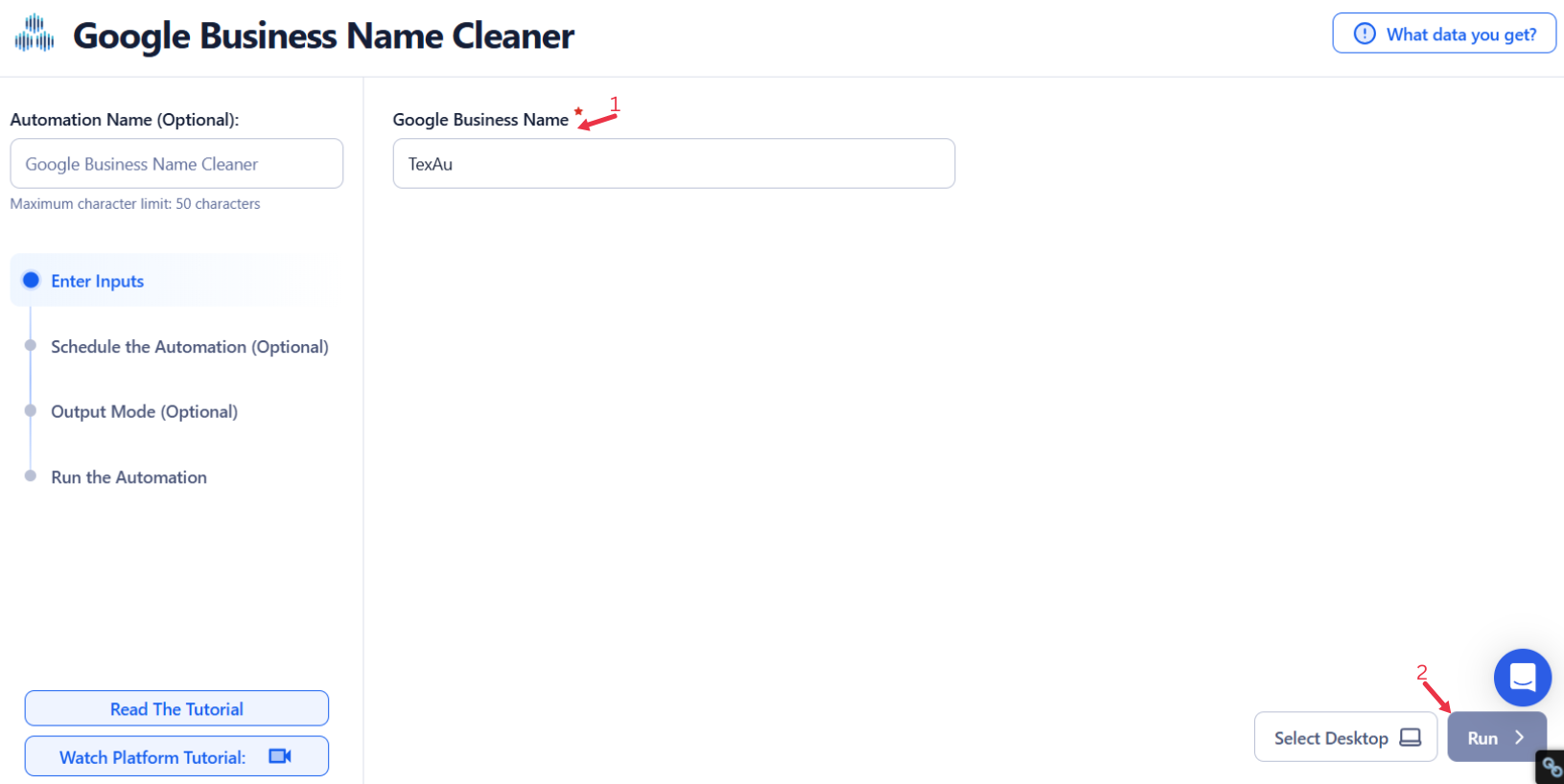
The Google Business Name Cleaner helps you streamline and standardize business names for improved data consistency. This tool is particularly useful for maintaining clean and uniform datasets, whether you’re managing a single entry or bulk entries from spreadsheets or CSV files. Choose the input method that suits your needs and follow the steps to process the data efficiently.
Single Input
Use this method to clean a single Google Business Name.
- Google Business Name: Enter the full name of the Google Business, for example, TexAu.
Google Sheets
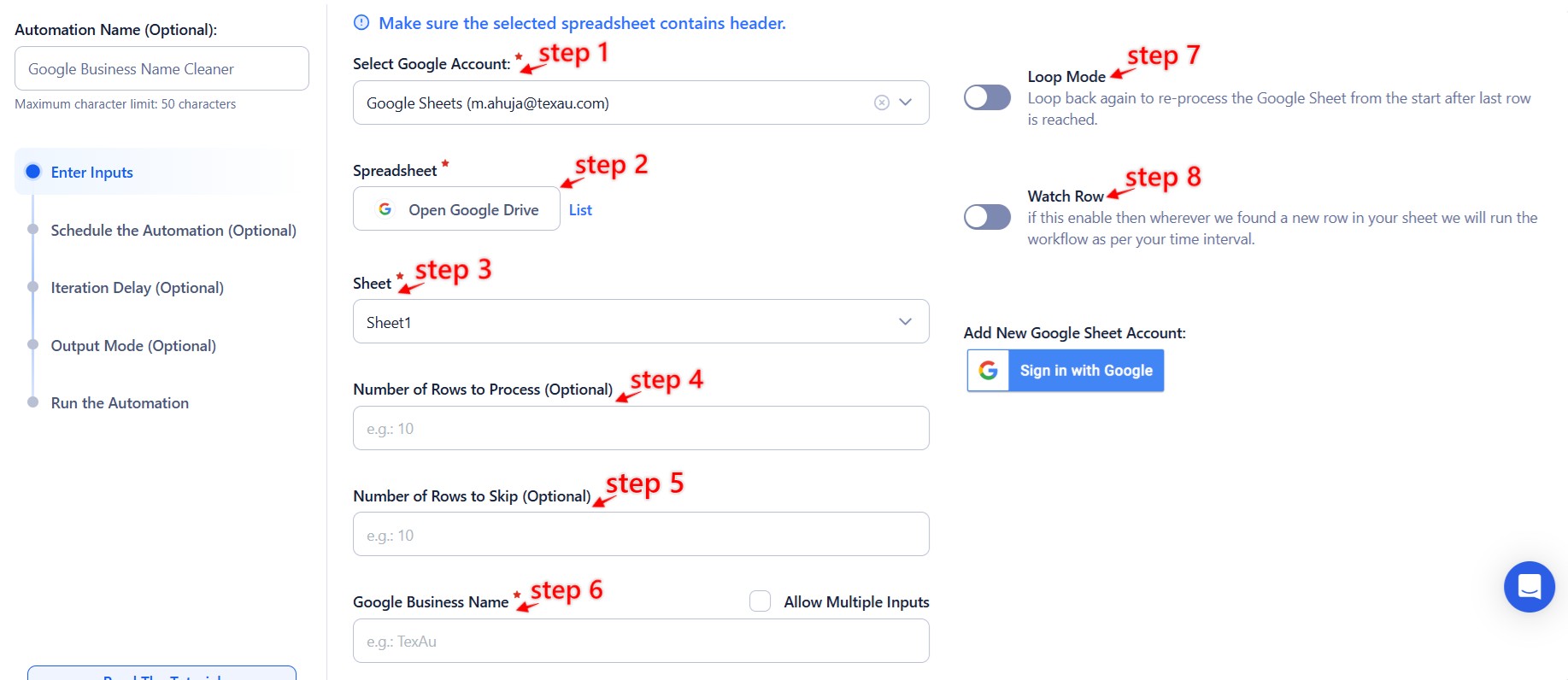
Use Google Sheets to clean multiple Google Business Names.
- Connect your Google account
- Select or add a Google account under the Select Google Account option.
- Select your spreadsheet
- Open Google Drive to locate and select the spreadsheet containing the business names.
- Choose the specific sheet where your data is stored.
- Adjust processing options
- Define the Number of Rows to Process (Optional) and Number of Rows to Skip (Optional).
- Provide input details
- Ensure the column in the sheet contains valid Google Business Names.
Enable Loop Mode (Optional)
- Loop Mode will reprocess the sheet from the start after all rows are processed.
Watch Row (Optional)
With Watch Row, new Google Sheet entries are detected automatically, ensuring automations run without delay. This makes data tracking and processing seamless.
To configure, choose a scan frequency and set the start and end dates.
Watch Row Schedule:
- None
- At Regular Intervals (e.g., every 15 minutes or every hour)
- Once
- Every Day
- On Specific Days of the Week (e.g., every Tuesday and Friday)
- On Specific Days of the Month (e.g., the 9th and 28th)
- On Specific Dates (e.g., August 4)
The system refreshes every 15 minutes and stops monitoring after five days, unless modified.
CSV File
Process multiple business names stored in a CSV file.
- Upload the CSV file
- Use the Upload CSV File option to upload your file containing business names.
- Ensure the correct column contains valid names for processing.
- Adjust processing settings
- Specify the Number of Rows to Process (Optional) and Number of Rows to Skip (Optional).

Step 3: Run the automation on TexAu Desktop
- Open the automation setup and select Desktop Mode.
- Click Choose a Desktop to Run this Automation.
- From the platform, select your connected desktop (status will show as "Connected").
- Click “Use This” after selecting the desktop to run the automation on your local system.
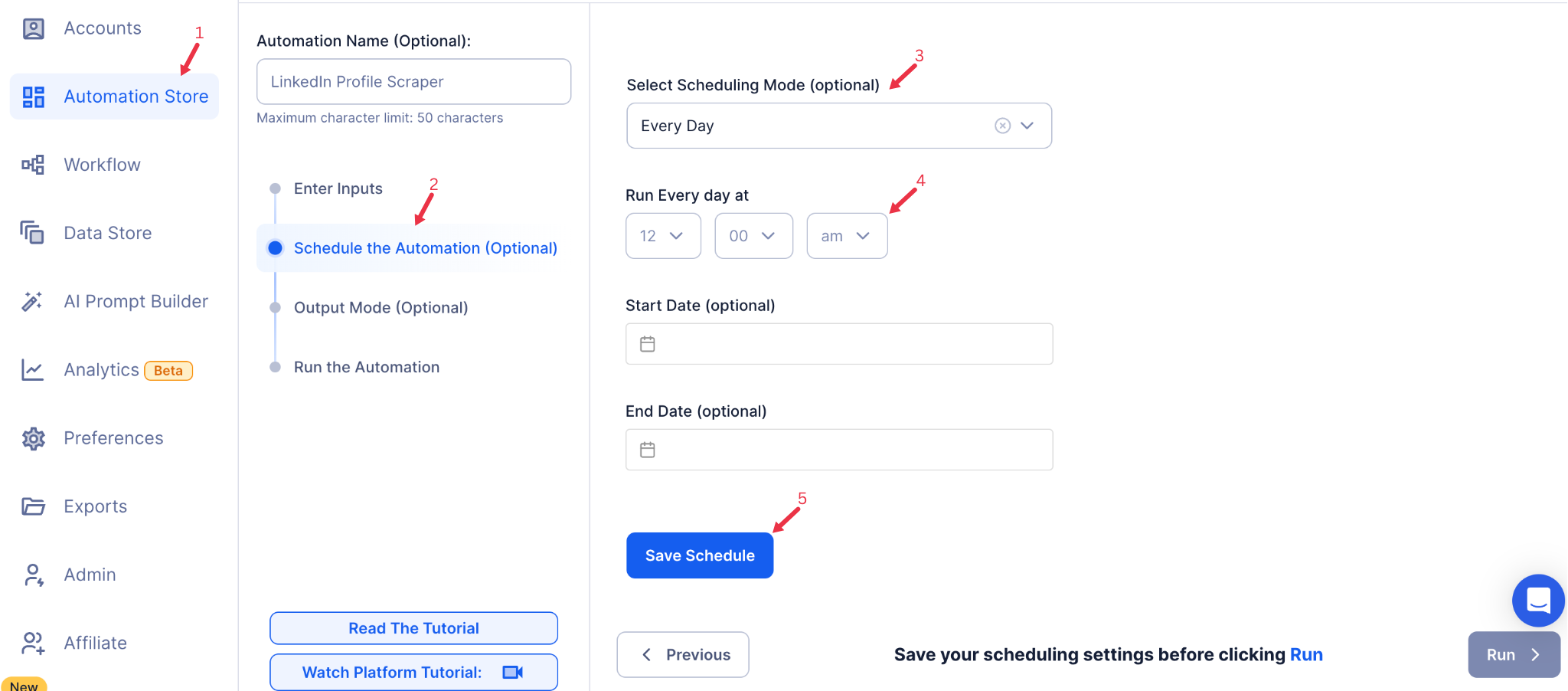
Step 4: Schedule the Automation (Optional)
Schedule the automation to run at specific times if you regularly clean business name data. Click Schedule and choose one of the following options:
- None
- At Regular Intervals (e.g., daily or weekly)
- Once
- Every Day
- On Specific Days of the Week (e.g., every Monday and Thursday)
- On Specific Dates (e.g., the 1st and 15th of the month)
Tip: Scheduling helps you keep your business name data consistently clean and up to date.
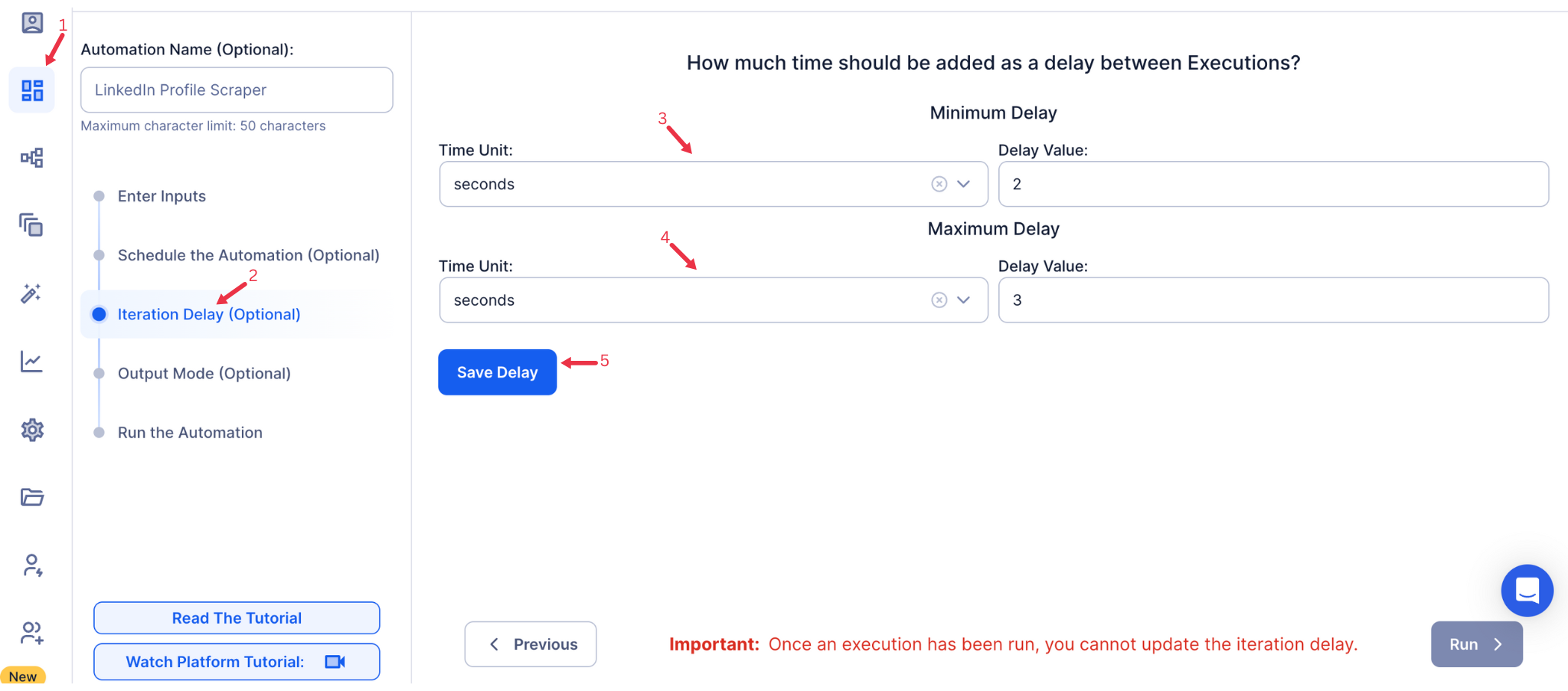
Step 5: Set an Iteration Delay (Optional)
Avoid detection and simulate human-like activity by setting an iteration delay. Choose minimum and maximum time intervals to add randomness between actions. This makes your activity look natural and reduces the chance of being flagged.
- Minimum Delay: Enter the shortest interval (e.g., 10 seconds).
- Maximum Delay: Enter the longest interval (e.g., 20 seconds).
Tip: Random delays keep your automation safe and reliable.
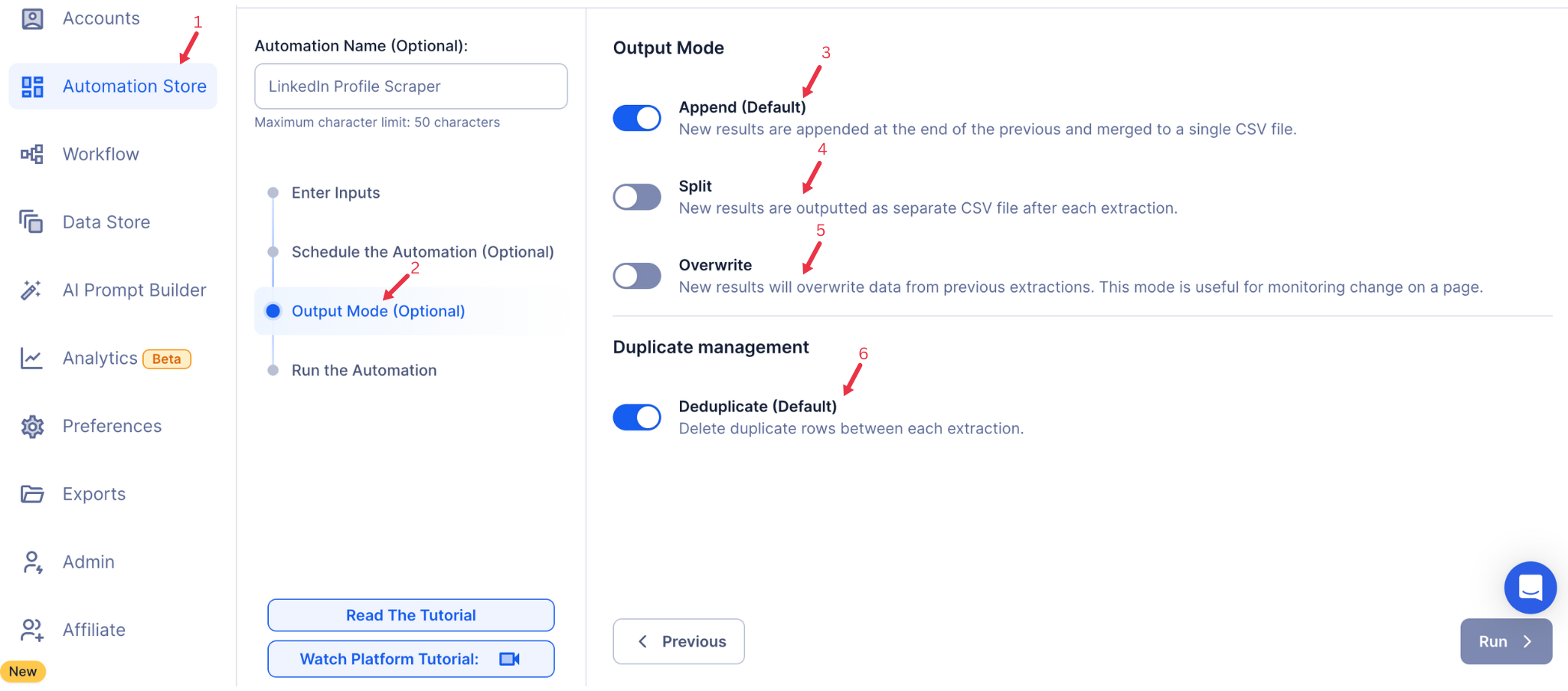
Step 6: Choose Your Output Mode (Optional)
Choose how to save and manage the extracted alumni data. TexAu provides the following options:
- Append (Default): Adds new results to the end of existing data, merging them into a single CSV file.
- Split: Saves new results as separate CSV files for each automation run.
- Overwrite: Replaces previous data with the latest results.
- Duplicate Management: Enable Deduplicate (Default) to remove duplicate rows.
Tip: Google Sheets export makes it easy to collaborate with your team in real time.
Step 7: Access the Cleaned Data from the Data Store
Once the automation completes, navigate to the Data Store section in TexAu. Locate the Google Business Name Cleaner automation and click See Data to view or download the cleaned business names.

The Google Business Name Cleaner automation ensures your business name data is accurate, professional, and ready for marketing or sales efforts. With configurable input sources, scheduling, and output options, TexAu simplifies bulk data cleaning for businesses of any size.
Run this automation on your own machine.
TexAu V2 Desktop runs every automation locally — your real session, your real IP, unlimited hours, no proxies. One-time $1,999, no subscription, 5 years of updates.